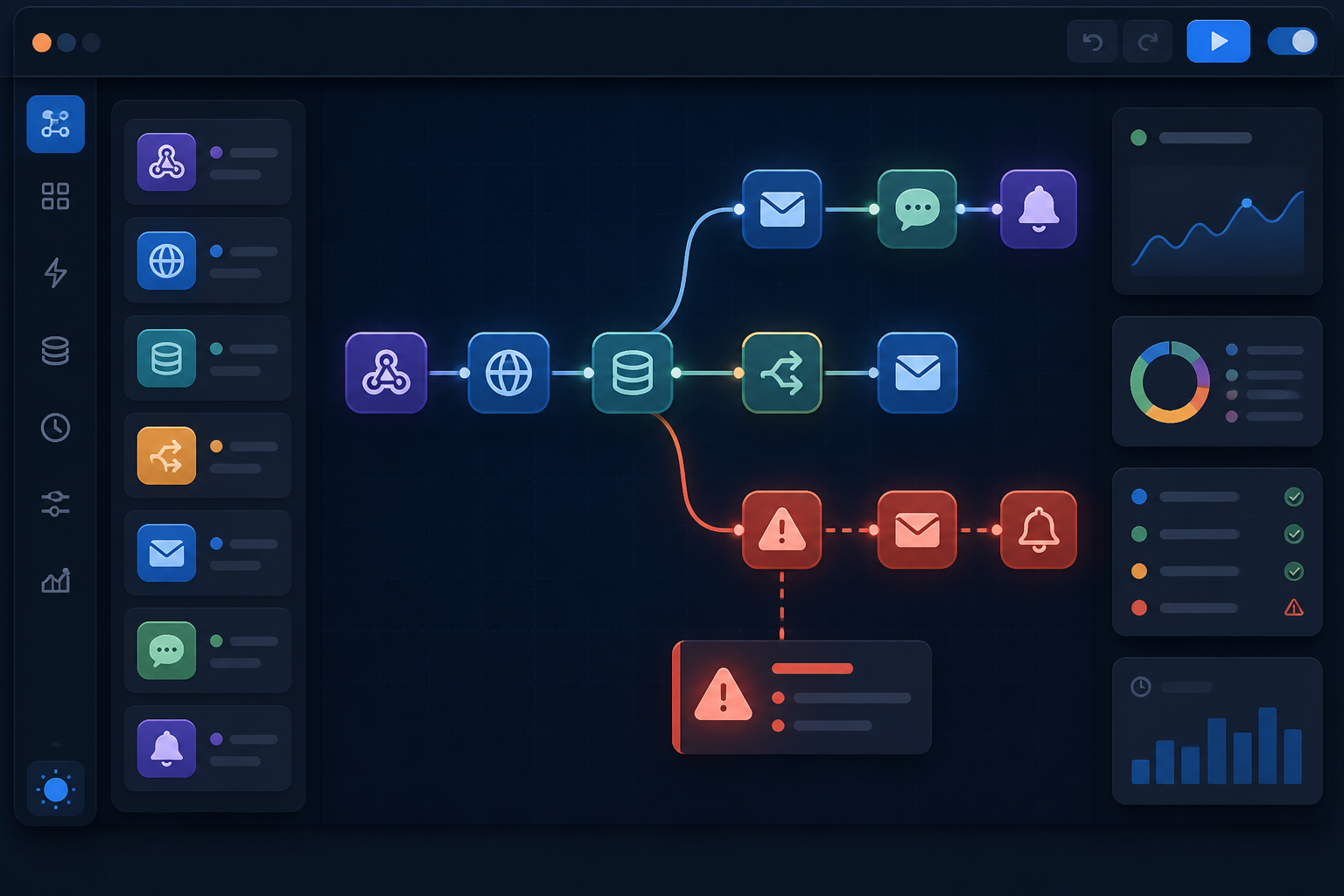
Automation often feels most useful when we don't have to think about it. Data comes in from a webhook, n8n calls an API, and then the results are forwarded to a spreadsheet, email, or WhatsApp. The problem is, an unattended workflow can fail without immediate notice. As a result, reports are delayed, messages are not sent, or data stops halfway.
This is where error handling becomes important. In the context of n8n, error handling is not just about adding a notification that says "workflow failed," but creating a specific path that explains what went wrong, in which workflow, and what steps need to be taken next.
Why do automated workflows need an emergency path?
Imagine an n8n workflow like a small production line. A webhook receives raw materials, an HTTP Request node fetches data from another service, and then the next node processes and sends the results. If one machine stops, the entire process can be delayed.
The causes can vary: expired API tokens, changed endpoints, JSON structure no longer matching, request limits reached, or the target service experiencing disruptions. Such errors are not always visible from the user's side. The workflow remains stored and appears active, but some tasks are left incomplete.
According to the official n8n documentation, an error workflow can be executed when the main workflow execution fails. This workflow can be reused for multiple workflows, for example, to send alerts to Slack or email. ([docs.n8n.io](https://docs.n8n.io/flow-logic/error-handling/))
Understanding Error Trigger in n8n
Error Trigger is a node that serves as the entry point for the error handling workflow. The workflow that uses it receives details about the failed execution, including the workflow name, the last node executed, the error message, and a link to execution details if the execution data is stored.
The simple pattern looks like this:
Main Workflow
Webhook → Fetch Data → Process Data → Send Results
                                      │
                                      └── failed
                                           ↓
Error Handler Workflow
Error Trigger → Format Message → Send Notification
It is important to note that the Error Trigger is not a node placed in the middle of the main workflow. It is used as the first node in a separate workflow specifically designed to handle failures.
How to create a useful error handler
1. Create a dedicated workflow for errors
Create a new workflow, then add Error Trigger as the first node. Give it a recognizable name, such as Error Handler - Operations. After that, add nodes to process the data and send notifications.
Notifications do not have to be lengthy. A practical format could be:
Workflow failed: {{ $json.workflow.name }}
Last node: {{ $json.execution.lastNodeExecuted }}
Message: {{ $json.execution.error.message }}
Execution ID: {{ $json.execution.id }}
The structure of the error data may differ if the failure occurs at the main trigger node. Therefore, do not assume that all properties are always available. Use checks for empty values or message formats that remain readable when one of the details is missing. ([docs.n8n.io](https://docs.n8n.io/flow-logic/error-handling/))
2. Connect from Workflow Settings
In the main workflow, open Options then Settings. In the Error workflow section, select the newly created handler workflow and save the settings.
This setting should first be applied to truly important workflows: order synchronization, invoice delivery, customer notifications, or processes that fetch data from external APIs. Not all small workflows need to have the same level of detailed notification paths.
3. Differentiate between regular alerts and critical incidents
One common mistake is sending all errors to a single WhatsApp group or Slack channel. After a few days, notifications will pile up, and people will start to ignore them.
It is better to categorize errors based on their impact:
- High priority: payments, orders, credentials, or customer data failed to process.
- Medium priority: delayed report synchronization, but can still be retried.
- Low priority: internal processes that do not change important data.
This is a design decision, not a built-in rule of n8n. The goal is simple: notifications should help humans determine actions, not just inform that something is broken.
Add context before sending notifications
The message "workflow failed" is too generic to aid investigation. Include at least four pieces of information:
- Workflow name.
- Last node that failed.
- Error message from the service or node.
- Execution ID or URL for further inspection.
If the workflow processes multiple items, also add a safe identifier for display, such as an internal order number or synchronization ID. Avoid including API tokens, passwords, full ID card contents, or complete personal data in notifications.
For more complex cases, add a logging node to a database, Data Table, or a dedicated incident spreadsheet. This way, the team can see patterns: whether errors only occur at one endpoint, appear every morning, or are always related to a specific type of data.
Use Stop And Error for intentional validation
Not all problems stem from nodes that "explode." Sometimes the workflow runs technically, but the incoming data is not suitable for processing. For example, the webhook does not have an order number or the API returns an unknown status.
In such conditions, use the Stop And Error node to halt the workflow with a deliberately crafted message. This way, the error handler receives a clearer reason than a generic message like "undefined field." The n8n documentation indeed provides this node to force execution to fail under specified conditions. ([docs.n8n.io](https://docs.n8n.io/flow-logic/error-handling/))
Don't forget the process after notifications
The error handler only informs that a problem occurred. It does not necessarily fix the problem automatically. After receiving a notification, check the execution details in the Executions tab. n8n also provides an option to retry failed executions, either using the updated workflow or the version of the workflow at the time of failure. ([docs.n8n.io](https://docs.n8n.io/workflows/executions/all-executions/?utm_source=openai))
For initial steps, create a brief procedure:
- Open execution details and note the failed node.
- Check if the error originated from data, credentials, or external services.
- Ensure that retrying the execution does not cause duplicate effects.
- Fix the cause, then retry only if it is safe.
- Document the solution so that the same error does not need to be investigated from scratch.
What you can do now
Choose one n8n workflow that is most important to your work. Create a simple Error Handler with Error Trigger, send notifications to a channel that is actively monitored, and then test with safe conditions—such as using Stop And Error on test data.
After that, evaluate the results. Does the message provide enough context? Is there any sensitive data included? Do the recipients of the notification know the next steps?
Mature automation is not a workflow that never fails. What is more realistic is a workflow that, when it fails, immediately gives a clear signal, keeps a trace for inspection, and does not leave the team guessing what happened.
Sources & further reading
– Rio Yotto @rioyotto