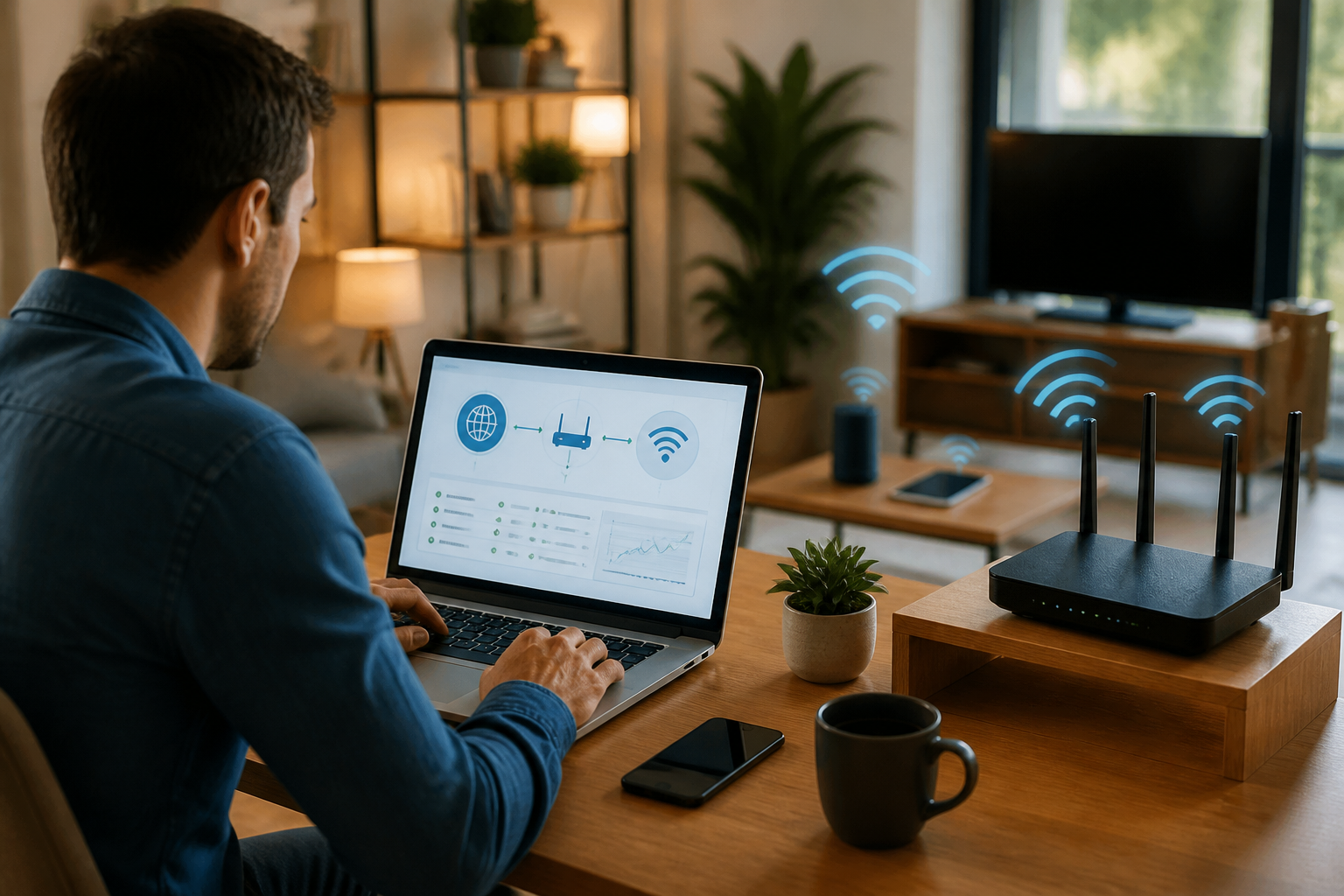
Slow Wi-Fi often leads people to immediately conclude that their internet plan is inadequate. In reality, issues can arise from an overloaded laptop, improper router placement, signal interference, or a single device quietly consuming bandwidth.
Instead of rushing to buy a more expensive plan or resetting the router multiple times, start by checking from the point closest to your device. This method helps identify the source of the problem without guessing.
First, Understand: What Does Slow Mean?
The term “slow Wi-Fi” can mean several things. Download speed being low makes opening websites, downloading files, or watching videos feel sluggish. Latency is the delay in communication between devices and servers. High latency is usually felt during online gaming, video calls, or using remote work applications.
There can also be issues with unstable connections. The speed may appear fine during tests, but the connection occasionally drops or experiences spikes in latency. Because the symptoms vary, the troubleshooting steps may not always be the same.
1. Compare Multiple Devices
Start with a simple question: is the problem occurring on just one device?
- If only the laptop is slow, the issue likely lies with the laptop, Wi-Fi adapter, applications, or settings.
- If all devices are slow, check the router, device placement, and internet service.
- If only one room has issues, focus on range and signal interference.
Try opening the same website from both a phone and a laptop at nearby times. This simple test is often more useful than immediately concluding that the entire network is at fault.
2. Check if the Device is Downloading Something
Laptops or phones can use the connection without being obvious. The operating system may be downloading updates, applications may be backing up photos, or cloud storage services may be syncing large folders.
Check active applications and network usage on the device. On computers, look at the list of processes using the network through the task manager or activity monitor. On phones, check data usage per application.
If there are large processes that are not urgent, pause them temporarily and then test the connection again. Don’t immediately delete applications just because they seem to be using the internet; first, ensure that the process is not currently needed.
3. Test Distance and Position from the Router
Wi-Fi signals weaken when passing through walls, floors, cabinets, or other large objects. Devices that are far from the router are also more likely to experience unstable connections.
Move the device to the same room as the router, then retest. If the connection improves, the issue is likely related to range, not the speed of the internet plan.
For everyday use, place the router in a relatively open and elevated position. Avoid placing it inside a cabinet, behind a television, or directly on the floor. A better position doesn’t always solve all problems, but it can reduce signal obstructions.
4. Try Another Wi-Fi Network if Available
Many modern routers provide more than one network or band. Generally, networks on higher frequencies can offer better speeds at close range, while lower frequencies are usually better at reaching farther areas. The results still depend on the devices, walls, and levels of interference around the home.
If two network options are available, try using a different network based on the conditions:
- Use the higher frequency network when close to the router and needing speed.
- Use the lower frequency network when farther away or blocked by several walls.
Don’t assume one option is always the best. Test in the locations you typically work or study.
5. Differentiate Between Wi-Fi Issues and Internet Issues
Wi-Fi is the connection between devices and the router. The internet is the connection from the router to the service provider. Both can have issues separately.
One way to differentiate is by using an Ethernet cable on a computer that has an Ethernet port. If the wired connection is much more stable than Wi-Fi, focus your checks on the wireless signal and settings. If the wired connection is also slow, the issue is more likely with the router, modem, or service from the internet provider.
You can also access the router's settings page to see if the device is still connected to the internet service. Menu names vary, but there is usually information regarding connection status or WAN connection.
6. Restart in the Correct Order
Restarting can help, especially when the router or modem is experiencing temporary abnormal conditions. However, do it in an orderly manner.
- Save your work and close important network activities.
- Turn off the router and modem if they are separate devices.
- Wait about a minute.
- Turn on the devices connected to the internet service first.
- Wait until the connection indicators are stable, then turn on the router.
- Test the connection again from one device.
Avoid pressing the factory reset button unless you are ready to reconfigure the network name, password, and other settings. Restart simply turns the device off and on, while reset can erase settings.
7. Check Devices Using Large Bandwidth
Smart TVs, security cameras, gaming consoles, work computers, and backup devices can use a lot of bandwidth at certain times. A single device uploading a video or backing up data can make other devices feel slow.
Open the list of connected devices in the router's app or administration page. Identify the devices that belong to you, then monitor the activities that are currently running. If there are unknown devices, change the Wi-Fi password and use the security methods available on the router.
What Does This Mean for Us?
Wi-Fi issues should be handled like a tiered check: starting from one device, then signal, router, and finally internet service. This order saves time because you don’t immediately change many things at once.
Note the results of each test: the devices used, testing locations, times, and whether the connection used Wi-Fi or wired. This simple record is useful if you need to contact the internet provider because you can explain the symptoms more specifically.
What You Can Do Now
- Test the connection from two different devices.
- Compare connections close to and far from the router.
- Pause cloud syncing or large downloads.
- Check the list of devices connected to the router.
- Try a wired connection if possible.
- Restart devices in sequence, not just factory reset.
With these steps, you can determine whether the issue lies with the device, router position, bandwidth distribution, or indeed the internet service itself. Upgrading to a more expensive plan only makes sense after the source of the problem is clearly identified.
– Rio Yotto @rioyotto