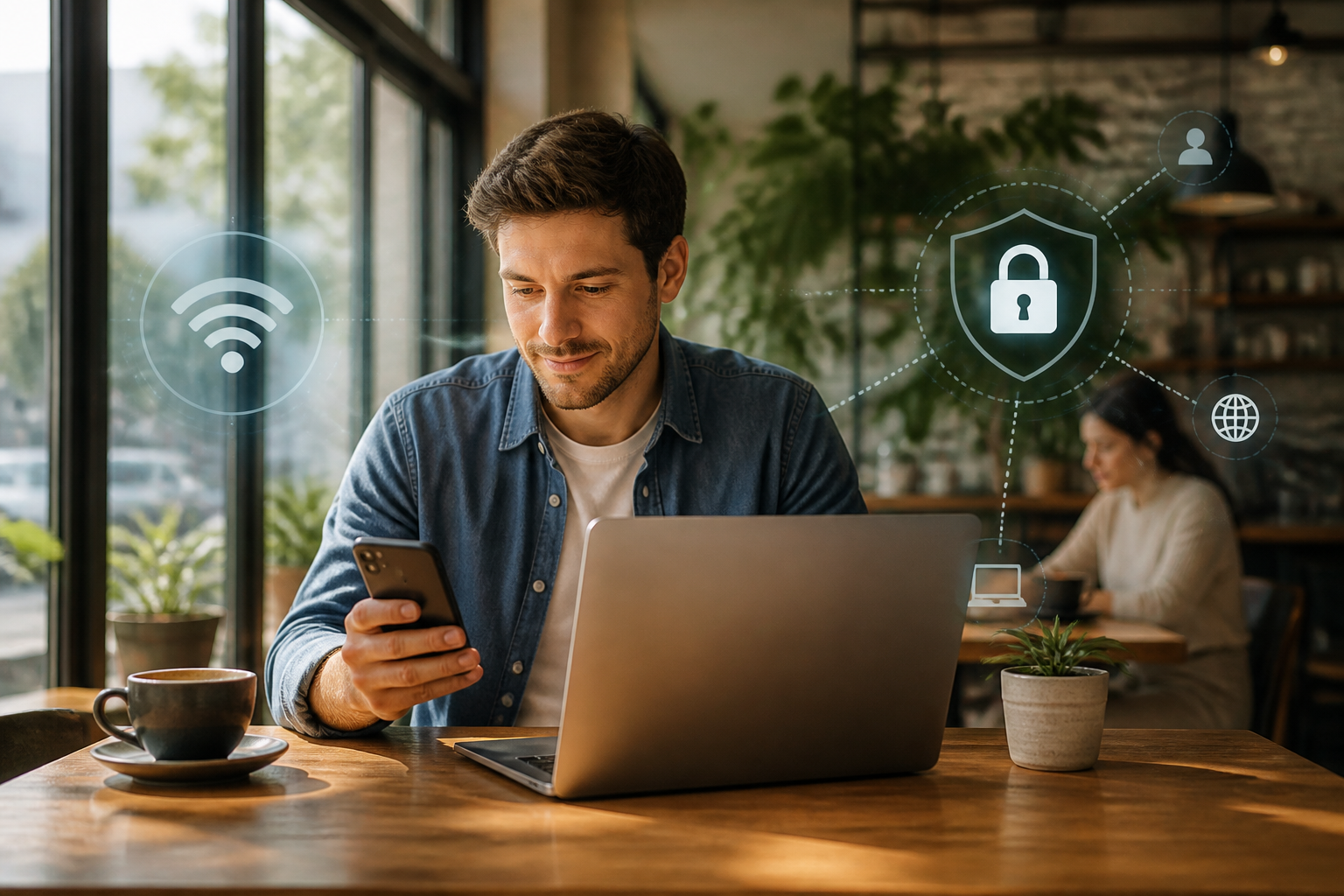
Public Wi-Fi often becomes a lifesaver when your internet quota is running low or cellular signals are poor. You can find it in cafes, hotels, airports, campuses, hospitals, and waiting rooms. The problem is, the name of a Wi-Fi network that looks official may not actually belong to that place.
This doesn't mean all public Wi-Fi is dangerous. However, networks used by many people require us to be more cautious, especially when accessing email, social media, shopping apps, or banking services.
Why Should Public Wi-Fi Be Treated Differently?
When using home Wi-Fi, we usually know who set up the network and who is allowed to connect. In public places, the situation is different. Many people can use the same network, and we often don't know how that network is configured.
The risks are not just that someone can “read everything on your phone.” A more common risk is simpler: we connect to a fake network, are directed to a phishing login page, or forget that our device still automatically connects to that Wi-Fi on subsequent visits.
For example, in a cafe, there is a network named CafeGuest. Someone could create another network with a nearly identical name, like CafeGuest_Free, and wait for visitors to make the wrong choice. From there, users could be directed to a page asking for their email, phone number, or password.
Check the Network Name Before Connecting
Don't just choose the Wi-Fi name with the strongest signal. Ask the staff at the location for the correct network name and if there is a specific password.
Pay attention to the following:
- Does the network name match the official information at the location?
- Are there multiple networks with similar names?
- Does the network ask for unreasonable data, such as an ATM PIN or main email password?
- Does the login page use a clear and reasonable website address?
If in doubt, it's better to use mobile data. A little data used is usually cheaper than losing access to email or important accounts.
Don't Enter Sensitive Information Carelessly
Public Wi-Fi should be used for low-risk activities, such as reading news, searching for addresses, checking travel schedules, or sending regular messages.
For sensitive activities, use a more trusted connection. For example:
- Internet banking and digital payments.
- Changing email or social media passwords.
- Sending identity documents.
- Accessing work dashboards that contain customer data.
- Downloading important files from cloud storage services.
If you must perform those activities, use your personal mobile data. On many phones, you can also enable personal hotspot and connect your laptop to the network from your phone.
Ensure the Website Address is Correct
A padlock next to a website address is not a guarantee that a site is safe or official. The padlock usually indicates that the connection to the site is encrypted, but scammers can also create fake sites that use encrypted connections.
Therefore, check the website address thoroughly. Be wary of addresses that:
- Use brand names with odd additional words or symbols.
- Have misspellings, such as one letter different from the official address.
- Ask you to enter a password through a link sent unexpectedly.
- Use shortened addresses that hide the true destination.
To access important services, it's safer to type the website address yourself or use its official app, rather than following suspicious links from the Wi-Fi page.
Turn Off Automatic Connections
One of the most useful habits is to turn off the feature that allows your phone to automatically connect to Wi-Fi networks you've used before. If left on, your device could try to connect without your knowledge when you return to the same location.
On both Android and iPhone, the settings can be found through the Wi-Fi menu. The menu name may vary slightly depending on the brand and version of the operating system. Look for options like Auto-Join, Connect Automatically, or Automatic Connection.
After using public Wi-Fi, select the Forget Network option if you won't use that network again. This helps prevent your phone from reconnecting automatically.
Don't Ignore Updates and Screen Locks
Operating system and app updates are not just about new features. Some updates fix security vulnerabilities. Therefore, avoid delaying updates for too long, especially for browsers, operating systems, and apps that store important information.
Also, ensure your phone uses a screen lock, such as a PIN, password, or biometric lock. Public Wi-Fi won't help others access data if your device is left behind and cannot be easily unlocked.
Use Two-Step Verification
Two-step verification adds a second check after the password. For example, in addition to entering a password, you need to approve a notification on your phone or enter a code from an authenticator app.
This feature doesn't make accounts immune to all attacks, but it can make it harder for others to log in with just a leaked password. Enable it especially for your main email, financial accounts, social media, and file storage services.
What Does This Mean for Us?
Public Wi-Fi is not something to always avoid. The key is to adjust your activities according to the trust level of the network. Reading articles is usually not as risky as changing your email password or transferring money.
Think of public Wi-Fi like a shared table in a waiting room. You can use it for light work, but don't leave valuable items unattended.
What You Can Do Now
- Check your Wi-Fi settings and turn off automatic connections for public networks.
- Remove old networks that are no longer in use.
- Enable screen locks on your phone and laptop.
- Turn on two-step verification for your main email.
- Save banking apps and important services to use via mobile data or trusted networks.
With these simple habits, you can still take advantage of free Wi-Fi without considering all networks as safe places to do anything.
– Rio Yotto @rioyotto