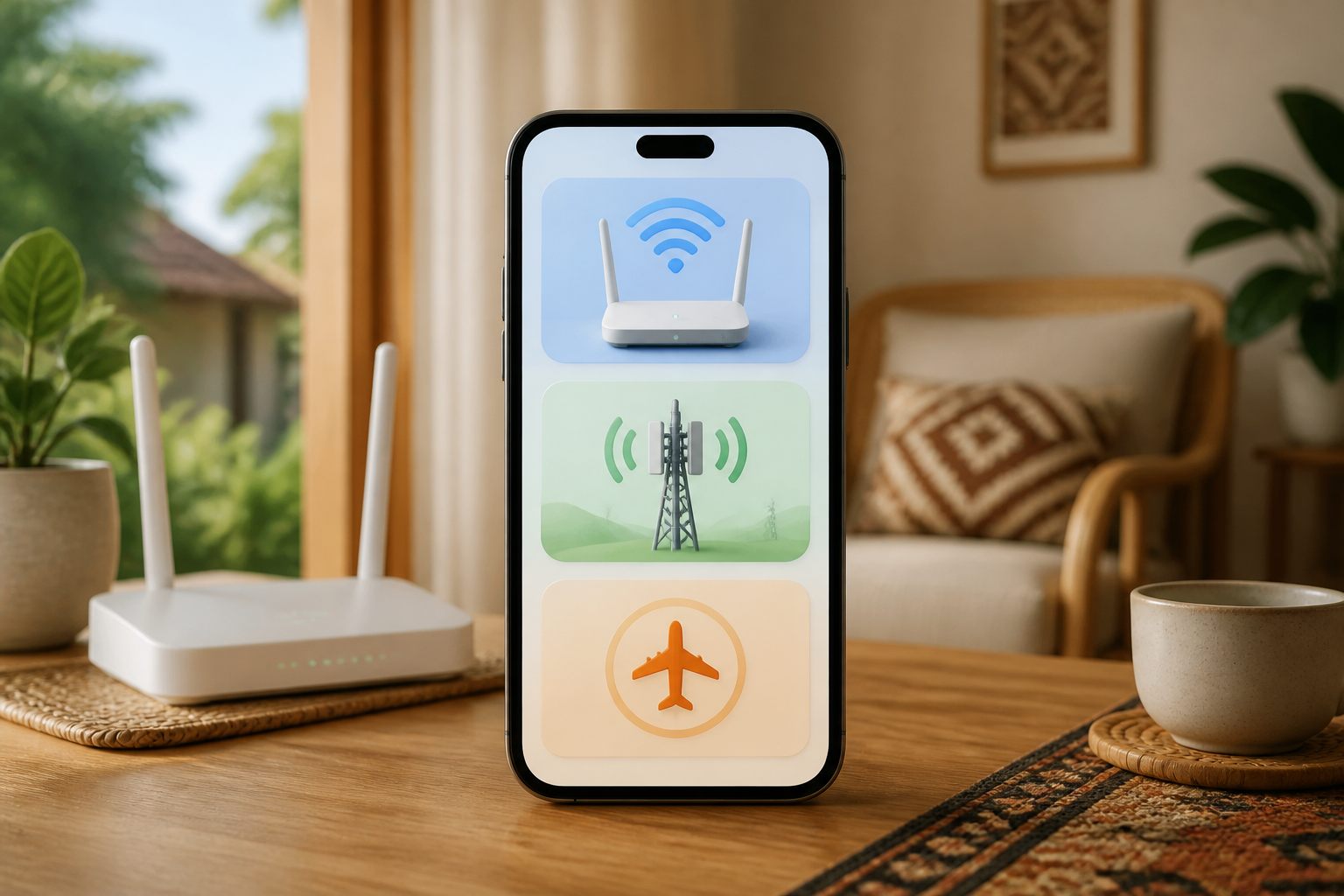
These three buttons are almost always present on the phone's shortcut screen: Wi-Fi, cellular data, and airplane mode. The problem is, they are often all considered as "internet" buttons. As a result, people can get confused when Wi-Fi is connected but they can't open WhatsApp, data suddenly runs out, or the phone suddenly doesn't receive calls.
Understanding the differences doesn't require technical knowledge. Think of the phone like a house. Wi-Fi is the internet connection from home or office, cellular data is the exit through the operator's network, while airplane mode is the button to turn off almost all wireless connections at once.
Wi-Fi: internet from routers around us
Wi-Fi connects the phone to a router, which is a device that shares the internet connection with multiple devices. Routers are usually found in homes, offices, schools, cafes, hotels, or public places.
If the phone is connected to home Wi-Fi, internet usage generally does not reduce cellular data quota. This is why many people prefer Wi-Fi for watching videos, updating apps, or downloading large files.
However, the Wi-Fi icon is not a guarantee that the internet is available
The phone may show the Wi-Fi icon, but the internet from the router may be having issues. For example, the internet cable may be unplugged, the bill may not be paid, or the router may need to be restarted. So, there is a difference between:
- Connected to Wi-Fi: The phone has successfully communicated with the router.
- Connected to the internet: The router has successfully accessed internet services.
If Wi-Fi is connected but apps cannot be opened, try opening several other sites or apps. If everything fails, the problem may lie with the router or internet service, not the phone.
When should you use Wi-Fi?
- When at home or in the office with a trusted network.
- When downloading large app updates.
- When backing up photos or videos.
- When watching videos for an extended period.
Avoid entering sensitive passwords or accessing banking services over public Wi-Fi that is unclear in security. If you must use it, ensure the website address is correct and do not store sensitive information on public devices.
Cellular data: internet from the SIM card
Cellular data uses the operator's network through a SIM card or eSIM. As long as there is a signal and an internet package available, the phone can connect to the internet without Wi-Fi.
Cellular data is useful when traveling, in places without Wi-Fi, or when the Wi-Fi network is having issues. The downside is that data usage is usually limited by the quota package. Videos, video calls, app updates, and photo backups can consume the quota faster than reading text messages.
Why can the quota decrease without notice?
Some apps continue to work in the background. This means that apps perform activities even when they are not open, such as checking messages, downloading photos, syncing files, or updating information.
To save data, open the phone settings and look for sections like Network, Internet, Cellular Data, or Data Usage. The menu names may vary depending on the brand and operating system. From there, you can usually see which apps are using the most data.
Simple steps you can try:
- Turn off cellular data when using stable Wi-Fi.
- Set app updates to only run over Wi-Fi.
- Use lower video quality when using cellular data.
- Limit background activity for rarely used apps.
- Check data usage regularly, for example, once a week.
Airplane mode: not just for flying
Airplane mode turns off most of the phone's wireless connections, especially the cellular network. Therefore, when this mode is active, the phone usually cannot receive calls or SMS, and cellular data is also turned off.
Its name is indeed “airplane mode,” but this feature is also useful in other situations. For example, when you want to rest without phone interruptions, when the phone is experiencing signal issues, or when you want to quickly restart the network connection.
Airplane mode can help when the signal is problematic
If the phone keeps showing “searching for network” or the signal suddenly disappears, activate airplane mode for about 10–20 seconds and then turn it off again. This method forces the phone to search for the operator's network again.
Airplane mode can also help when the phone is ringing too often due to notifications. However, don't forget to turn it off again if you still need to receive important calls or messages.
Does Wi-Fi and Bluetooth always turn off?
On many modern phones, airplane mode turns off Wi-Fi and Bluetooth when first activated. However, users can usually turn them back on manually. Therefore, airplane mode does not always mean all connections are completely off.
If you want to be completely disconnected, check the Wi-Fi, Bluetooth, and cellular data icons after activating airplane mode.
If the internet isn't working, check the order
When apps cannot connect, don't immediately conclude that the phone is broken. Try the following simple checks:
- Check the active connections. Is the phone using Wi-Fi or cellular data?
- Check the signal icon. A very weak signal can make the internet unstable.
- Turn off and on the connection. Disable Wi-Fi or cellular data, wait a few seconds, then turn it back on.
- Try another app. If only one app is having issues, the disruption is likely in that app.
- Restart the phone. This simple step often resolves temporary connection issues.
- Check the quota. Cellular data will not work if the quota is exhausted or the package validity period has ended.
What you can do now
Take a minute to open the phone's shortcut panel. Familiarize yourself with the Wi-Fi, cellular data, and airplane mode icons. After that, try checking the data usage settings and see which apps are consuming the most quota.
The goal is not to memorize technical terms, but to understand the “path” the phone uses to connect to the internet. Knowing whether the connection comes from a router or an operator will make it easier to determine the steps when the internet is slow, the quota runs out quickly, or calls suddenly do not come through.
In summary: Wi-Fi uses the router network, cellular data uses the operator network, and airplane mode disconnects most wireless connections. These three buttons are simple, but understanding their functions can make phone usage much calmer and more controlled.
– Rio Yotto @rioyotto