Many people feel confused when the internet on their phone suddenly stops working. The Wi-Fi icon appears to be on, but web pages won't load. Or there is still plenty of data left, but apps continue to display the message "no connection." Often, the problem is not a major malfunction, but rather that we do not understand the connection path being used.
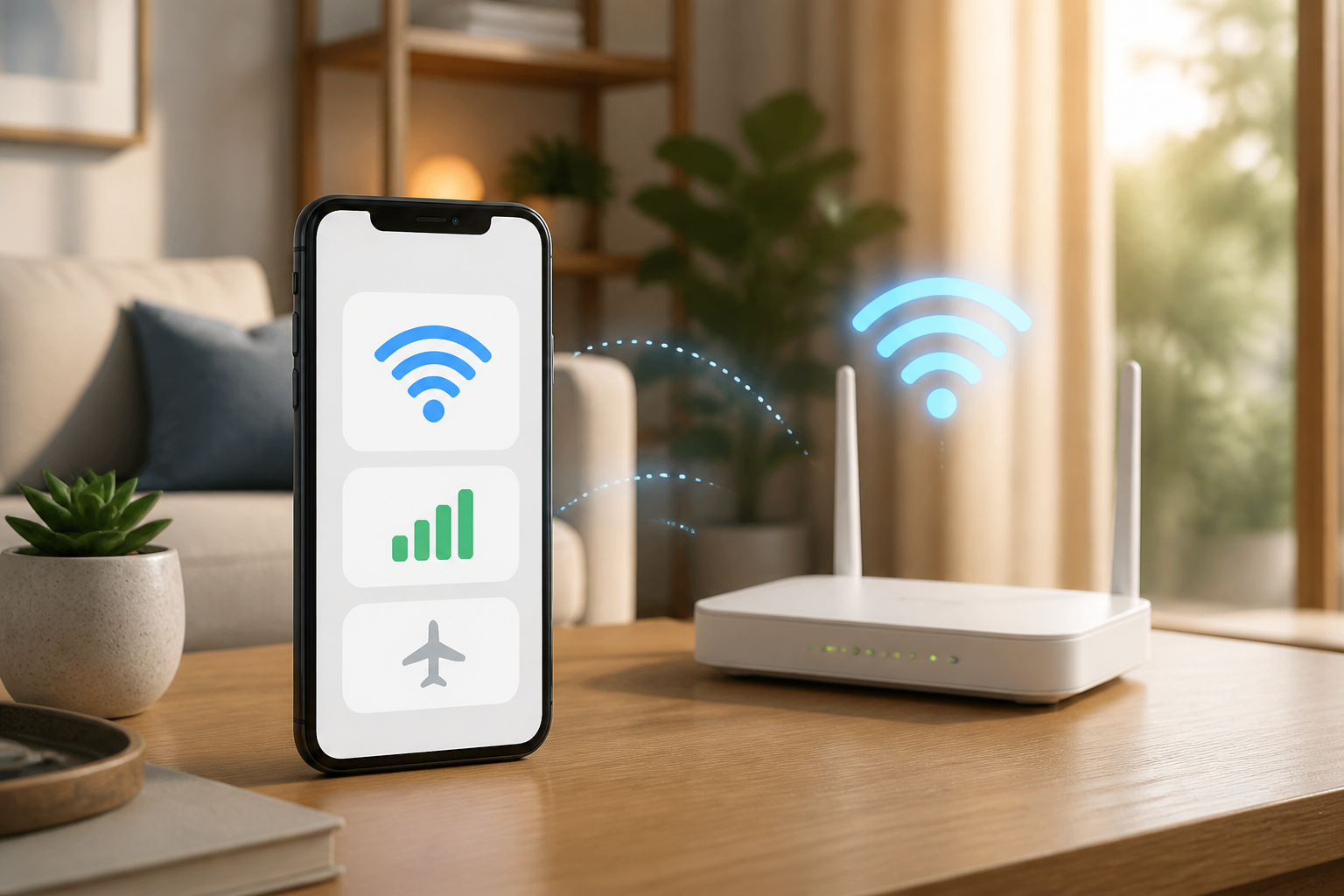
Smartphones typically connect to the internet through two main channels: Wi-Fi and cellular data. There is also airplane mode, which temporarily disconnects almost all wireless connections. Understanding these three aspects will help you remain calm when connection issues arise and help avoid unintentional data usage.
What is the difference between Wi-Fi and cellular data?
Wi-Fi is an internet connection through a transmitter network around you. At home, Wi-Fi usually comes from a router. In offices, schools, cafes, or hotels, Wi-Fi is also provided through similar devices.
When your phone is connected to Wi-Fi, the internet typically does not use data from your SIM card. However, this does not mean that Wi-Fi is always free or always secure. Wi-Fi networks can still have speed limits, usage caps, or require certain payments.
Meanwhile, cellular data is the internet provided by operators through 4G or 5G networks. This connection uses data from your SIM card or internet package. Cellular data is useful when there is no Wi-Fi, but its usage needs to be monitored because videos, app updates, and photo backups can quickly consume data.
Why is Wi-Fi connected but the internet is not working?
The lit Wi-Fi icon only means that the phone has successfully connected to the router. That icon does not guarantee that the router is connected to the internet.
Imagine Wi-Fi as a door to the highway. Your phone is at the door, but the road outside may be closed or experiencing disruptions. Therefore, there are several possibilities when Wi-Fi is connected but the internet cannot be used:
- The router is not connected to the internet service.
- The network is experiencing disruptions from the service provider.
- The Wi-Fi signal is too weak because you are too far from the router.
- The network requires re-login, for example, in hotels, campuses, or public places.
- The problem only occurs with one app, not the connection as a whole.
The simplest way to check is to open two or three different sites or apps. If none of them can be opened, the problem is likely with the connection. If only one app is problematic, that app may need to be updated, closed, or is experiencing its own issues.
When does the phone use Wi-Fi and when does it use data?
Generally, the phone will prioritize Wi-Fi when it is connected. However, this behavior can vary depending on the phone brand and settings used. Some devices have features that automatically switch to cellular data when the Wi-Fi signal is considered poor.
Such features are indeed practical, but they can lead to data being used unknowingly. For example, if the Wi-Fi at home weakens in the back room, the phone may quietly use cellular data to continue streaming a video or downloading a file.
If you want to be safer, check the network settings and look for options with names like Wi-Fi Assist, Smart Wi-Fi, Switch to mobile data, or similar terms. Not all phones use the same names. If you often run out of data without knowing why, this automatic switching feature is worth checking.
Airplane mode is not just for flying
Airplane mode is a setting that turns off cellular, Wi-Fi, and Bluetooth connections simultaneously or almost simultaneously. Its name comes from the need to turn off wireless signals while on an airplane, but this feature is also useful in everyday life.
One of its uses is to refresh the connection. If the phone is having trouble getting a signal or cellular data is not working, turn on airplane mode for about 10 seconds, then turn it off again. The phone will try to search for the network from the beginning.
Airplane mode is also useful when you want to:
- Save battery in certain situations.
- Avoid disturbances from calls and notifications while sleeping or in meetings.
- Use the phone without an internet connection, for example, to read downloaded files.
- Avoid data charges when abroad before purchasing a roaming package.
After turning off airplane mode, check again whether Wi-Fi and cellular data are active as needed. On some phones, Wi-Fi can be turned back on manually even while airplane mode is still active.
Steps to take when your phone's internet is problematic
Instead of immediately deleting apps or changing many settings, start with the simplest checks.
- Check the connection icon. See if the phone is using Wi-Fi, cellular data, or is not connected at all.
- Try opening different sites. This helps distinguish connection issues from problems with specific apps.
- Turn off and on Wi-Fi or cellular data. Wait a few seconds before turning it back on.
- Use airplane mode for a moment. This method can help the phone search for the network again.
- Check your data quota and package validity. Full signal does not always mean internet quota is still available.
- Get closer to the router if using Wi-Fi. Thick walls and distance can weaken the signal.
- Restart the phone. A simple restart sometimes resolves temporary disruptions.
What you can do now
Take a few minutes to familiarize yourself with the connection settings on your phone. Open the settings menu, then look for sections like Wi-Fi, Cellular Network, or Connections. Note the names of the Wi-Fi networks you usually use and find the location to view data usage.
You can also set data usage limits or quota alerts. This feature does not always disconnect the internet accurately like the operator's system, but it is helpful as a reminder to avoid excessive usage.
If you live with family, keep the Wi-Fi name and password in a safe place. Do not stick the password in a location that is easily visible to outsiders. For public networks, avoid doing important activities like opening bank accounts unless absolutely necessary.
What does this mean for us?
Understanding internet connections does not mean you have to understand how networks work technically. What is important is knowing which connection is being used, who is paying for it, and what to check when the connection fails.
With these simple habits, you can reduce unintentional data usage, remain calm when Wi-Fi issues arise, and more quickly determine whether the disruption comes from the phone, router, operator, or a specific app.
– Rio Yotto @rioyotto