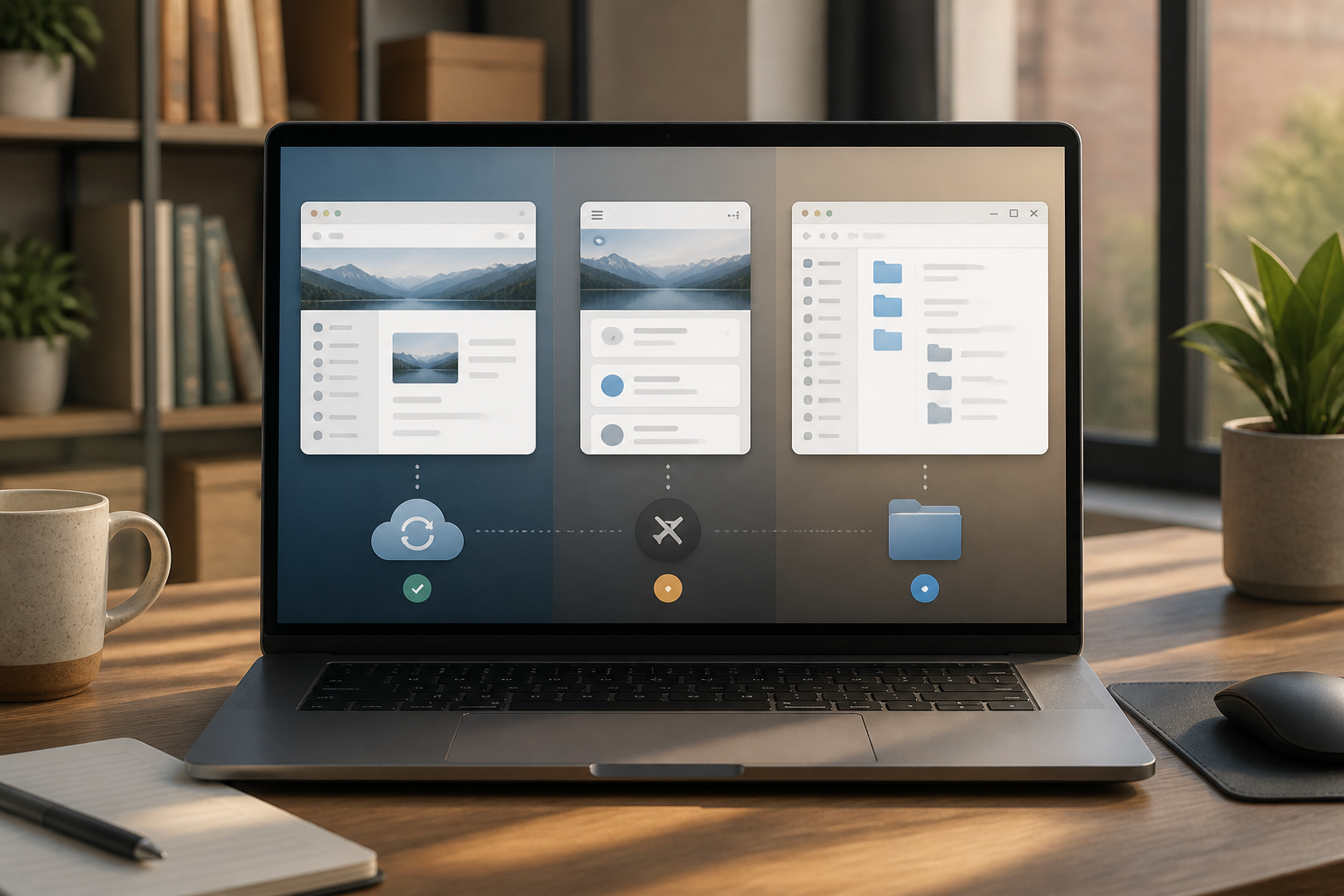
Many people install desktop applications simply because there is a "Download" button, yet continue to use the browser version for the same tasks. Conversely, some force all their needs into the browser, even when their work requires access to local files, consistent notifications, or offline usage.
Choosing between web applications, PWAs, and desktop applications is not about which is the most modern. The right choice depends on the type of work, the devices used, offline needs, and how much access is appropriate to grant to the application.
Three Types of Applications Often Considered the Same
1. Web Applications
Web applications run in browsers like Chrome, Edge, Firefox, or Safari. Their main data and processes usually rely on servers, so users do not need to manually install updates.
The main advantage is flexibility. You can switch computers and continue working as long as you can log into your account. For services like business dashboards, email, collaborative documents, and administrative systems, this model is often sufficient.
The downside is that the experience can be disrupted when the connection is poor, there are too many tabs open, or the browser limits notifications and device access. Some functions also do not perform as well as applications specifically designed for certain operating systems.
2. Progressive Web Apps or PWAs
PWAs are web applications that have been enhanced to look and behave more like installed applications. The web app manifest informs the browser about the name, icon, and behavior of the application. Many PWAs also use service workers, which are components that can store certain assets so that the application remains responsive when the connection is limited.
However, a PWA does not automatically mean that all features can work offline. Offline capability depends on what the developer has intentionally prepared. Similarly, installation support and device integration can vary between browsers and operating systems. MDN documentation emphasizes that the manifest is crucial for making a web app installable, while service workers are often used for offline experiences, but are not the sole requirement for installation.
On Windows, for example, PWAs can be installed through Microsoft Edge and opened in a separate window. Users can get an icon in the Start Menu or taskbar, but the capabilities of the PWA still depend on the support of the browser and the application itself.
3. Desktop Applications
Desktop applications are installed directly on Windows, macOS, or Linux. Some are built with native operating system technologies, while others use cross-platform frameworks like Electron.
The advantage is closer access to the system: file management, keyboard shortcuts, notifications, camera, microphone, or background processes can be made more consistent. The downside is that desktop applications need to be updated, take up storage space, and may bring additional components like browser engines and runtimes.
Electron, for example, combines Chromium, Node.js, and application code into one package. This model helps developers create applications for multiple operating systems, but also increases security responsibilities. Electron documentation reminds that applications have stronger access than regular web pages, so runtime updates, sandboxing, context isolation, and remote content restrictions need to be considered.
Don't Choose Based Solely on Labels
The label "desktop" does not automatically mean faster. The label "PWA" does not automatically mean lighter. What matters is the usage pattern and design of the application.
- For work that involves switching devices: the web version is usually the most practical since it does not require reinstallation.
- For light and routine tasks: PWAs can provide quick access without taking up storage like large applications.
- For intensive work: such as video editing, code development, managing multiple files, or using complex shortcuts, desktop applications are usually more comfortable.
- For work that requires a stable connection: the web version is sufficient, as long as network disruptions do not cause data loss.
- For work often done without the internet: check specific offline documentation. Do not conclude just because the application can be installed.
Four Questions to Ask Before Installing an Application
1. Does the application really need device access?
If it only involves reading data, filling out forms, or managing projects, browser access may be sufficient. If the application needs to read local folders, process audio, use the camera, or monitor specific processes, the desktop version may offer a better experience.
2. What happens when the connection is lost?
Try a simple scenario: open a document, turn off Wi-Fi, then see if you can continue working and save. "Can be opened" is different from "can be fully used offline." This is important for field workers, travelers, or anyone who often works from unstable networks.
3. Who manages the updates?
In web applications, updates usually occur on the server side. In desktop applications, updates may run automatically, but users still need to ensure that the version they are using is still supported. Electron-based applications, in particular, need to follow updates for components like Chromium and Node.js because vulnerabilities in those components can affect the application.
4. How sensitive is the data being processed?
Check the application's permissions. Simple note-taking applications do not always need access to entire folders, system shells, or background services. For desktop applications, download from official sites or trusted app stores. For web applications and PWAs, ensure the address is correct and the connection uses HTTPS.
Practical Rules to Follow
Use web versions as a starting point when your needs center around synchronization and access from multiple devices. Choose PWA if you want quick access, a custom icon, and a separate window without installing a large desktop package.
Choose desktop applications if your work relies on local files, intensive shortcuts, more consistent performance, specific devices, or more serious offline usage. For applications handling sensitive data, also consider the developer's reputation, update frequency, permissions, and how data is stored.
What You Can Do Now
- Note the three main tasks you perform in the application.
- Mark whether each task requires the internet, access to local files, notifications, or offline capabilities.
- Try the web version first for one or two days.
- Install the PWA if available and compare its convenience with the browser tab.
- Install the desktop application only if there are needs that are truly unmet by the previous two options.
- After installation, check permissions, automatic update settings, and data storage locations.
In conclusion, the best application is not always the one with the most features or the one that looks the most "serious." For many needs, a web app is sufficient. PWAs are suitable as a middle ground. Desktop applications are worth choosing when device integration, performance, or offline work is indeed an important part of the workflow.
References: MDN on PWA installation, Microsoft on PWAs in Edge, and Electron Security Documentation.
Sources & Further Reading
- MDN: Making PWAs installable
- Microsoft Support: Apps and widgets that depend on Microsoft Edge
- Electron Security Documentation
- Electron Context Isolation
– Rio Yotto @rioyotto