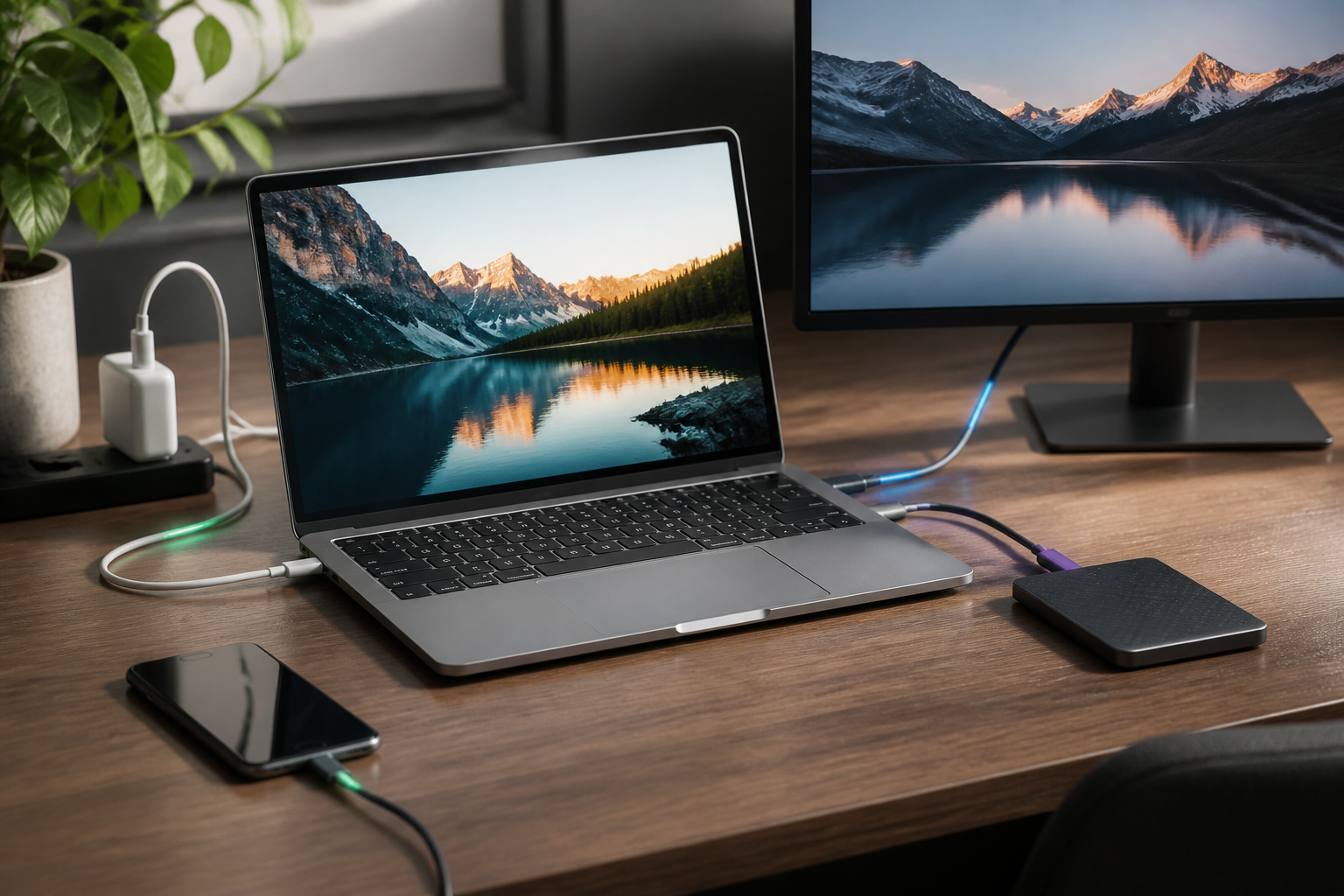
USB-C connectors may look uniform, but their capabilities are not necessarily the same. One port might only be used for charging and basic data transfer, while another supports external monitors, high-speed file transfers, and even laptop charging.
That's why the label "USB-C" on the box or device body is not enough to base your purchase on. What you need to read is the complete capabilities: data standards, charging support, display features, and the specifications of the cables used.
USB-C is a connector shape, not a speed guarantee
USB-C refers to the connector shape and its connection system. It is not a single name for one speed level. USB-C ports can use USB 2.0, USB 3.2, USB4, or other compatible protocols.
In practice, two cables with the same USB-C ends can have vastly different capabilities. The first cable may only be suitable for charging and basic data transfer. The second cable may be designed for high-speed transfer and substantial power delivery.
USB-IF, the organization that develops USB standards, also emphasizes that USB Type-C, USB 3.2, USB4, and USB Power Delivery are not interchangeable terms. Each refers to different aspects of connection capabilities.
Three things to separate
1. Data speed
Data speed determines how quickly files move between devices. Numbers like 480 Mbps, 5 Gbps, 10 Gbps, 20 Gbps, or 40 Gbps usually indicate the maximum theoretical capability.
The actual numbers can be lower due to factors such as devices, storage types, cable length, cable quality, and the systems used. If a laptop supports USB4 but an external SSD only uses USB 3.2, the connection will follow the lower capability.
USB4 itself is designed to combine various types of traffic, including data and display, through a single USB-C connection. In certain implementations, USB4 can reach up to 80 Gbps, but that number does not automatically apply to all USB-C shaped ports.
2. Power delivery capability
USB Power Delivery or USB PD is a protocol that governs power negotiation between chargers and devices. With this protocol, chargers and devices can determine the appropriate voltage and current, rather than just flowing power indiscriminately.
USB PD version 3.1 expands charging capabilities up to 240 watts with compatible cables and devices. However, the 240-watt figure does not mean every USB-C charger can deliver that amount of power. Phones, tablets, laptops, and monitors still have their own needs and limits.
For everyday use, pay attention to labels like 20W, 45W, 65W, or 100W on chargers. If you want to charge a laptop, don't just look at the number of ports. Also check the maximum power on the port you will use.
3. Display support
Some USB-C ports support DisplayPort Alt Mode, which is the ability to send image signals through the USB-C port. This feature allows laptops to connect to monitors using a single cable, sometimes even carrying data and power simultaneously.
However, not all USB-C ports support video output. Ports on phones, tablets, or laptops that look the same may only be used for charging and data transfer. If you want to use an external monitor, check the device specifications for terms like DisplayPort over USB-C, video output, or Thunderbolt.
Why cables often become a point of issue?
Many people check the specifications of laptops and chargers but forget about the cables. However, cables also have capability limits. A USB-C cable designed only for USB 2.0 will not suddenly become a USB4 cable just because it is connected to a modern device.
For USB-C to USB-C cables that follow the USB-IF compliance program, power capability markings like 60W or 240W are used to help buyers recognize their capacity. High-capacity cables may also have different data speed markers.
The problem is that marketplace descriptions often use terms like "super fast," "high speed," or "support 100W" without explaining the full specifications. These terms should not be taken as proof that the cable supports the highest speeds.
How to read specifications before buying
- Start with your device needs. If it's just for charging a phone, your needs are different from someone wanting to transfer large videos to an SSD or connect a 4K monitor.
- Check the capabilities of your device's ports. Look for official specifications with terms like "USB 3.2," "USB4," "Thunderbolt," "Power Delivery," or "DisplayPort."
- Check the charger power on specific ports. Chargers with multiple ports often share power when multiple devices are used simultaneously.
- Check cable specifications separately. Ensure there are power and data speed indications, not just the label "USB-C to USB-C."
- Don't equate short and long cables. Longer cables may have different performance limits, especially for high-speed data transfer.
- Use the right cable for important devices. For laptops, docks, monitors, or external SSDs, choosing certified cables or those from trusted manufacturers usually makes more sense than chasing the lowest price.
What does this mean for us?
USB-C does simplify the connector shape, but it hasn't simplified how to read specifications. If a device fails to charge quickly, a monitor doesn't display an image, or file transfers feel slow, the cause may not necessarily be a faulty device. It could be that the port or cable used indeed has lower capabilities.
The safest approach is to match the three components: device capabilities, charger or accessory capabilities, and cable capabilities. The connection will only work at the lowest capability level among the three.
USB-C is a door shape. Data speed, power, and display features are determined by the "contents" behind that door.
What you can do now
Take the most frequently used cable at home, then check if its capabilities are accurately labeled. After that, open the specifications page for your laptop or phone and note which ports support fast charging, high data transfer, or video output.
This small step helps avoid purchasing incompatible accessories. You may not need the most expensive cable, but you do need the right cable for the job you want to do.
Sources & further reading
- USB-IF — USB Type-C and Cable Connector Guidance
- USB-IF — USB Charger and USB Power Delivery
- USB-IF — USB4 Specification Overview
- USB-IF — USB Type-C Language and Packaging Usage Guidelines
– Rio Yotto @rioyotto