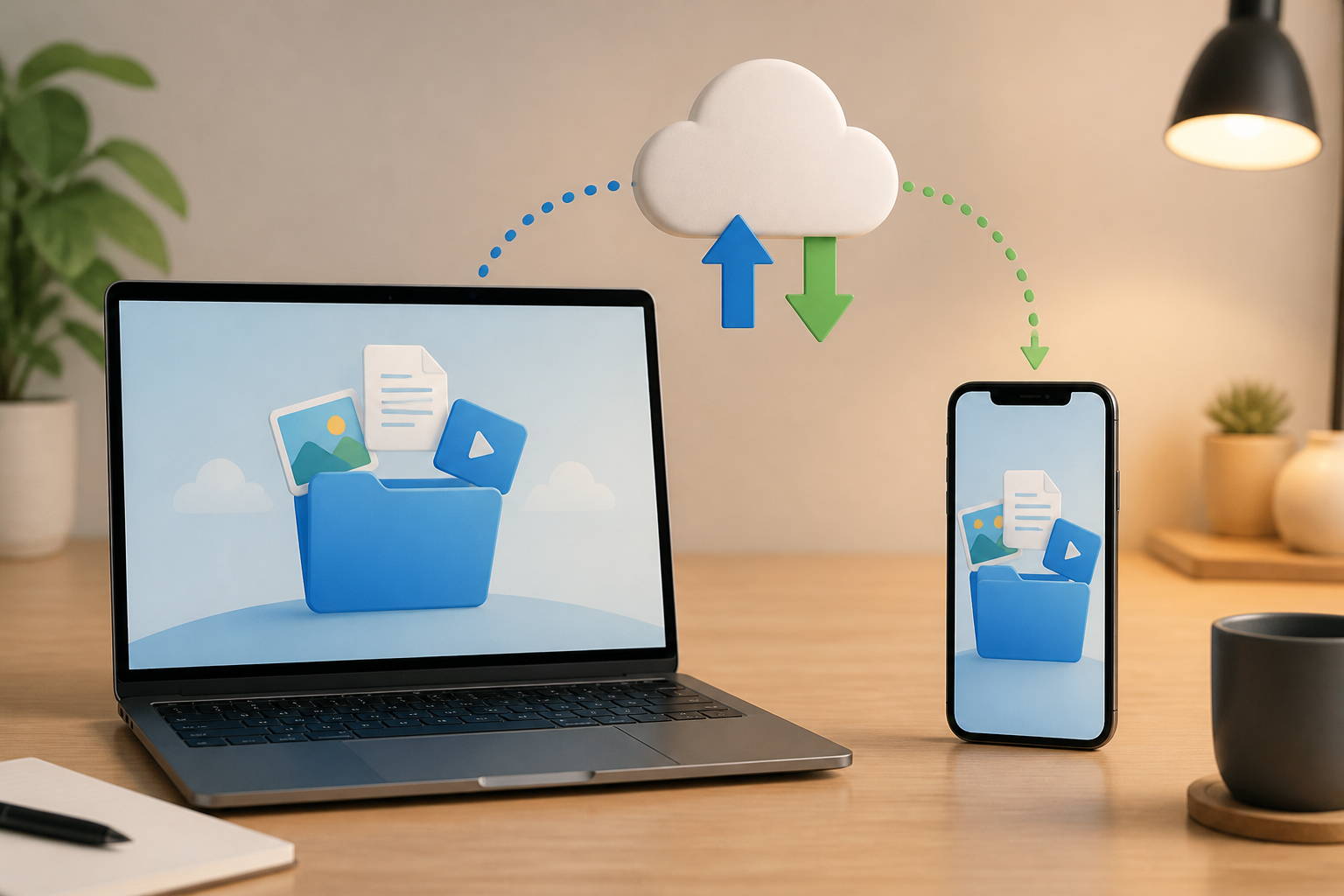
When sending photos to WhatsApp Web, uploading assignments to Google Drive, or retrieving attachments from email, we are actually performing two basic activities: upload and download. Both involve transferring data over the internet, but the directions are different.
Understanding this difference is important because small mistakes—like thinking a file has been sent when it has only been selected, or downloading documents from unclear sources—can delay work and put devices at risk of issues.
Difference Between Upload and Download
Upload means sending data from our device to the internet or another service. This data can include photos, videos, documents, audio recordings, or filled-out forms.
Examples include:
- Uploading photos to social media.
- Saving documents to Google Drive.
- Sending attachments via email.
- Filling out an online form and then pressing the “Submit” button.
Meanwhile, download means retrieving data from the internet or an online service to our device.
Examples include:
- Downloading a PDF from an official website.
- Saving photos sent by others.
- Retrieving files from cloud storage to a laptop.
- Downloading apps from an app store.
A simple way to remember is: upload is sending out from the device, while download is bringing in to the device.
A Simple Analogy: Office and Courier
Imagine our device as a house and the internet as a network of roads.
When we send a package from home to the office, the process is similar to upload. When we receive a package from the office to home, the process is similar to download.
The size of the package, road conditions, and the number of vehicles will affect delivery time. The same applies to digital files. A 1 GB video will certainly take longer than a 100 KB text document.
The difference is that upload and download speeds are not always the same. Many home internet packages offer higher download speeds than upload because most users more frequently watch videos, browse websites, or retrieve files than send large files.
Why Can Upload or Download Be Slow?
The speed of the process is not only determined by the internet package. Several other factors are often involved.
File Size
The larger the file, the more data needs to be transferred. High-resolution videos, photo archives, and installation files usually take longer.
Connection Quality
Weak Wi-Fi signals, being too far from the router, or unstable cellular networks can slow down the process or cause it to stop midway.
Destination Server
The file may not have issues on our device, but the destination service may be busy or experiencing disruptions. In such conditions, upload or download can be slow even if our connection appears normal.
Other Activities on the Network
Streaming videos, online meetings, app updates, and other devices using Wi-Fi simultaneously can divide the connection capacity.
Device Limitations
Nearly full storage space, too many running applications, or older devices can also affect the process, especially when handling large files.
Internet Speed Is Not the Only Measure
Internet speed is usually written in Mbps, which stands for megabits per second. Meanwhile, file sizes are often written in MB, which stands for megabytes.
These are not the same. One byte consists of eight bits. Therefore, the Mbps figure cannot be directly read as the number of megabytes being transferred every second.
For example, a 100 Mbps connection theoretically equals about 12.5 MB per second. In practice, actual speeds are usually lower due to network overhead, server conditions, signal quality, and other activities.
For beginners, there is no need to memorize the formula. Just understand that a large number on an internet package does not always mean every file will transfer at the same speed.
Safe Steps When Downloading Files
Downloading is not just about pressing a button. The files we retrieve can carry risks if they come from untrustworthy sources.
- Check the website address. Ensure the file comes from an official site or a known source.
- Don’t be fooled by fake buttons. Some pages have many “Download” buttons that actually lead to ads or other files.
- Pay attention to the file type. Documents usually use formats like
.pdfor.docx. Be wary of files that suddenly have double extensions or seem inappropriate. - Don’t open suspicious files immediately. If the name, sender, or context feels odd, it’s better to delete or check first.
- Ensure there is enough storage space. Large files that fail to save can cause the process to repeat and waste quota.
Safe Steps When Uploading Files
Uploading also carries risks, especially related to privacy and recipient errors.
- Check the file before sending. Ensure the content is correct and does not include unnecessary personal data.
- Pay attention to the file name. A clear name helps the recipient understand the file's content and reduces the risk of sending it to the wrong person.
- Check the destination address or account. A single letter mistake in the email address can send documents to the wrong person.
- Understand access settings. On cloud storage services, distinguish between access for specific people and access for anyone with the link.
- Wait for confirmation of completion. Do not close the page or turn off the connection before the upload indicator states the process is complete.
If the Process Stops Midway, What Should You Do?
Don’t immediately repeat everything without looking for the cause. First, check for any error messages. Messages like “file too large,” “connection lost,” or “storage full” require different handling.
If the connection is unstable, try moving closer to the router or using another network. If the file is too large, compress it or split it into several parts if the destination service supports it. If storage is full, delete temporary files that are not needed—not important documents indiscriminately.
For important work, double-check whether the file has truly reached its destination. Don’t assume the process is complete just because the button has been pressed.
What Does This Mean for Us?
Upload and download are simple concepts, but they form the basis of almost all digital activities. By understanding the direction of data transfer, we can more easily read error messages, estimate time, save quota, and avoid sending files incorrectly.
The best habits are also simple: check the source before downloading, check the content and recipient before uploading, and ensure the process is truly complete. The internet will feel much easier to use when we not only know which buttons to press but also understand what is happening behind them.
– Rio Yotto @rioyotto