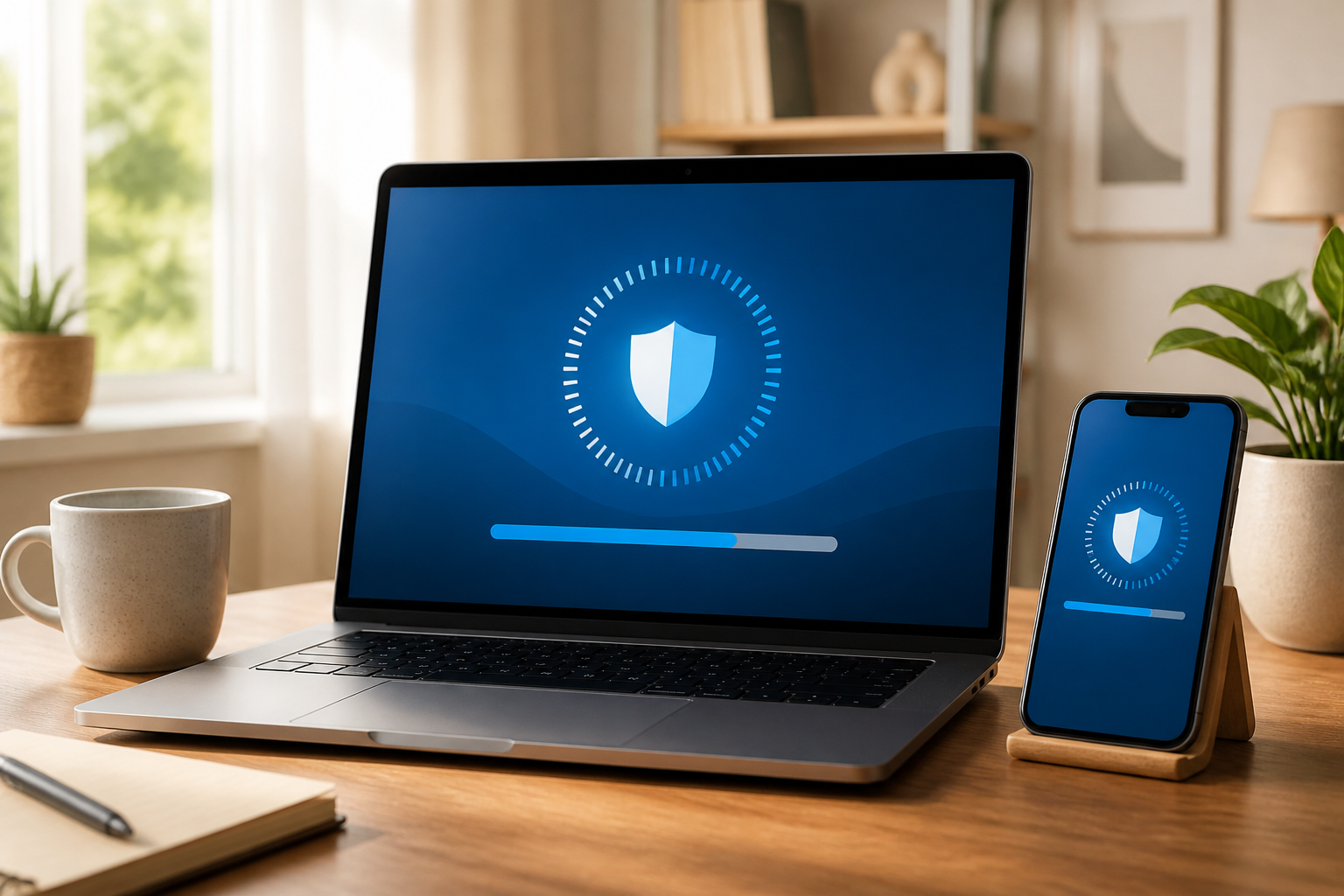
Notifications for "updates available" often pop up at inconvenient times: just before a meeting starts, when the battery is low, or when work hasn't been saved. As a result, many people choose to hit the "Later" button repeatedly. The problem is, not all updates can be postponed for too long.
Updating software is not just about getting a new look. Updates can close security gaps, fix bugs, improve stability, or adapt applications to other systems. However, major updates can also bring interface changes and compatibility issues. Therefore, a better habit is not to install all updates blindly, but to understand what is being updated.
What does software update actually fix?
Software is a collection of instructions that are continuously improved. After an application or system is released, developers may discover previously unseen bugs. They then publish updates to fix these issues.
One of the most important types of fixes is the security patch, which is a patch to close security vulnerabilities. These vulnerabilities can be exploited by others to steal data, run malicious programs, or take over accounts and devices. Both CISA and the FTC recommend that users install security updates as soon as possible and enable automatic updates if available.
Updates can also include bug fixes, which are errors that cause applications to freeze, slow down, or produce incorrect results. There are also feature updates that add new capabilities, change appearances, or introduce different ways of working.
Not all updates have the same level of urgency
Update names may vary across devices, but we can use the following simple guidelines.
1. Security updates
This is usually the most urgent. If the description mentions "security update", "critical vulnerability", "important security fixes", or similar terms, do not postpone it for days without a clear reason.
You still don’t have to install it immediately if you are working on something important. Save your work, ensure the device is connected to power if needed, and then schedule the installation during a safe break. For most users, waiting a few hours until the evening is still reasonable. Postponing it for weeks is much riskier.
2. Stability and bug fixes
This type of update usually fixes applications that frequently crash, drain battery, or are incompatible with the latest system version. Its urgency is moderate. If you are experiencing the issues being fixed, install it sooner. If the device is running normally, you can choose a convenient time, but still do not ignore it indefinitely.
3. Major feature updates
Feature updates usually bring more changes. Menu locations may change, new settings may appear, and some older applications may need adjustments. For work computers or devices used to run important applications, taking a short break to see other users' experiences can be a sensible decision.
This does not mean you should fear every major update. The principle is to distinguish between "needs to be done immediately for security" and "can wait a bit for feature changes".
Practical rules before hitting the Update button
- Read the brief description. Check if the update contains security fixes, bug fixes, new features, or all of them.
- Ensure the source is official. Updates should be done from the device's built-in menu or official app stores. Do not install update files from random links sent via chat or email.
- Save any open work. Some updates will close applications or restart the device.
- Check power and connection. Laptops should be connected to a charger. Phones or tablets should have sufficient battery and a stable connection.
- Provide storage space. Updates may fail to install if there is too little free space. Delete temporary files or unused applications if necessary.
- Do not forcefully turn off the device. During the installation process, the screen may appear to freeze for a while. Turning off the device in the middle of the process can cause more difficult problems to fix.
When is it better to wait?
Waiting a bit can be considered if the update is major and the device is used for important needs, such as presentations, online exams, design work, or business transactions. Choose a time when you have access to a charger, internet, and backup devices in case of issues.
Waiting also makes sense if the update is offered from unclear sources, asks you to disable antivirus, or forces you to download unrelated additional programs. Such patterns should be treated with suspicion. Official updates can generally be done from system settings or related applications, not through pressure-filled pop-ups.
However, "waiting" should have limits. Set a schedule, for example, in the evening or on weekends. If you keep hitting the "remind me later" button, you may be unknowingly leaving security gaps open.
Example steps on Windows
On Windows, open Settings, select Windows Update, and check if there are updates available. Save your work before choosing to download and install it. If the system requests a restart, use the option to schedule a restart outside of working hours.
Microsoft explains that quality updates usually contain minor fixes and security, while feature updates bring larger changes. Devices also need a supported system version to continue receiving regular security updates.
Example steps on mobile and applications
For mobile devices, check system updates from the device settings menu. For applications, use official app stores like Google Play Store or App Store. Enable automatic updates for important applications, especially browsers, messaging apps, banking apps, and password managers.
If your internet quota is limited, you can set automatic updates to only run over Wi-Fi. This setting helps save quota without leaving applications outdated for too long.
What does it mean for us?
The best habit is not "always update as soon as possible" or "always wait for others to try first". Use the risk level as a guide.
- Security updates: prioritize and install as soon as possible at a safe time.
- Bug fixes: install sooner if bugs are disrupting your work.
- Major features: schedule when you are not needing the device for important work.
- Suspicious update sources: do not install before verifying their authenticity.
Take a few minutes today to check the update settings on your laptop and phone. Ensure automatic updates are enabled for important systems and applications, and get into the habit of reading the update summary before installing. These small steps help keep your devices safe, stable, and prevent them from becoming sources of problems just because updates are always postponed.
Sources & further reading
- CISA - Secure Our World: Software Updates Tip Sheet
- FTC - Protect Your Personal Information From Hackers and Scammers
- Microsoft Support - Windows Update FAQ
- Microsoft Support - Install Windows Updates
– Rio Yotto @rioyotto