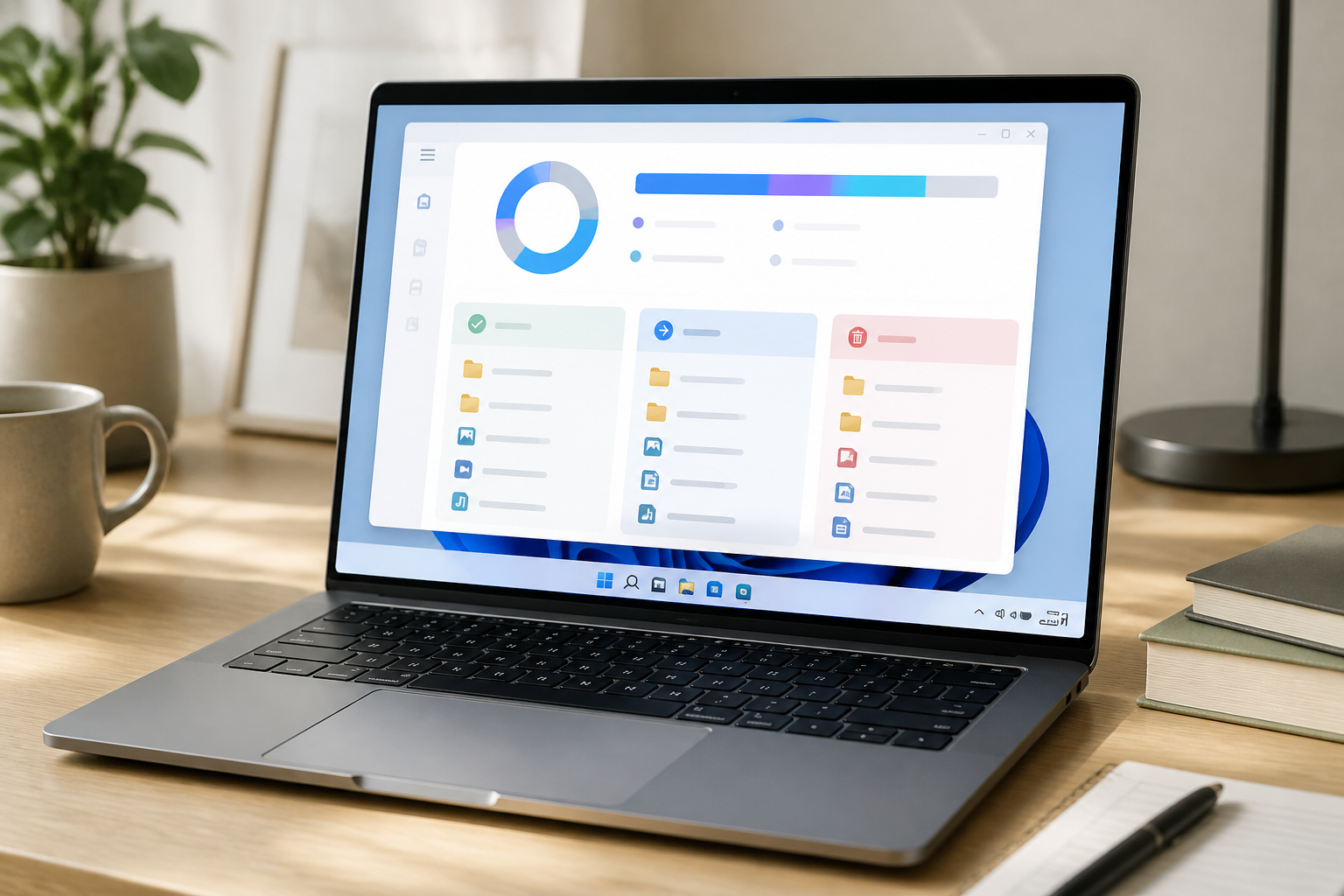
The Low Disk Space notification usually appears when the problem is already felt: applications fail to update, file copying processes slow down, or Windows starts warning that storage space is almost gone. However, cleaning up storage doesn’t mean deleting folders randomly. Some files are indeed temporary, but others are personal documents, application cache that is still needed, or backups for system recovery.
Windows 10 and Windows 11 provide built-in tools to view storage usage by category. By checking the source first, we can clean up space without taking unnecessary risks. ([support.microsoft.com](https://support.microsoft.com/en-us/windows/experience/storage-filemanagement/storage-settings-in-windows?utm_source=openai))
Start by checking what takes up the most space
Open Settings > System > Storage. Windows typically divides drive usage into several categories, such as installed applications, temporary files, documents, pictures, videos, and system components.
Don’t immediately delete the largest category. A large number in the Installed apps section, for example, means there are large applications or games installed—not everything can be cleaned from the installation folder. The same goes for the System & reserved section, which includes space for Windows, system files, cache, and update needs.
Use this check as a map. If videos and work projects dominate, move those files to an external drive or other storage. If the large items are applications that haven’t been used in a while, consider uninstalling them through the Installed apps menu, rather than deleting their folders manually.
Differentiate between temporary files, personal files, and recovery files
The safest section to check is usually Temporary files. This can include temporary files, thumbnails, error reports, and remnants of update processes. Windows also provides Cleanup recommendations to help identify temporary files, large or rarely used files, unused applications, and files that have already been synced to the cloud.
However, read the descriptions one by one before hitting the delete button. Pay attention to the following:
- Recycle Bin: deleting its contents means files are no longer easily recoverable from the Recycle Bin.
- Downloads: this folder may contain old installers, but also important documents. Don’t check it without a manual review.
- Previous Windows installation(s): usually related to the
Windows.oldfolder. Deleting it can remove the option to revert to a previous version of Windows. ([support.microsoft.com](https://support.microsoft.com/en-us/windows/experience/storage-filemanagement/free-up-drive-space-in-windows?utm_source=openai)) - Thumbnails: safe to recreate, but Windows may need to regenerate image and video previews when the folder is opened.
Use Storage Sense, but adjust its habits
Storage Sense is an automatic feature in Windows to help remove unnecessary files, including some temporary files and Recycle Bin contents. By default, this feature does not automatically clean the Downloads folder or cloud files unless its settings are changed. ([support.microsoft.com](https://support.microsoft.com/en-us/windows/experience/storage-filemanagement/manage-drive-space-with-storage-sense?utm_source=openai))
To enable it, go to Settings > System > Storage > Storage Sense. Before running automatic cleanup, check the available options. If you often download work documents, it’s best not to set Downloads to be automatically deleted based on file age.
Storage Sense is suitable for routine maintenance, not a substitute for periodic checks. Personal files that are never opened can still accumulate, while specific project folders may not be touched by this feature.
Manually search for large files
If space is still tight after cleaning temporary files, check folders that typically grow quickly: Downloads, Videos, Pictures, project folders, and application export directories.
Sort files by size in File Explorer. Look for some common patterns:
- Unnecessary screen recording videos.
- Installer files
.exeor.msithat remain after applications have been successfully installed. - Duplicate copies of documents or photos.
- Extracted
.zipor.rararchives that are no longer needed. - Temporary export files from design applications, video editors, or virtual machines.
Before deleting, open some large files to ensure their contents. If a file is still important but rarely used, move it to an external drive with sufficient capacity. After moving, reopen the file from the new location before deleting the old copy.
Do not manually delete system folders
Avoid deleting the contents of folders like C:\Windows, C:\Program Files, or hidden folders in AppData just because their names look large. These folders may contain application components, user configurations, or files needed by Windows.
If you want to uninstall a program, use Settings > Apps > Installed apps or the official uninstaller from that application. For system files, use Storage Sense, Cleanup recommendations, or Disk Cleanup. Microsoft also recommends checking results gradually, rather than deleting everything at once. ([support.microsoft.com](https://support.microsoft.com/en-us/windows/experience/storage-filemanagement/free-up-drive-space-in-windows?utm_source=openai))
After cleaning, establish preventive habits
Cleaning up storage only addresses the symptoms if the storage patterns do not change. A few simple habits can help:
- Check the Downloads folder weekly and delete installers or duplicate files that are no longer needed.
- Store raw videos, project archives, and backup files in a location different from the system drive.
- Uninstall applications or games that haven’t been used in a long time, especially large ones.
- Don’t keep multiple copies of the same file without clear naming or folder structure.
- Leave enough free space for Windows to have room for temporary files and updates.
The simple principle: delete what is clearly temporary, move what is important but rarely used, and don’t touch system folders without a strong reason.
What does it mean for us?
A full storage is not always a sign that a laptop needs to be replaced immediately or that an SSD needs to be upgraded right away. Often, the problem arises from a combination of large video files, old applications, forgotten Downloads folders, and accumulated cache.
Start from Settings > System > Storage, understand the largest categories, and then clean up gradually. This method may be a bit slower than hitting the delete button en masse, but it is much safer for keeping documents, applications, and the Windows system running smoothly.
Sources & further reading
– Rio Yotto @rioyotto