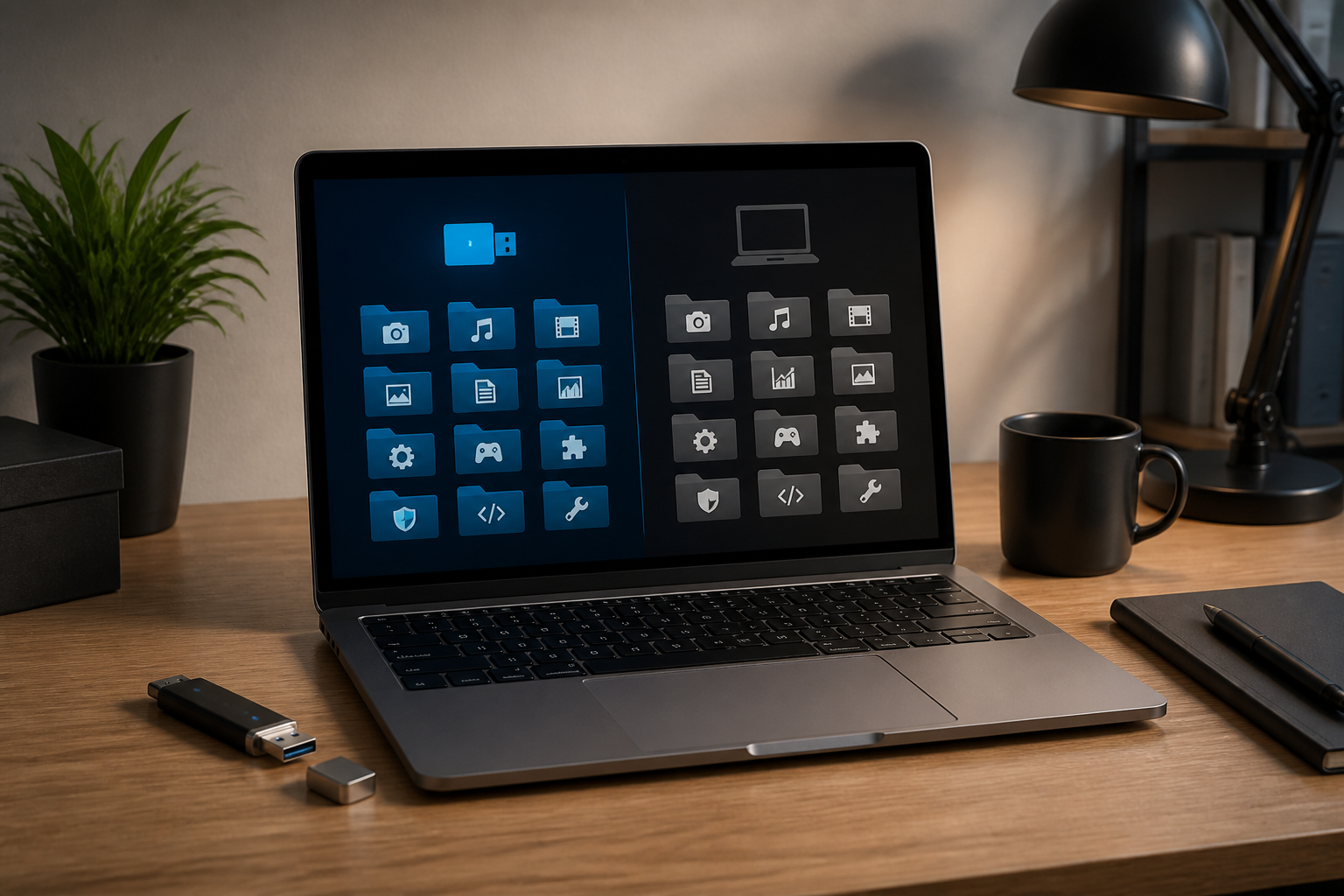
When trying out a new application, we usually know only one way: download the installer, click a few times, and then wait for the application to be ready for use. However, some software is available in portable form, which means applications that can be run directly from a folder without the traditional installation process.
This format is appealing for shared computers, flash drives, or situations where we do not have administrator access. However, portable does not automatically mean it is safer, lighter, or always the best choice. There are consequences that need to be understood before making it part of your work routine.
What exactly is portable software?
Portable software stores most of the files needed to run within a single folder. Users simply extract the archive, open the application file, and start working. Many portable applications also store configurations in the same folder, rather than in system locations like applications installed via an installer.
This concept differs from normally installed applications. Installers typically copy files to several locations, create shortcuts, add file associations, register system components, and sometimes run services in the background.
In simple terms, installers integrate applications into the operating system. Portable software tends to carry its own working environment.
When is portable software particularly useful?
1. When using a computer without administrator rights
On office computers, laboratories, libraries, or loaned devices, users often do not have permission to install applications. Portable software can be a solution for applications that do not require specific system components.
However, organizational rules still apply. The technical ability to run an application does not mean users are automatically allowed to do so. On company computers, unauthorized applications can pose security or compliance issues.
2. When needing a temporary working environment
Portable software is suitable for situations when we only need to use certain tools occasionally. For example, applications for opening specific file formats, checking archives, resizing images, or reading simple logs.
Instead of installing many applications on the main computer, we can store some of these tools in a separate folder and delete them after use.
3. When wanting to bring your own settings
If an application saves configurations in its folder, all settings can move along with that folder. This is useful for people who work on multiple computers or want to maintain a consistent working environment.
However, this feature is not always available. Some portable applications still save settings in the user or operating system folder, so their transfer is not truly independent.
4. When wanting to test an application without cluttering the system
Portable folders can assist in the trial process. Users can see if the application fits before adding permanent integrations to the system, such as right-click menus, file format associations, or background services.
This is not perfect isolation like a virtual machine or sandbox. Portable applications can still access files, networks, and other resources according to the user's account permissions.
Commonly Overlooked Drawbacks
Updates are easier to forget
Normally installed applications sometimes have automatic update mechanisms or connect with package managers. With portable software, users often have to manually check for the latest version.
As a result, applications can run for months even though they have security vulnerabilities that have been fixed by developers.
For applications that process sensitive documents, connect to the internet, or open files from unknown sources, updates are not a trivial matter. Older versions can increase risks that could have been avoided.
The source of downloads becomes very important
Many sites offer "portable versions" of various applications. The problem is, not all of these packages are created by the original developers. Some have been modified, embedded with ads, or repackaged with additional files.
Prioritize the official project pages, official repositories, or sources with a clear reputation. Avoid download sites that force users to navigate through many fake buttons, offer "download managers," or include unwanted additional applications.
Integration with the system is more limited
Portable software may not appear in the list of built-in applications, lack automatic updates, or not be able to take over certain file formats neatly. Some applications also require system components, drivers, or specific services, so they will not run well in portable form.
If an application needs to work with hardware, printers, cameras, local databases, or specific operating system features, installers usually provide a more stable experience.
Portable folders can contain important data
Since settings and work data can be stored in a single folder, that folder needs to be treated like important documents. Deleting the application folder without checking its contents could also remove profiles, project lists, templates, or configurations that have already been created.
How to use portable software more safely
- Download from official sources. Check the developer's name, website address, and project documentation. Do not assume that all files labeled portable are trustworthy.
- Store in a clear folder. Separate portable applications from the Downloads folder. For example, use a dedicated folder like
ToolsPortablefor easier auditing and backup. - Check the contents of the archive before running. Be wary of additional executable files, suspicious shortcuts, or programs unrelated to the application's function.
- Update regularly. Keep track of the applications used and check for new versions on a regular schedule. For tools connected to the internet, perform checks more frequently.
- Do not store sensitive data carelessly. Portable folders stored on flash drives are easy to lose or leave behind. Use device encryption or protected storage when containing important documents.
- Delete properly. Before deleting a folder, check if the application stores configurations or work data within it. If still needed, copy that data first.
So, should you choose portable or installer?
Choose portable software if your needs are temporary, do not require system integration, and you are prepared to manage updates manually. This format also makes sense for bringing a small set of tools to multiple computers.
Choose an installer if the application will be used daily, requires automatic updates, needs to integrate with the operating system, or relies on additional components. For essential applications like browsers, code editors, password managers, and work communication tools, the ease of updates is usually more valuable than the ability to run the application from a single folder.
In essence, portable software is not a "better" version of an installer. Both fulfill different needs. The sensible choice is the one that is easiest to update, has the clearest source, and best fits how the application works on your computer.
– Rio Yotto @rioyotto