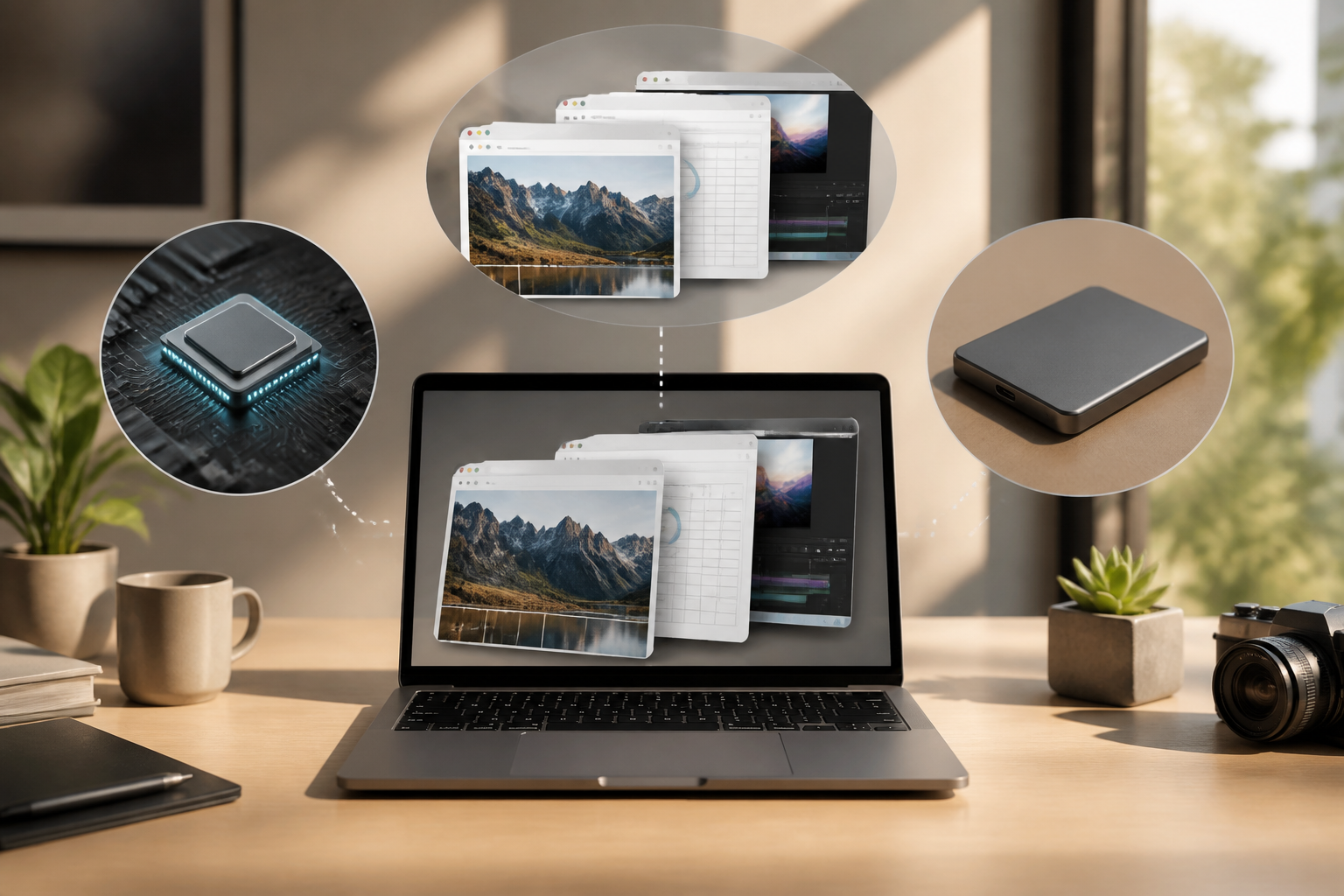
When a laptop feels slow, many people immediately conclude that the device is "bad" or needs to be replaced. However, the causes can vary: insufficient RAM, nearly full storage, an overwhelmed processor, or simply too many applications running simultaneously.
The three terms most commonly discussed regarding laptop performance are RAM, storage, and processor. They are indeed interconnected but serve different purposes. Understanding them will help us interpret specifications more sensibly and determine the right solutions.
Processor: the component that executes commands
The processor, or CPU, is the component that executes commands from the operating system and applications. When we open a document, calculate data in a spreadsheet, play a video, or run an application, the processor works to process those instructions.
A simple analogy is that the processor is like a worker completing tasks. A higher-capacity processor can usually handle heavier tasks or manage multiple jobs more smoothly.
However, numbers like "Core i5," "Ryzen 5," or the number of processor cores should not be read in isolation. Processors from different generations can have varying capabilities even if their names look similar. For everyday use, such as typing, browsing the internet, video conferencing, and watching movies, a modern mid-range processor is usually sufficient.
The processor becomes more critical when we use video editing applications, run virtual machines, process large data sets, create programs, or play games that require complex calculations.
RAM: temporary workspace
RAM is the memory used by the computer to temporarily store data from running applications. Unlike storage, the contents of RAM are lost when the computer is turned off.
Imagine we are working at a desk. RAM is the size of that desk. If the desk is large enough, we can open several books, notes, and tools at once. If the desk is too small, we have to frequently move things around to continue working.
A similar situation occurs with computers. When opening a browser with many tabs, a document editor, a communication app, and a music player simultaneously, all programs require space in RAM. If there isn't enough space, the system can feel slow because it has to move data more frequently between RAM and storage.
For basic needs, a smaller RAM capacity may still be adequate. However, modern usage is usually more comfortable with more RAM, especially if we often open many browser tabs or use applications simultaneously.
Upgrading RAM can help when the main issue is indeed a lack of memory. However, upgrading RAM does not automatically make all activities faster. If the processor is outdated or the storage is very slow, the improvement may not be very noticeable.
Storage: where files and applications are kept
Storage is where the operating system, applications, photos, videos, and documents are permanently stored. The data within remains even when the laptop is turned off.
Storage typically uses hard disk drives (HDD) or solid-state drives (SSD). HDDs use spinning disks, while SSDs use electronic memory with no moving parts. In many cases, SSDs provide faster application loading times and system boot times compared to HDDs.
If a laptop takes a long time to boot, applications feel slow to open, or large files take a long time to load, the type of storage can be a significant factor.
Storage capacity also needs to be considered. A laptop with a large capacity does not always mean it is faster, but having too little free space can hinder the system and the user. We may struggle to save updates, install new applications, or manage daily files.
Therefore, storage has two different aspects: capacity and speed. Capacity answers the question, "how much data can be stored?" while speed answers, "how quickly can data be read or written?"
Why are these three often misunderstood?
One reason is that these terms are often used together in advertisements. For example, a laptop is promoted with a fast processor, large RAM, and high-capacity SSD. Buyers then assume that all performance aspects will automatically excel.
In reality, device performance is influenced by a combination of many factors. A laptop with a powerful processor but limited RAM can stutter when running many applications. A laptop with large RAM but still using slow storage may still take a long time to open programs. Meanwhile, a fast SSD cannot replace the processor when tasks require heavy calculations.
In technical terms, this is often referred to as a bottleneck, which is the part that most limits system performance. Like a highway, vehicles will not move faster if the narrowest point remains congested.
How to identify which component is the issue
Before buying a new device or upgrading, pay attention to the pattern of the issues.
- The laptop is slow when many applications or tabs are open: RAM may be limited. Close unused applications and check for automatically running programs.
- The laptop takes a long time to boot and applications take a long time to open: storage, especially if still using HDD, could be a major factor.
- Specific applications lag when processing video, data, or games: the processor or graphics card may not be powerful enough.
- The laptop frequently pauses even when used for light tasks: check if storage is nearly full, the device is overheating, or there are too many background processes.
On Windows, information about processor, RAM, and storage usage can be viewed through Task Manager. On macOS, Activity Monitor provides similar functionality. Pay attention to which components frequently show very high usage, but do not jump to conclusions based on a single observation.
What does this mean for us?
For general use such as typing, studying, accessing web services, video conferencing, and managing documents, balance is more important than chasing the highest specifications. Sufficient RAM, an SSD, and a processor that still meets needs usually provide a more comfortable experience.
If the budget is limited, prioritize based on the issues actually experienced. Replacing an HDD with an SSD can feel significant for system and application loading speed. Adding RAM makes more sense if we often run out of memory while working. Replacing the entire device is only necessary if the processor, battery, display, or other components no longer meet needs.
What you can do now
- Note the main activities you usually do on your laptop.
- Check the available RAM capacity and storage space.
- Observe which applications most often slow down the laptop.
- Remove unused applications and move large files that do not need to be stored on the device.
- Do not buy upgrades based solely on the largest numbers in advertisements.
Understanding RAM, storage, and processors does not mean we have to become technicians. Just understand each one's main tasks: the processor executes commands, RAM provides temporary workspace, and storage keeps data. From here, we can make more informed technology decisions and not be easily swayed by impressive-looking specifications.
– Rio Yotto @rioyotto