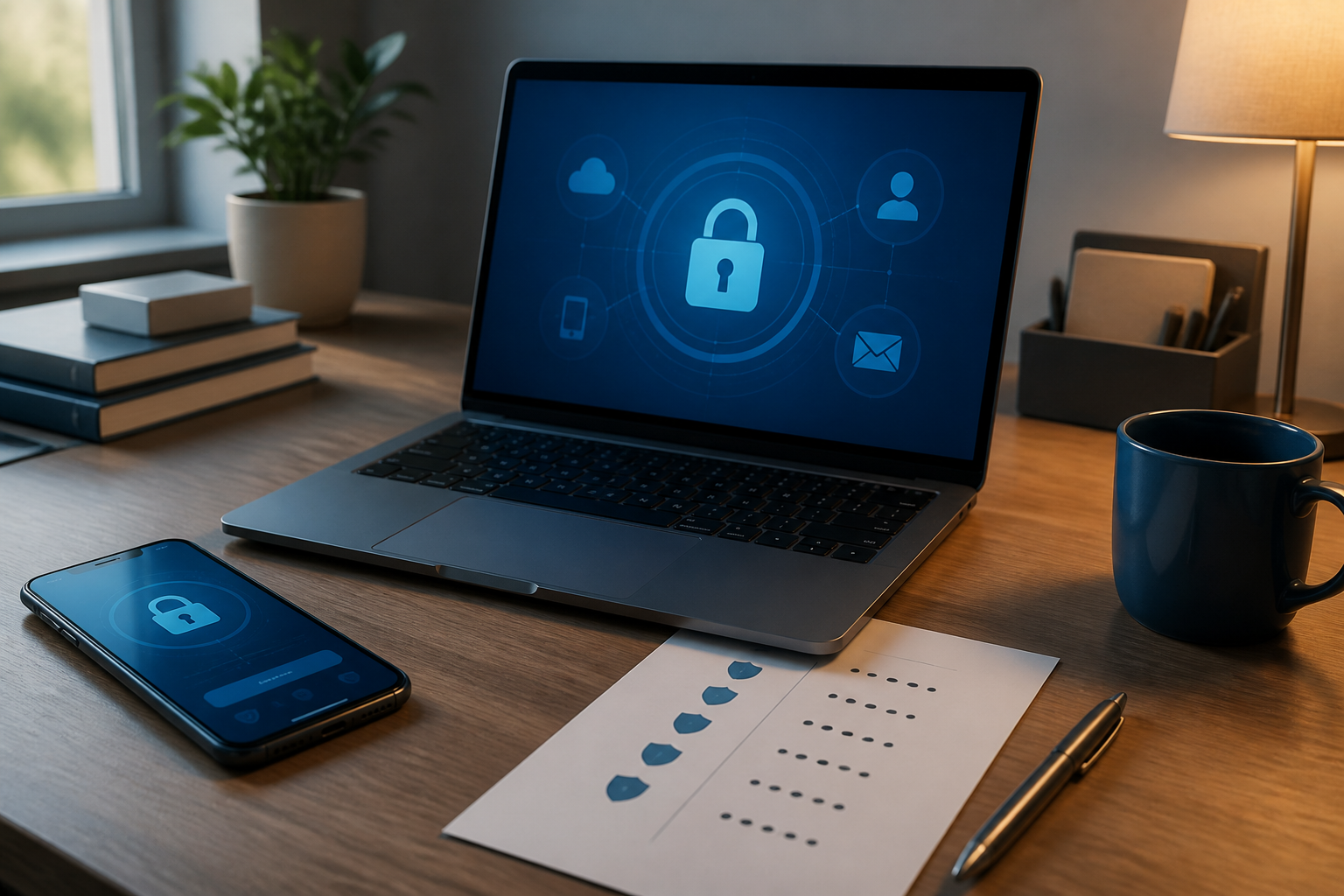
Losing a phone usually starts with simple panic: calling your own number, tracking the device through a tracking app, then contacting the carrier. However, the problem can become more significant if the phone is also the only place to receive login codes, store authenticator apps, or access recovery emails.
In such situations, the lost device is not just an item that needs replacing. It can be a crucial part of the "key" to access Google, Apple, WhatsApp, social media, work services, and even financial apps. Therefore, account security should not be designed with just one door.
The problem is not just a lost phone
Many people have already enabled multi-factor authentication, which is an additional layer of security after the password. This can take the form of SMS codes, notifications on devices, authenticator apps, passkeys, or physical security keys.
Multi-factor authentication does make accounts harder to breach. However, if all verification methods rely solely on one phone, you may struggle to prove that the account truly belongs to you when that device is lost or damaged.
Apple, for example, explains that users who only have one trusted device and one trusted number may have difficulty receiving verification codes when that device is unavailable. Google also provides several alternative paths, such as other logged-in devices, backup numbers, backup codes, passkeys, or security keys.
Prepare more than one recovery path
The goal is not to gather as many login methods as possible, but to ensure there is at least one other way that can still be used when the primary phone has issues.
1. Add recovery email and number
Check the security settings of your main account, especially the email that serves as the hub for your digital accounts. Ensure that the recovery email address is still active and does not use an account that relies on the primary email.
The recovery number should also be checked regularly. Use a number that you truly control and is still active. If possible, add a second trusted number, such as a family member's number that can be contacted in emergencies. Do not add someone else's number without permission and do not use it as a substitute for responsible account protection.
2. Store backup codes in a safe place
Backup codes are one-time codes that can be used when you cannot receive regular verification codes. Google recommends storing these codes in a safe place, such as printing them and keeping them with important documents. Each code can only be used once, and old code sets become invalid when you create a new set.
Do not store backup codes as photos in the same phone gallery. Also, avoid placing them in unprotected notes, download folders, or cloud documents that can only be accessed through the account you are trying to recover.
3. Consider an authenticator app or passkey
SMS codes are quite practical, but phone numbers can be targets for SIM swap. In this scenario, scammers convince the mobile operator to transfer the victim's number to a SIM card or device they control. As a result, the scammer can receive SMS messages and attempt to take over accounts that use SMS as a verification factor.
For important accounts, consider using an authenticator app, passkey, or physical security key. If using an authenticator app, also think about the recovery method: is the account securely synchronized, do you have a second device, or are backup codes available?
Check accounts before an emergency
This step only takes a few minutes but is often postponed until it's too late. Make a list of the most important accounts, then check them one by one:
- Main email and cloud accounts.
- Banking accounts, digital wallets, and marketplaces.
- WhatsApp, social media, and communication apps.
- Work, school, or services that store important documents.
- Password manager accounts and smart home devices.
For each account, look for sections like Security, Sign-in and security, Recovery, or Logged-in devices. Remove old devices that are no longer in use, update recovery numbers and emails, and ensure you understand the official recovery procedures.
Apple provides a recovery contact feature, which is a trusted person who can help provide recovery codes without gaining access to your account. Similar features or recovery mechanisms may be available in different services. Only use features available in the official settings, not assistance from social media accounts or phone numbers found randomly on the internet.
What to do if your phone is truly lost?
- Lock the device remotely. Use official tracking features like Find My or Android device search services. If the device cannot be recovered, perform a remote wipe if available.
- Contact your mobile carrier. Request to block the old SIM card and transfer the number to a new SIM. Add a PIN or password to your carrier account so that future changes are not easily made by others.
- Secure your main email first. Change the password, check login activity, and remove unknown devices. Email is often a pathway to reset other accounts.
- Change passwords for high-risk accounts. Prioritize financial accounts, email, cloud, and password managers.
- Check security notifications. Be wary of emails about password changes, phone numbers, recovery addresses, or new devices that you did not initiate.
If your phone number suddenly loses signal for no apparent reason, cannot receive SMS, or receives notifications that the SIM is activated on another device, do not wait. Contact your carrier through official channels. The FTC advises victims of SIM swap to regain control of their number immediately, then change passwords and check accounts or cards for unauthorized activity.
What you can do now
Take 15 minutes today to open the security settings of your main email. Add a recovery email, create backup codes, check logged-in devices, and store recovery instructions in a place that does not rely on the main phone.
Good security does not mean never losing a device. Good security means that losing a device does not automatically lock your entire digital identity. By preparing alternative paths before they are needed, you turn an emergency into a clear list of steps—not a panic to be resolved in haste.
Sources & further reading
- Google Account Help: Fix common issues with 2-Step Verification
- Google Account Help: Sign in with backup codes
- Google Account Help: Avoid getting locked out of your Google Account
- Apple Support: About trusted phone numbers and trusted devices for Apple Account
- Apple Support: Set up a recovery contact for your Apple Account
- Federal Trade Commission: SIM Swap Scams: How to Protect Yourself
– Rio Yotto @rioyotto