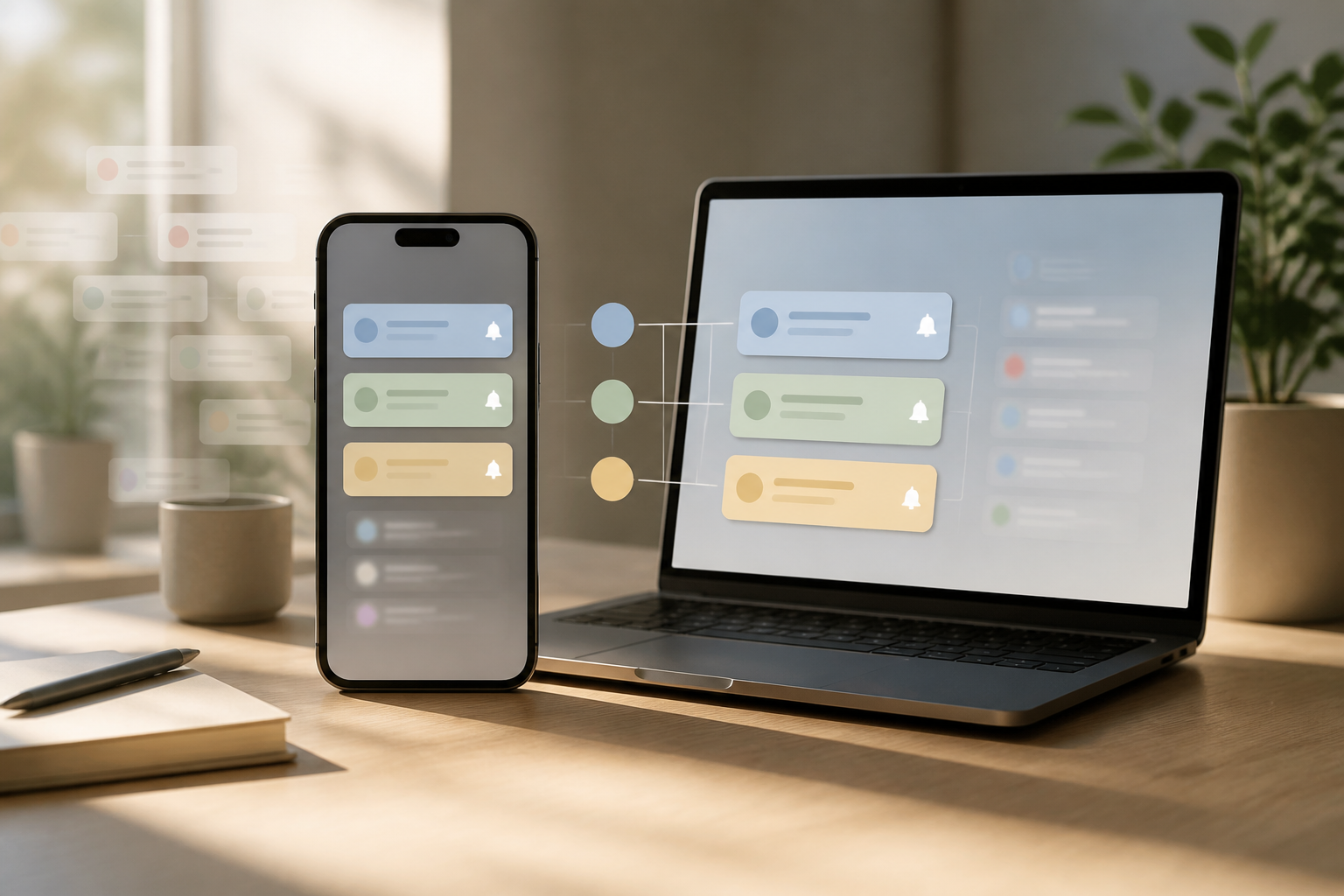
Notifications should help us know important things without having to open each app one by one. The problem is, almost every app feels it has a reason to pop up: there are new messages, content recommendations, promotions, feature reminders, and even activity reports that are not urgent.
As a result, our attention shifts multiple times throughout the day. One notification might only take a few seconds, but the effect can be longer because we need to reacquaint ourselves with the work we were doing. Organizing notifications doesn't mean turning off all alerts. The goal is to ensure that each notification has a clear reason for being present.
Differentiate between important notifications and those that just want attention
The first step is to stop assuming that all notifications hold the same value. Messages from family, changes in meeting schedules, or transaction alerts are usually more important than notifications that someone has uploaded new content.
Practically, you can categorize notifications into three groups:
- Must be known immediately: calls, messages from specific people, financial transactions, account authentication, or schedule changes that have a direct impact.
- Important but not urgent: tasks nearing deadlines, calendar summaries, project updates, or habit reminders.
- Can wait or don't need to appear: promotions, recommendations, like counts, new content, and prompts to reopen the app.
The third group often becomes the biggest source of distractions. This type of notification is not truly needed by users but is designed to increase app usage frequency.
Start from the notification center, not just one app
Many people organize notifications randomly. When disturbed by one app, they turn off notifications for that app, then a few days later do the same for another app. This method may work temporarily, but it doesn't provide a comprehensive picture.
Open the notification settings on your phone or computer, then look at the list of apps that send notifications most frequently. On some devices, you can also view the history or summary of notifications. Use that list to identify the apps that take up the most attention.
Don't just look at the app names. Check the types of notifications within them. Messaging apps, for example, may still need to notify about direct messages, but they don't need to display notifications for every busy group or every minor reaction.
Use different rules for different apps
Not all apps need to be treated with the same rules. Communication apps usually require filtering based on people or context. Work apps need filtering based on projects and working hours. Meanwhile, entertainment apps are often fine to open when you choose to use them.
Messaging apps
Keep notifications for direct conversations and important contacts. Mute active groups that don't require immediate responses. If the app supports it, use features like favorite, priority contacts, or exceptions for specific people.
Work apps
Differentiate messages directed specifically at you from general conversations. Notifications when your name is mentioned or when a task is assigned are usually more useful than notifications for every new message in a channel.
Shopping and entertainment apps
Turn off promotions, personalized recommendations, cart reminders, and notifications for new content if you don't really need them. You can still open those apps manually when you want to shop or seek entertainment.
Schedule notifications to come in batches
Some devices and apps provide scheduled summary features. Instead of receiving non-urgent notifications throughout the day, you can collect them at specific times, such as before lunch and in the evening.
This feature is suitable for emails, news, social media apps, activity reports, and updates that don't require immediate action. Important notifications like calls or security alerts should remain exceptions.
A good schedule doesn't have to be complicated. You can try a simple pattern:
- Important notifications come in at any time.
- Work summaries are checked at the beginning and end of working hours.
- Emails and social apps are checked at two or three specific times.
- Promotional notifications are turned off completely.
This is not an absolute rule. If your work requires quick responses, the schedule should be adjusted according to responsibilities and team agreements.
Utilize focus mode without overusing it
Focus mode or do not disturb is useful for protecting certain times from interruptions. Create different profiles for different conditions, such as working, sleeping, driving, reading, or spending time with family.
A common mistake is including too many exceptions. If almost all apps and contacts are still allowed to send notifications, focus mode just becomes another name for regular settings.
Start with a short list of exceptions. For sleep mode, perhaps only emergency calls from family are allowed. For work mode, maybe calendar, authentication apps, and messages from team members need to come through.
Good settings are not those that make all notifications disappear, but those that give interruptions a reason to appear.
Turn off unnecessary number badges and sounds
The small number badge on app icons often seems trivial, but it can create an urge to open the app immediately. If the number does not indicate something that needs action, turn off the badge.
Sounds should also be used selectively. One specific sound for important calls or messages is easier to recognize than different sounds from dozens of apps. For notifications that can wait, use silent display or only show them in the notification center.
Vibration should be checked, especially if you often carry your phone in your pocket or place it near your laptop. Notifications that are silent but keep vibrating can still break concentration.
Test the settings for a week
Don't judge the notification system just after five minutes. Use the new settings for about a week and observe three things:
- Did you miss any truly important information?
- Are you opening your phone less aimlessly?
- Did any specific work or communication become delayed?
If any important information was missed, add specific exceptions. Don't immediately turn on all notifications again. For example, allow messages from one contact or one type of notification, not the entire app.
What does this mean for us?
Notifications are part of app design, not an obligation we must always follow. By separating important information from prompts to reopen apps, we can use devices more consciously.
What you can do now is quite simple: open the notification settings, select the five apps that disturb you the most, turn off promotions and recommendations, and create one focus mode for the most important periods of your day. These small changes are often more realistic than trying to reduce phone usage solely by relying on intention.
– Rio Yotto @rioyotto