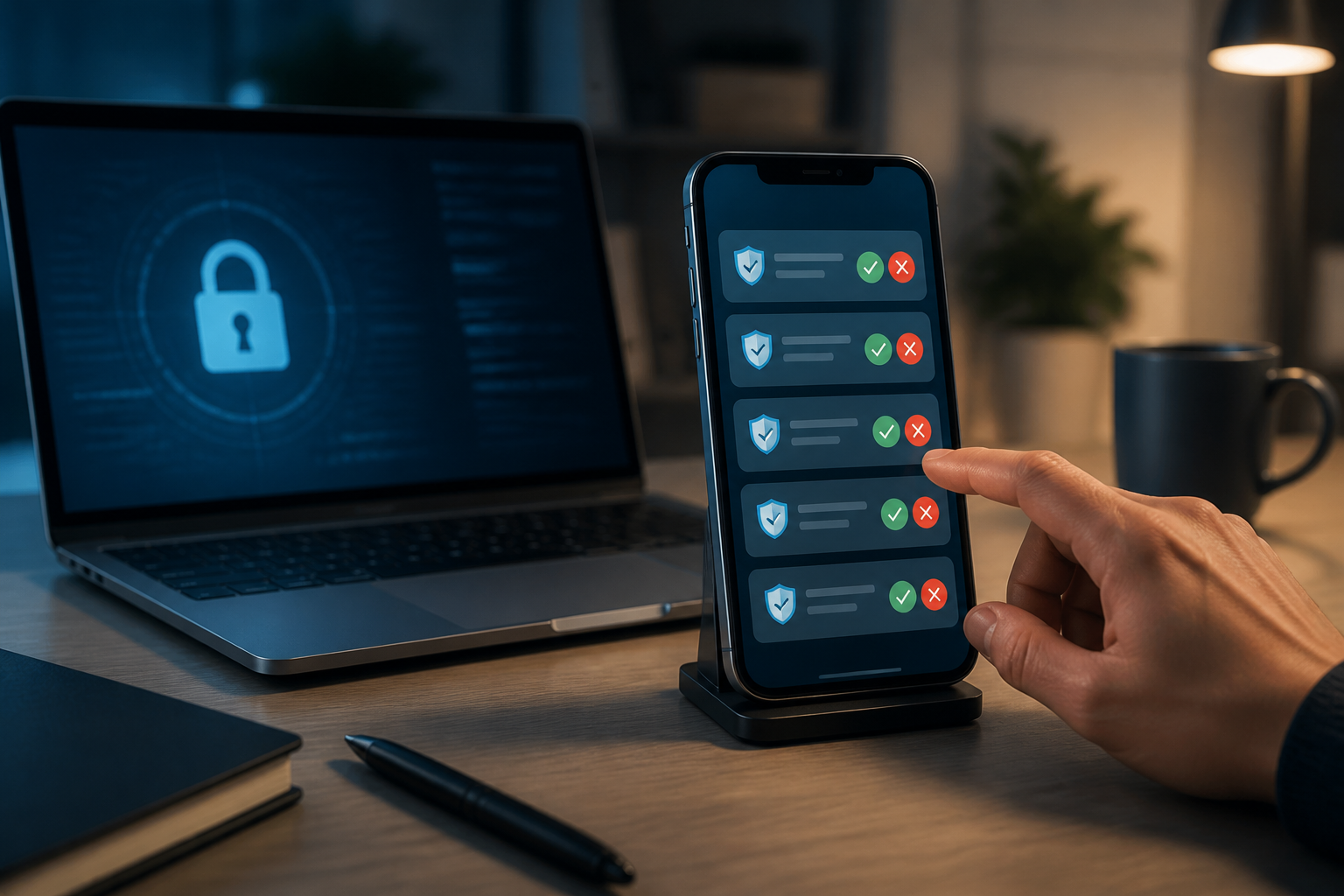
Login notifications that appear on your phone usually feel like a reassuring security feature. You just need to press “Yes” when you are indeed logging into your account. The problem is, attackers can exploit this habit by sending approval requests repeatedly until the victim accidentally presses the button, feels disturbed, or thinks the notification is just a system error.
This technique is known as MFA fatigue or push bombing. MFA stands for multifactor authentication, which is a security measure that requires more than one proof during login, such as a password and approval from an app on your phone. CISA explains that MFA fatigue attacks occur when perpetrators flood victims with notifications until the victim inadvertently approves the request or does so out of fatigue. Read CISA's explanation about number matching.
Why do attackers use this method?
This attack usually starts after the attacker obtains the victim's password, for example, from data breaches, reused passwords, or fake login pages. That password is not enough to log in because the account is still protected by MFA. The attacker then triggers repeated login requests to the victim's phone.
Imagine someone continuously ringing your doorbell. At the first ring, you might check the camera. By the tenth ring, you might just open the door to make the noise stop. That is the weakness they try to exploit: not the technology being breached, but rather human attention and habits.
Notifications that you did not initiate are not just an annoyance. They could mean that someone else knows your password or is trying to test access to that account. Google also states that if someone receives a login prompt while not logging in, there may be an unauthorized login attempt. Google advises selecting “No, don’t allow” and checking account activity.
Signs of MFA fatigue
- Login approval notifications appear when you are not logging into the account.
- Requests come repeatedly in a short period.
- Notifications show locations, devices, or times that do not match.
- Someone contacts you via phone or chat asking you to approve the login notification.
- After rejecting several requests, a message or call claims to be from the IT team and asks you to follow certain instructions.
The last point is worth noting. Perpetrators sometimes combine fake notifications with social engineering, which is an attempt to manipulate victims through conversation. They might claim to be office admins, service agents, or security teams “fixing” the account.
Never approve requests that you did not initiate
The most important rule is quite simple: if you are not logging in, do not approve the request. Press the deny button if available, and do not respond to the person requesting approval.
However, simply denying notifications may not be enough. If the requests keep appearing, consider that your account password may have been compromised. Immediately access the service through the app or official website, not through links from messages, and take the following steps:
- Change your password to a new, unique password that is not used on other services.
- Check the list of active devices or login sessions.
- Remove any unknown devices.
- Check the recovery email address, phone number, and registered authentication methods.
- Report the incident to IT admin if the account is used for work.
For Google accounts, the list of devices can be checked from the account security section. Google advises users to remove unknown devices and secure their accounts if suspicious activity is found. See Google's guide on devices with account access.
Number matching helps, but it’s not a perfect solution
Some services use number matching. In this method, users cannot just press “Approve,” but must enter the number displayed on the login screen into the authentication app. The goal is to reduce the risk of approvals occurring due to accidental presses.
CISA recommends number matching as a mitigation step for organizations that cannot yet use phishing-resistant MFA. Microsoft also makes number matching a standard behavior for Microsoft Authenticator notifications in certain contexts. This method makes attacks more difficult, but still requires user vigilance. If a number appears without you initiating a login, do not enter or approve that number.
In other words, number matching is an additional barrier, not a reason to approve all requests that seem convincing. Device details, location, and time still need to be checked.
If available, choose phishing-resistant MFA
Not all forms of MFA have the same strength. SMS codes, codes from apps, and approval notifications can still be attacked with certain techniques. CISA refers to phishing-resistant MFA, such as passkeys or FIDO-based security keys, as stronger options because their authentication process is tied to the correct site and device.
For regular users, there is no need to immediately purchase special security devices. Start by enabling MFA on your main email, banking accounts, social media, and work services. If those services offer passkeys, check if your device supports them. If not, use an authenticator app or login approval with number matching, and remain cautious of requests that you did not initiate.
What does this mean for us?
MFA remains very important. The presence of MFA can reduce risks when passwords are leaked, but MFA is not a magic button that makes accounts invulnerable. Users are still part of the security mechanism, especially when asked to approve logins.
Make the following three habits your personal rules: do not approve logins that you did not initiate, do not give verification codes or numbers to anyone, and do not follow instructions from “help teams” that come unexpectedly. When in doubt, close the notification, manually open the official app, and check account activity from there.
Digital security is often not about memorizing complicated terms. In the case of MFA fatigue, the core of the protection is actually simple: pause before pressing the “Approve” button.
Sources & further reading
- CISA - Implementing Number Matching in MFA Applications
- CISA - Implementing Phishing-Resistant MFA
- Google Account Help - Sign in with Google prompts
- Google Account Help - See devices with account access
- Microsoft Learn - Protecting authentication methods in Microsoft Entra ID
– Rio Yotto @rioyotto