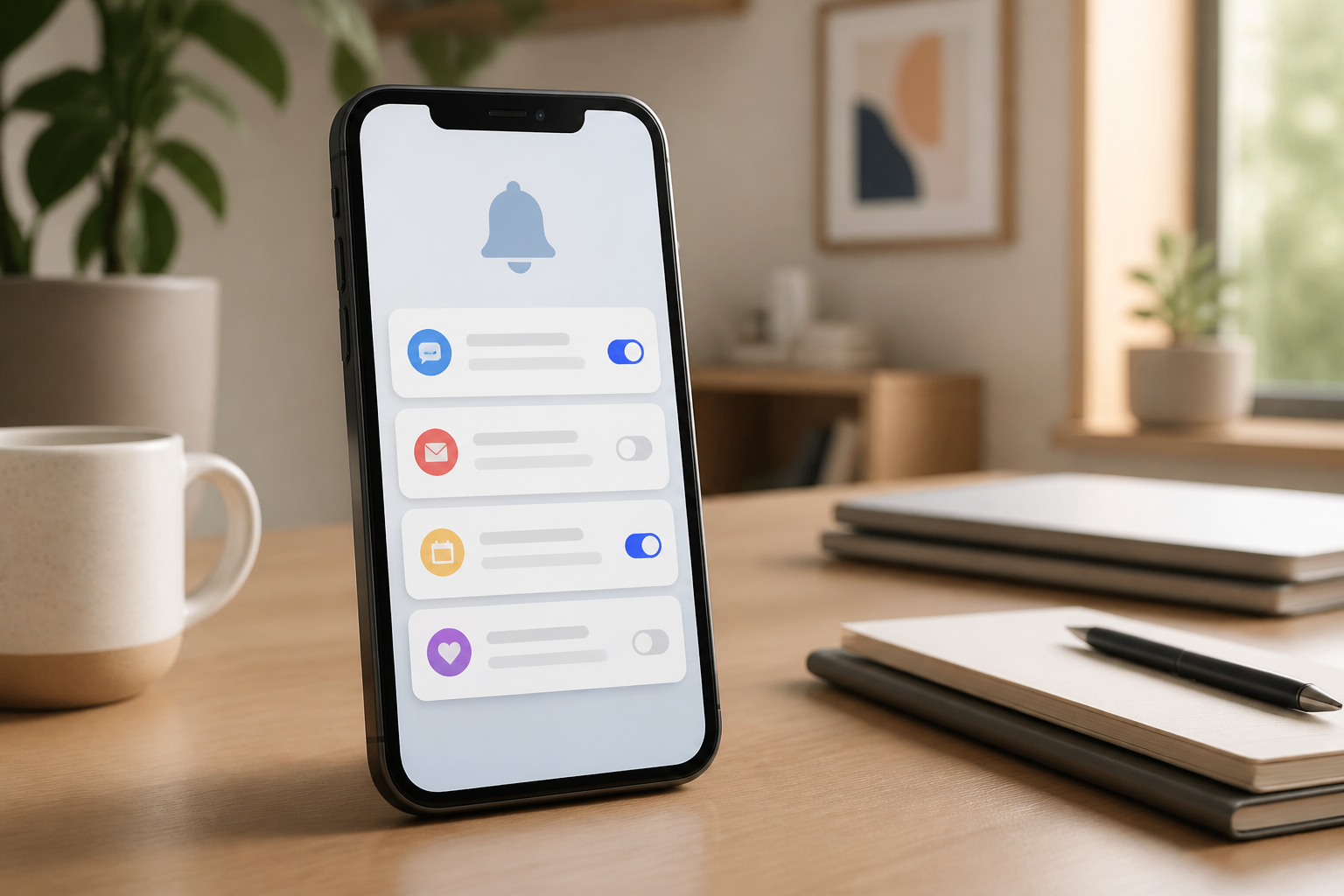
If your phone beeps, vibrates, or shows a red dot on many app icons every few minutes, the issue is usually not just the number of apps. The problem is that all apps are given a chance to grab your attention.
Notifications are indeed useful for family messages, work schedules, transactions, or security alerts. However, promotional notifications, video recommendations, old comments, and unimportant reminders can make us check our screens aimlessly. The good news is that you don’t have to turn off all notifications. Just create a simple filter.
Treat notifications like guests knocking at your door
Imagine a house with many people who can knock on the door at any time. If all guests are treated the same, you will often stand up and open the door, even when someone just offers something unnecessary.
Notifications work in a similar way. Some need immediate attention, some can be viewed later, and some shouldn’t appear at all. The goal of notification settings is not to make your phone completely silent, but to determine who can interrupt and when.
Start with a five-minute audit
Before changing settings, pay attention to the notifications that appear over a day. Note the apps that send alerts most frequently, then group them into three categories:
- Important: calls, family messages, work apps, banking, transportation, or security reminders.
- Can be delayed: regular emails, news, marketplaces, social media, and non-urgent groups.
- Not needed: repeated promotions, game invitations, content recommendations, or notifications from rarely used apps.
Don’t just look at the app names. One app can have several types of notifications. For example, a shopping app may send useful order status updates but also send unimportant daily promotions.
How to manage notifications on Android
The menu names may vary slightly depending on the phone brand and Android version, but the flow is generally similar. Open Settings, select Notifications, then look for the list of apps or notification settings per app. Android also allows users to change specific types of notifications, not just turn off the entire app. ([support.google.com](https://support.google.com/android/answer/9079661?hl=en-en&utm_source=openai))
- Select the app that sends notifications too frequently.
- Turn off promotional or recommendation categories.
- Keep truly important categories, such as direct messages or transaction statuses.
- If notifications appear on the screen, press and hold the notification. Usually, options will appear to change or turn off that type of notification.
On some Android devices, there is also a Notification history feature. This feature can help find deleted notifications or see which apps frequently send alerts. Not all devices provide this feature, and the menu location may vary. ([support.google.com](https://support.google.com/android/answer/9079661?hl=en-en&utm_source=openai))
If notifications come in rapidly after the phone reconnects to the internet, some Android devices have a Notification cooldown feature. This feature reduces sounds and pop-ups when many notifications come in a short time, while calls, alarms, priority conversations, and emergency alerts remain exempt. ([support.google.com](https://support.google.com/android/answer/9079661?hl=en-en&utm_source=openai))
How to manage notifications on iPhone
On iPhone, open Settings, select Notifications, then choose the app you want to configure. You can turn off notification permissions, choose whether notifications appear on the Lock Screen, Notification Center, or as banners, and set sounds and badge counts on app icons. ([support.apple.com](https://support.apple.com/guide/iphone/change-notification-settings-iph7c3d96bab/ios?idev_id=169&utm_source=openai))
- Open Settings > Notifications.
- Select the most disruptive app.
- Turn off Allow Notifications if the app does not need to send alerts.
- If you still want to receive notifications but don’t want to be disturbed, mute sounds or limit where they appear.
For apps like marketplaces or social media, often the best choice is not to turn everything off. Keep notifications related to orders, account security, or direct messages. Turn off promotions, recommendations, and social activities that do not need immediate attention.
Protect notification content on the lock screen
Notifications are not just about interruptions. Their content can also contain personal information, such as verification codes, sender names, transaction amounts, or snippets of messages.
If your phone is often placed on a table or borrowed by others, consider hiding notification content on the lock screen. On Android, this setting is usually found in the lock screen notification menu and can be applied generally or for specific apps. ([support.google.com](https://support.google.com/android/answer/9079661?hl=en-en&utm_source=openai)) On iPhone, app-specific notification settings also allow you to determine where alerts are displayed. ([support.apple.com](https://support.apple.com/guide/iphone/change-notification-settings-iph7c3d96bab/ios?idev_id=169&utm_source=openai))
The practical setting is: let the app name be visible, but hide the message content until the phone is unlocked. This way, you still know there’s a message without letting sensitive information be read from afar.
Don’t use silent mode as the only solution
Silent mode or Do Not Disturb is useful during meetings, sleeping, studying, or driving. However, if used to cope with messy notifications, the underlying problem remains. You may not be disturbed for a few hours, but later you will face the same pile of notifications.
It’s better to use two layers:
- Permanent filtering: turn off useless notifications.
- Focus schedule: use silent mode or Do Not Disturb at specific times.
In this way, the phone can still notify important things but does not take over your entire attention.
What does this mean for us?
Notifications are not an obligation to respond immediately. They are just a sign that an app wants attention. You remain the decision-maker to open, delay, or ignore them.
Start today by selecting three apps that disturb you the most. Turn off promotions and recommendations from those three, then keep only direct messages, transactions, and security alerts. After a few days, move on to other apps.
These small changes usually feel quick: the screen is calmer, attention is less easily divided, and important messages are easier to find because they are not drowned out by dozens of irrelevant alerts.
Sources & further reading
– Rio Yotto @rioyotto