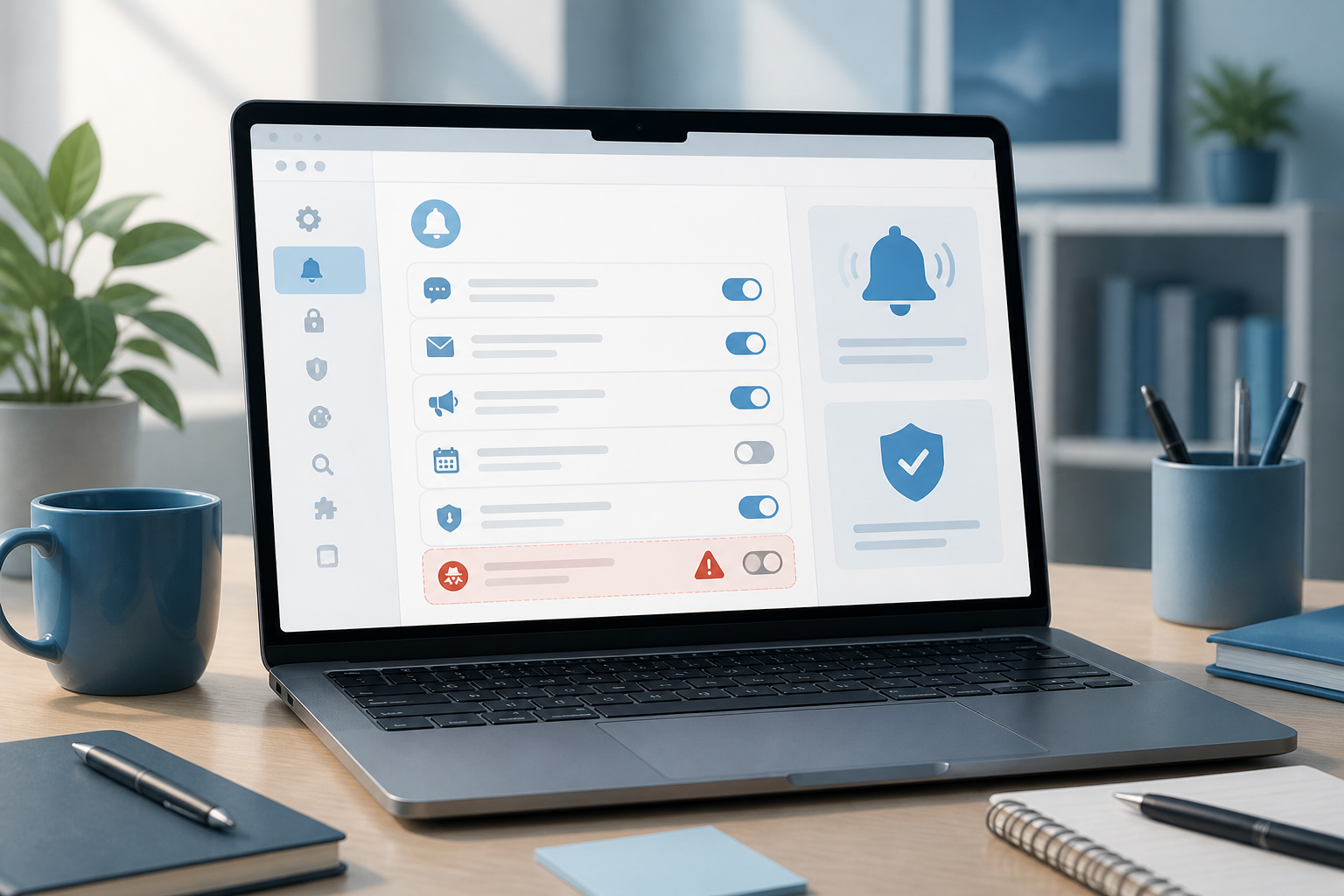
Browser notifications often appear when we are reading articles, browsing online stores, or visiting certain service sites. At first glance, the "Allow notifications" button seems harmless. However, if too many sites are granted permission, the screen can become cluttered with promotions, irrelevant reminders, and even links that lead to fraudulent pages.
The issue is not just about distractions. Notifications are a direct communication channel from a site to your device. Therefore, these permissions should be treated like granting access to contacts: they can be given, but only to trusted parties that are truly necessary.
What is the actual function of browser notifications?
Browser notifications allow a site to send alerts to your device even when the site’s page is not open. News sites can send the latest updates, work applications can provide reminders, and shopping services can notify you about order statuses.
Technically, these notifications are different from regular messages in apps like WhatsApp. Permissions are granted through the browser, such as Chrome, Edge, Firefox, or Safari. This means that notification settings are usually stored in the browser and can be managed from the privacy or site settings menu.
The benefits are quite clear when used sparingly. However, notifications can also be easily misused. Irresponsible sites may send sensational headlines, aggressive ads, or fake alerts designed to get users to click on links.
Why can notifications be a risk?
1. Making fake messages look convincing
Browser notifications often resemble system or official app alerts. Scammers can exploit this habit to display messages like "your account has issues", "your device is infected", or "your prize is waiting".
In reality, the browser does not know if your bank account has issues or if your device is truly infected with a virus. These messages usually only come from sites that have been granted permission.
2. Disrupting focus
Every sound or small pop-up can draw attention. If permissions are granted to many sites, you may receive promotions, news, and reminders all at once. The impact is felt not only while working but also when studying or resting.
3. Opening pathways to dangerous pages
Notifications themselves do not necessarily infect devices. The risk arises when users click on messages without checking their sources. Those links can lead to phishing pages, fake downloads, or sites that request personal data.
When should notifications be allowed?
Use three simple questions before hitting the "Allow" button.
- Do I really need information from this site? Transportation service sites, work calendars, or collaboration apps may indeed be useful. Conversely, sites that are only visited once typically do not need permission.
- Is the site address correct? Check the domain name, especially if the site requests permission after you click on an ad or an unknown link. Names similar to popular services are not necessarily official.
- Can notifications be replaced by other means? If important information is also available via email or official apps, you do not need to enable browser notifications.
If you are still unsure, choose Block or close the request. Legitimate sites can usually still be used without notification permissions.
How to check and revoke permissions that have been granted
The menu may vary by browser and device, but the principles are almost the same. Look for the Settings section, then open menus like Privacy and security, Site settings, or Site permissions. After that, select Notifications.
You will see a list of allowed or blocked sites. Check them one by one and revoke access from sites that are no longer used, unknown, or send messages too frequently.
- Remove permissions from sites you do not remember visiting.
- Block sites that send excessive promotions.
- Do not just delete the notifications; also revoke site permissions if they are no longer needed.
- If available, enable the option for the browser to ask for permissions more cautiously.
If fake notifications continue to appear after permissions are revoked, also check the installed browser extensions. Unknown extensions can alter browser behavior or display ads. Remove unnecessary extensions, especially if installed from unclear sources.
How to recognize suspicious notifications
Do not trust messages just because they look like official alerts. Watch for the following signs:
- The message uses urgent language, such as requesting action within minutes.
- You are promised rewards, balances, or benefits that you never signed up for.
- Notifications claim to come from antivirus, banks, or certain services, but the site address is unclear.
- The message asks you to enter passwords, OTP codes, card numbers, or identity data.
- Notifications direct you to download apps or files to "fix" issues.
If you encounter such messages, do not click on them. Access the intended service through the official app or type the site address manually. Do not use links from those notifications to perform checks.
What does this mean for us?
Notification permissions are not a one-time decision. You can change them at any time. Therefore, there is no need to feel guilty if you previously clicked "Allow" hastily. The important thing is to periodically review the list of permissions.
Think of browser notifications like a doorbell at home. Bells from family or couriers may be useful, but you certainly do not want everyone to have access to ring it at any time. By choosing who can send notifications, you maintain focus while reducing the chances of being deceived by fake messages.
What you can do now
- Open the notification settings on your main browser.
- Remove permissions from unknown or unused sites.
- Turn off notifications for sites that only send promotions.
- Check browser extensions and remove suspicious ones.
- Get into the habit of accessing important services from official apps or addresses, not from pop-ups.
This step only takes a few minutes but can make your browsing experience much calmer. Not all permission requests need to be accepted. In digital literacy, the ability to say "no" to unnecessary access is just as important as knowing how to use a feature.
– Rio Yotto @rioyotto