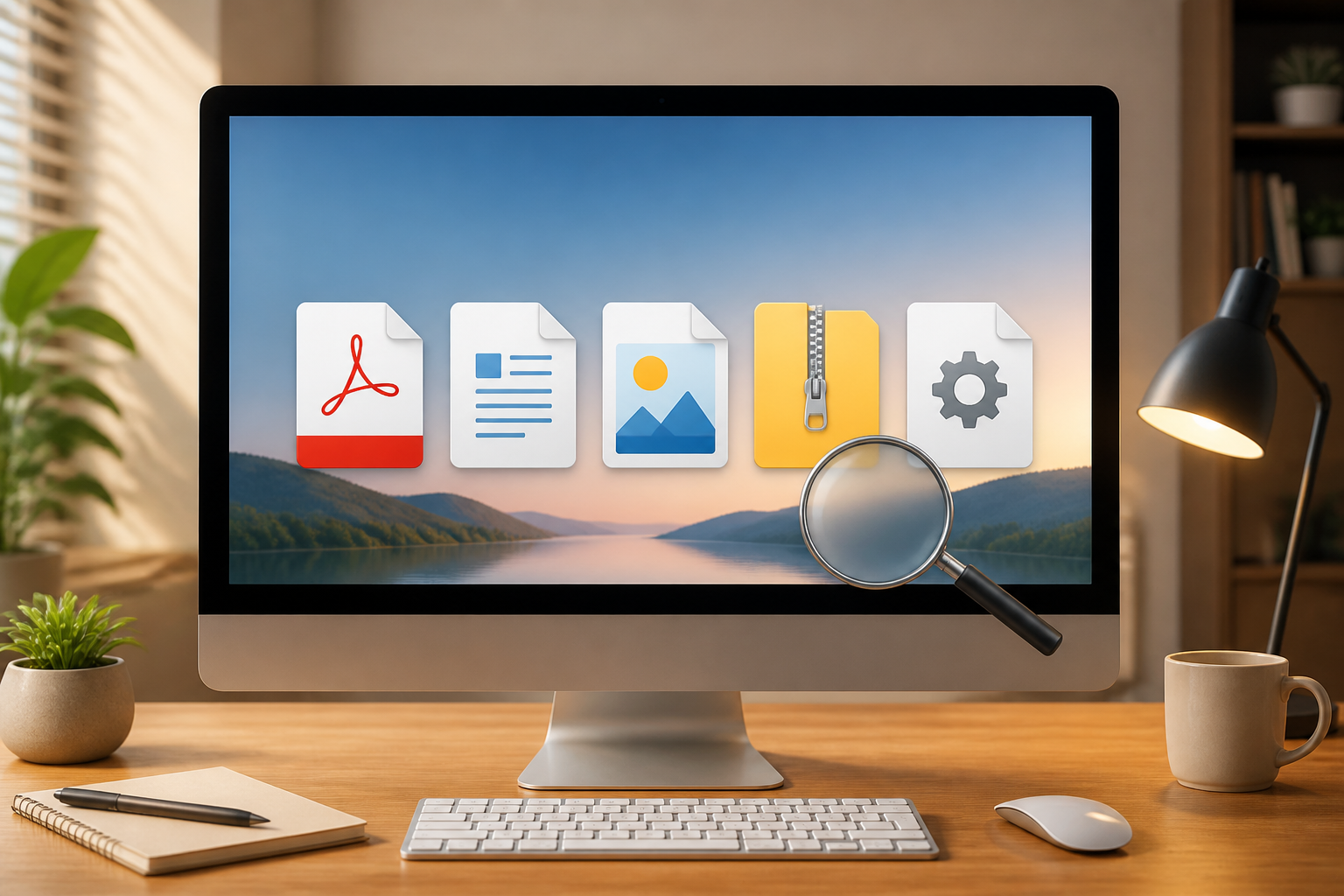
When downloading files, many people only look at the name: "invoice", "photo", or "important document". However, the most crucial part often lies behind that name, such as .pdf, .jpg, .docx, or .exe.
The last part is called the file extension. The extension gives the operating system a clue about the type of file and the application typically used to open it. For beginners, understanding extensions makes daily tasks easier and helps identify suspicious files.
What is a file extension?
A file extension is a series of letters following a dot at the end of a file name. For example:
report.pdfhas the extension.pdf.holiday-photo.jpghas the extension.jpg.financial-data.xlsxhas the extension.xlsx.installer.exehas the extension.exe.
Simply put, an extension works like a label on a box. The label "book" tells us that its contents are likely different from a box labeled "kitchen tools". Computers use these labels to select the appropriate application.
However, an extension is not an absolute guarantee about the contents of a file. File names can be changed, and extensions can also be disguised. Therefore, extensions need to be read alongside the source of the file, the sender's name, and the context.
Commonly Encountered File Types
Documents
.docx: Microsoft Word document, usually for letters, reports, or manuscripts..xlsx: Microsoft Excel spreadsheet, suitable for tables, calculations, and data..pptx: Microsoft PowerPoint presentation..pdf: documents with layouts that tend to remain consistent when opened on various devices..txt: plain text without complex formatting like colors or special layouts.
Document files can usually be opened with office applications or PDF readers. However, certain documents may contain macros, links, or active elements that need to be checked before use.
Images and Videos
.jpgor.jpeg: images with relatively small sizes, commonly used for photos..png: images that can support transparent backgrounds..gif: simple animated images or short moving pictures..webp: a modern image format often used on websites..mp4: a very common video format.
The differences in image formats usually relate to quality, file size, and support for transparency. For sending regular photos, .jpg is often sufficient. For logos or images with transparent backgrounds, .png may be more appropriate.
Archives or Compressed Files
.zip: a collection of files or folders packaged into one..rar: another archive format often used to reduce file size..7z: an archive format with potentially high compression levels.
Archive files are not always a single document. They can contain many folders, photos, or programs. Therefore, do not run all files within an archive immediately. Extract them first, then check the contents.
Program Files
.exe: a program that can be run on Windows..msi: an application installation package for Windows..dmg: an application installation file commonly used on macOS..apk: an Android application package typically installed outside of official app stores.
This type of file requires extra attention. Opening or running them can install programs on the device. Do not run program files just because their names look convincing.
Why Are Extensions Important for Security?
One trick that often confuses users is making a file name appear safe. For example, someone sends a file named photo.jpg.exe. If the system hides known extensions, the file may look like photo.jpg, while the actual extension is .exe.
This file is not a photo. It is a runnable program. Indeed, not all .exe files are harmful—official application installers also use that format—but program files from unknown sources should be treated with suspicion.
Be wary of files with patterns like:
document.pdf.exeinvitation.jpg.scrinvoice.docx.bat- archive files containing programs with convincing names
Double extensions do not always mean malware, but they are a reason to pause and check before opening a file.
How to Show File Extensions
On some devices, certain file extensions are hidden to make folder views look simpler. For security and better understanding, it is advisable to display extensions.
On Windows
- Open File Explorer.
- Select the View menu.
- Open the Show section.
- Enable the File name extensions option.
File names will then be displayed in full. If using a version of Windows with a different menu layout, look for that setting through the folder options menu.
On macOS
- Open Finder.
- Select Finder then Settings or Preferences.
- Open the Advanced section.
- Enable the option to show all file name extensions.
Menu names may vary slightly depending on the version of the operating system, but the principle is the same: look for settings related to "show all filename extensions".
If a File Cannot Be Opened
A file that fails to open is not necessarily corrupted. There are several possibilities:
- The appropriate application is not installed.
- The file was created with a newer version of the application.
- The file has not finished downloading.
- The file extension has changed or does not match its contents.
- The file is indeed corrupted.
The first step is to check the extension and size of the file. A PDF file that is zero kilobytes, for example, likely has not downloaded correctly. Do not arbitrarily change the extension just to open the file. Changing .docx to .pdf does not change the contents of the file; it only changes its label.
What You Can Do Now
- Enable file extension view on your computer.
- Get into the habit of reading the full file name before opening it.
- Do not run
.exe,.msi, or.apkfiles from unclear sources. - Check the contents of ZIP or RAR files before opening files inside them.
- Use official applications and regularly update your operating system.
- If a file is sent by a seemingly known contact but its contents are strange, confirm through another channel.
Extensions are not a perfect security tool. However, the habit of checking this small part of a file name can prevent many mistakes: opening the wrong document, installing unnecessary applications, or accidentally running harmful programs.
– Rio Yotto @rioyotto