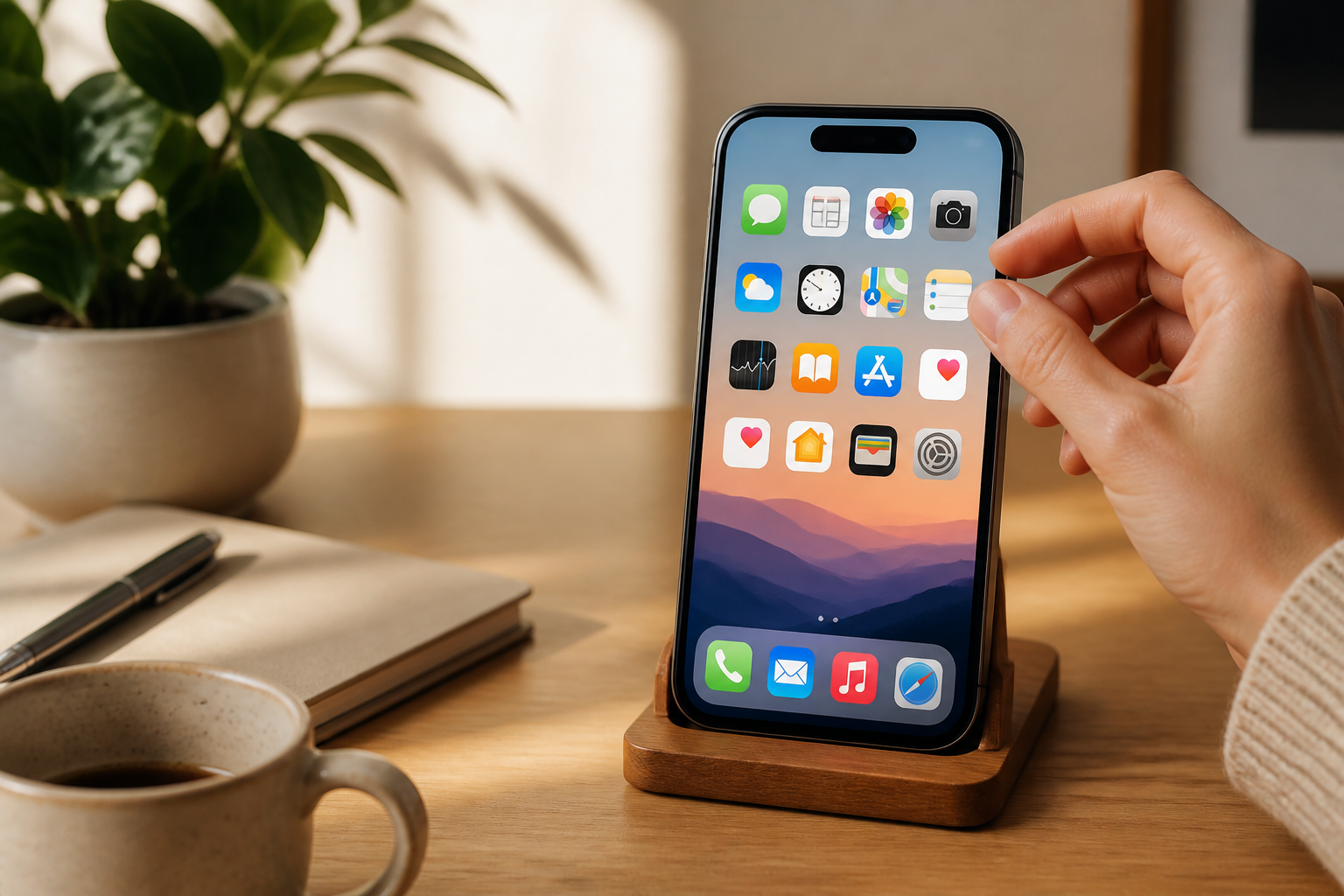
Many people feel technologically challenged not because they can't use a phone, but because the display is too cluttered. App icons are scattered across many pages, notifications keep popping up, and rarely used apps clutter the screen. As a result, simple tasks like opening the camera or finding WhatsApp feel like searching for something in a messy drawer.
Your phone's home screen can actually be treated like a workspace. Frequently used items should be placed within easy reach, while rarely used items can be stored elsewhere. You don't need to master all features to make your phone more comfortable. Just tidy up the parts you see most often.
Start with the Apps You Use Most
The first step is to observe your habits for a few days. Which apps do you open most often? Usually, the answer is no more than a few names: phone, messages, WhatsApp, camera, gallery, maps, mobile banking, or transportation apps.
Move these important apps to the first page or the bottom area of the screen where they are easily accessible. On many phones, the bottom part of the screen is called the dock. This area usually remains visible even when you switch pages, making it suitable for frequently used apps.
Don't feel obligated to keep all apps on the first page. The home screen is not a storage space. If there are too many icons, it becomes harder for your eyes to find the app you are looking for.
Group Apps by Function
For apps that cannot be deleted or are used occasionally, create folders based on their functions. A folder is a place to gather several apps under one icon.
Here are some simple grouping examples:
- Communication: WhatsApp, Telegram, email, and phone apps.
- Finance: mobile banking, digital wallets, and payment apps.
- Travel: maps, online transportation, and ticket booking apps.
- Photos and Videos: camera, gallery, document scanner, and photo editing apps.
- Shopping: marketplaces and household service apps.
Give the folders clear names. Avoid names like “Others” if the contents are too many, as such names do not help when you are searching for something. A folder named “Bank and Pay” is easier to understand than a folder named “Apps.”
Remove Unused Apps
Apps that are rarely used do not necessarily need to be deleted immediately. However, if you have forgotten the function of an app, haven’t opened it for months, or don’t know where it came from, it’s worth checking.
Before deleting, ensure that the app is not an important part of the phone's system and does not store data that you still need. For apps like mobile banking or health services, make sure you still know your username, phone number, or how to log back in before deleting them.
If in doubt, you can move the app to the last page first. After a few weeks, check if you really need it. This method is safer than deleting in haste.
Reduce Unimportant Notifications
Notifications are alerts from apps. They can be useful, but too many notifications can make your phone feel constantly urgent. Not every sound or vibration requires immediate attention.
Open the notification settings on your phone, then check the apps that send notifications most frequently. Keep important notifications like calls, family messages, bank transactions, and reminders that you actually need. For shopping, gaming, news, or promotional apps, you can turn off some or all of their notifications.
If the menu names differ, look for words like Notifications, Alerts, or Notifications in the settings search bar. You don’t need to change all settings at once. Start with the most disruptive apps.
Use a Comfortable Text Size
Text that is too small can strain your eyes quickly and increase the likelihood of pressing the wrong button. Conversely, text that is too large can cut off some information. Choose a size that allows you to read without squinting, but still makes the content on the screen look complete.
This setting is usually found in the display, accessibility, or text size sections. On some phones, you can also change the overall display size. After making changes, open frequently used apps to ensure buttons and menus are still easy to understand.
If you often read at night, consider using dark mode or adjusting the screen brightness. This is not a solution for everyone, but some users find the display more comfortable when the screen light is not too glaring.
Don’t Install Too Many Widgets
Widgets are small boxes on the home screen that display specific information or buttons, such as weather, calendar, news, or music players. Widgets can be helpful because you don’t need to open an app to see brief information.
However, too many widgets can make the screen feel crowded and sometimes use additional resources. Keep only the widgets that truly assist your routine. If you never check the calendar or weather from the home screen, those widgets may just be decorative.
Differentiate Between Facts and Personal Preferences
Organizing your phone screen is not a race to create the most minimalist display. What works for one person may not work for another. Some users are comfortable with one empty page, while others prefer to see all important apps at a glance.
The key is functionality. You should be able to find frequently used apps without remembering too many steps. If after organizing you still often get lost, it means the arrangement needs to be changed again. There is no permanent setup.
What You Can Do Now
- Move three to five of the most important apps to the first page.
- Create folders for communication, finance, travel, and photo apps.
- Turn off notifications from at least one of the most disruptive apps.
- Check the text size and increase it slightly if you often squint.
- Delete or move apps that are never used.
These small changes can make your phone feel more user-friendly. You don’t need to understand all the settings. Just make the device work according to your habits, not force you to follow the complexity of the device.
– Rio Yotto @rioyotto