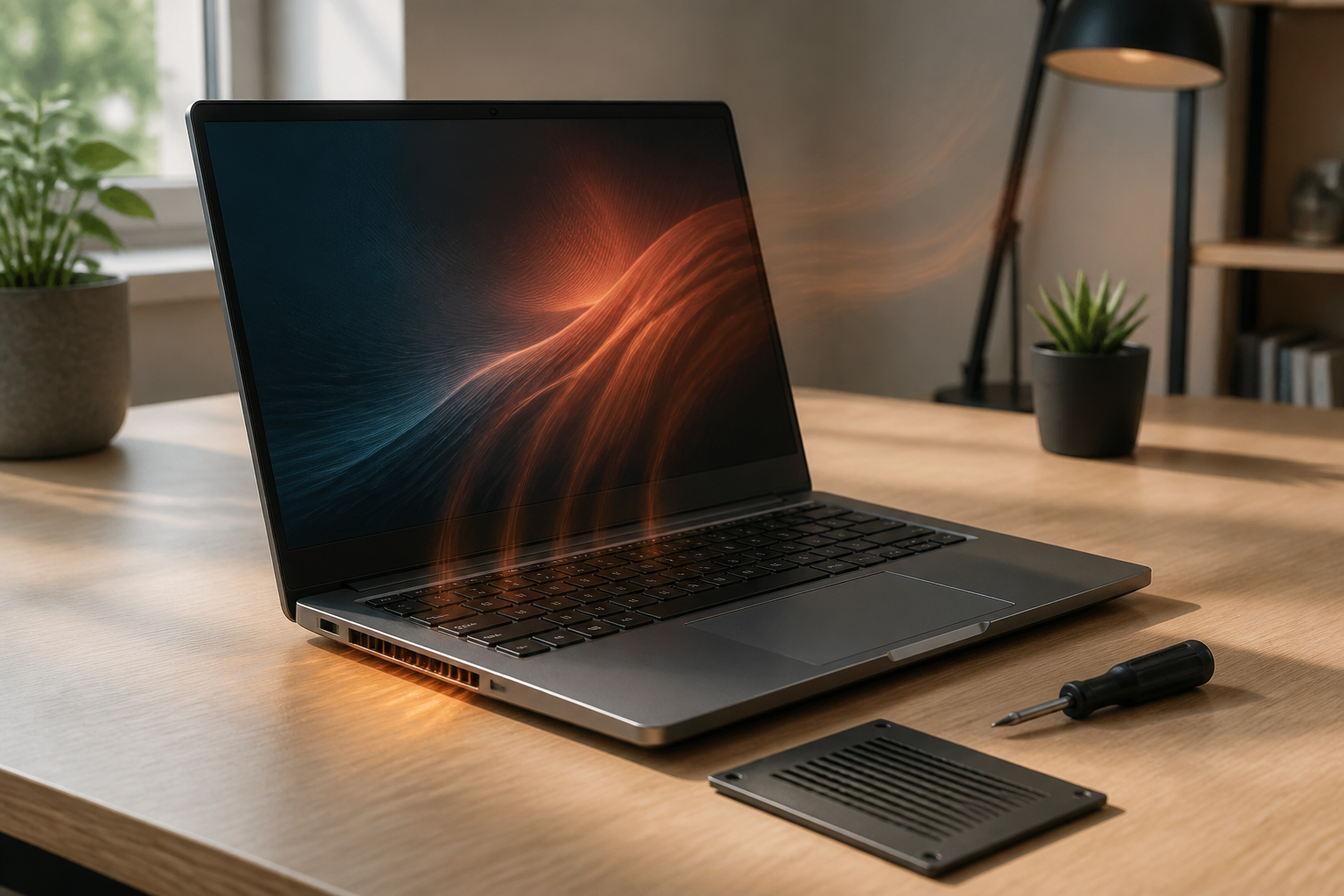
A laptop that suddenly slows down, has a noisy fan, or feels hot on the bottom is often immediately assumed to need a reinstall. However, the issue may stem from simpler factors: applications that are too demanding, blocked ventilation, accumulated dust, or a cooling system that is no longer optimal.
Identifying the cause step by step is safer than immediately dismantling the device or installing cleaning applications that may not be necessary. High temperatures do not always indicate damage, but continuous heat can cause the processor to throttle its speed to remain safe. Symptoms usually manifest as a slow laptop, a fan running loudly, or performance dropping after a few minutes of use.
Differentiate between normal heat and heat that raises suspicion
It is normal for a laptop to feel warm when used for video meetings, photo editing, gaming, running virtual machines, or opening many browser tabs. In these conditions, the processor and graphics card work harder, causing the fan to activate.
What needs attention is the pattern. If the laptop only gets hot during heavy tasks and then returns to normal, it is likely part of regular usage. However, if the laptop is hot when merely opening documents, the fan continues to be noisy after the computer is turned on, or the device frequently shuts down by itself, there is an issue that needs to be checked.
It is also important to distinguish between high temperatures and other warning signs. A burnt smell, squeaking sounds from the fan, a swollen body, or a laptop that suddenly shuts down repeatedly are not just comfort issues. Stop using it and consider having a technician check it, especially if the battery appears to be swelling.
First step: check the most resource-intensive applications
Before blaming dust or thermal paste, first check if there are applications that are excessively using the processor. On Windows, open Task Manager by pressing Ctrl + Shift + Esc. Look at the CPU, Memory, and GPU columns, and sort by highest usage.
On macOS, use Activity Monitor. Pay attention to applications that consistently rank at the top, especially when you are not performing heavy tasks. Browsers with many tabs, cloud synchronization applications, antivirus scanning, and video conferencing software often cause the laptop to work harder.
Do not immediately close system processes with names you do not recognize. Some processes are indeed required by the operating system. Focus on applications you recognize and are not currently using. If an application continues to use high CPU without a clear reason, update the application, disable unnecessary extensions, or look for lighter alternatives.
Check programs running at startup
Programs that automatically run when the laptop is turned on can make the system feel slow and increase temperatures from the start. Many applications install background services for synchronization, update checks, or notifications, even if those features are not always essential.
On Windows, startup settings can be checked through Task Manager or Settings. On macOS, open the login items settings in System Settings. Disable applications that do not need to be active immediately after the computer starts. For example, meeting applications that are only used occasionally or utilities that are rarely used.
Avoid disabling security components, drivers, or services that you do not understand. If in doubt, note the application's name and look for information from the developer's official site. The principle is simple: the fewer tasks the laptop has to perform when it first starts up, the easier it is for the system to reach a stable condition.
Ensure the laptop has adequate airflow
Placing a laptop on a bed, sofa, blanket, or soft surface can block the ventilation holes. As a result, hot air cannot escape properly, and the fan has to work harder. The habit of using a laptop in such places may feel comfortable, but the effects can be detrimental if done for hours.
Use a desk or a flat, hard surface. Ensure that the air holes on the bottom and sides are not blocked by other objects. If you often work for long periods, a laptop stand can help elevate the device and provide additional airflow. However, a stand is not a substitute for cleaning if the ventilation is already filled with dust.
You should also pay attention to the location of use. Hot rooms, direct sunlight exposure, and the laptop being too close to a wall can worsen heat dissipation. Small changes in your working position often have a more significant impact than installing unclear optimization applications.
When to check for dust and fan issues?
If the laptop has been used for a long time and has never been cleaned, dust may be one of the main causes. Dust that accumulates on the grilles, fans, and cooling fins can obstruct airflow. Symptoms usually include the fan spinning more frequently, rapid temperature increases, and decreased performance when the device is used continuously.
External cleaning can be done by turning off the laptop, unplugging the charger, and carefully cleaning the ventilation using appropriate tools. Do not insert sharp objects into the air holes and do not spray liquid directly onto the device.
To open the bottom cover, ensure you understand the risks to the warranty, flexible cables, and small components inside. If you have never done this before, it is safer to use a technician who can clean the fan and check the condition of the thermal paste, which is the heat-conducting material between the chip and the cooling system.
Do not rely on a cooling pad as the primary solution
A cooling pad can help some laptops, especially if its design allows additional air to enter from below. However, this device does not always solve the problem. If the internal fan is dirty, ventilation is blocked, or applications are excessively using the CPU, a cooling pad only alleviates symptoms without addressing the root cause.
Consider a cooling pad as a support, not the main remedy. Check CPU usage, laptop position, ventilation cleanliness, and power settings first. For light tasks, use balanced or power-saving modes if available. High-performance mode should only be used when additional power is genuinely needed.
What you can do now
- Note when the laptop starts to overheat: when first turned on, when opening certain applications, or after prolonged use.
- Check CPU, memory, and GPU usage through the system's built-in tools.
- Close heavy applications that are not in use and evaluate startup programs.
- Move the laptop to a hard surface with unobstructed ventilation.
- Carefully clean the exterior and grilles.
- If the problem persists, have a technician check the fan, internal dust, battery, and thermal paste.
This approach helps separate software issues from physical problems. If the temperature rises due to one application, the focus of the fix is on the application or its settings. If the temperature remains high while idle, checking the cooling system makes more sense than immediately replacing the laptop.
In essence, a hot laptop is not a diagnosis but a symptom. By observing usage patterns and checking the causes one by one, you can avoid unnecessary steps while knowing when a simple issue has turned into a reason to seek professional help.
– Rio Yotto @rioyotto