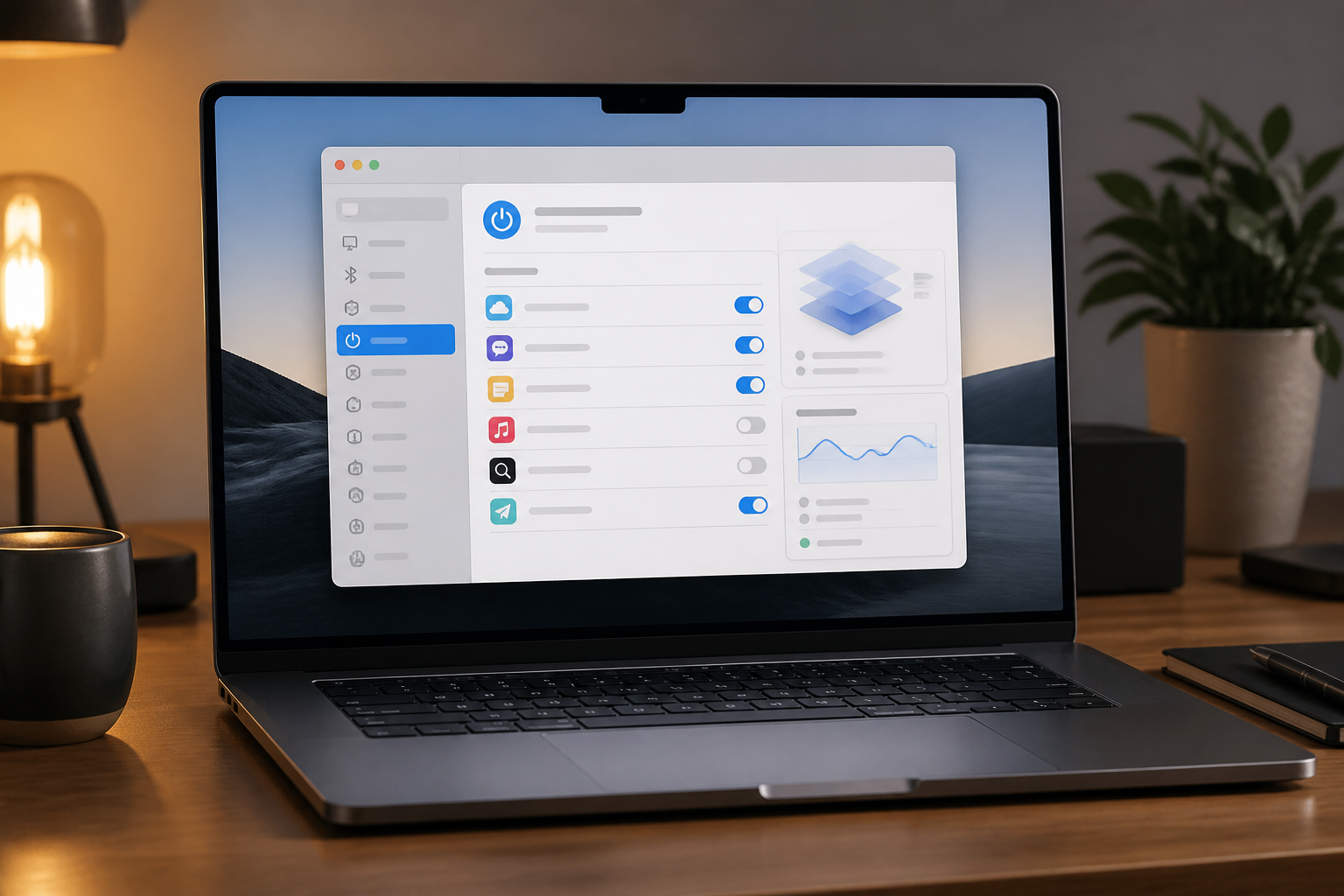
If your laptop feels slow for a few minutes after you enter your password, don’t immediately conclude that the RAM or SSD needs to be replaced. Often, the issue is simpler: too many applications are running at login, even if you may not use them right away.
Startup applications are programs that automatically open when the computer starts or when the user logs into the desktop. Some are indeed essential, such as hardware managers, file synchronization, or security. However, others may be running simply because they were activated by an installer, even though they might only be used once a week.
Organizing the startup list is not just a way to speed up the login time to the desktop. It also helps reduce background processes, save battery life, and makes it easier to identify programs that shouldn’t be running.
Differentiate Between Boot, Login, and Background Applications
Many people refer to all slowdowns as “slow boot,” even though there are several different stages. Boot is the process when the operating system begins to load. After that, there is the login stage, when the desktop and user profile are prepared. Next, startup applications begin to open, and some programs continue to run in the background.
If the system logo appears quickly but the desktop only feels ready after a few minutes, the problem is likely not just with the boot process. Applications like cloud storage, messengers, launchers, updaters, and device utilities can compete for CPU, memory, or disk access at the same time.
Therefore, do not disable all programs indiscriminately. The goal is not to create an empty startup list, but to leave only the programs that are truly necessary.
How to Check Startup Applications in Windows
In Windows 10 and Windows 11, open Settings > Apps > Startup. You will see a list of applications that can be enabled or disabled at login to Windows. Microsoft also provides a similar list in Task Manager under the Startup apps tab, with information on startup impact such as low, medium, or high.
Start with high-impact applications that you do not need every time the computer starts. Examples might include meeting applications, game launchers, or synchronization tools that are only used occasionally. Right-click on the application in Task Manager to see the option to disable it.
Disabling startup usually does not delete the application and does not prevent it from being opened manually. The application simply does not run automatically when you log in. If you find that you need it, reopen the application or enable it again from the same menu.
Also, pay attention to entries with unclear names or suspicious file locations. Do not delete them directly from the Registry. Microsoft warns that changes to the Registry can have unintended consequences. It is safer to search for the program name first, check its publisher, and then uninstall any unknown applications through official methods.
Organizing Login Items in macOS
In macOS, the equivalent setting is called Login Items. Open Apple menu > System Settings > General > Login Items & Extensions. There you can see the applications that automatically open at login and some processes running in the background.
Remove or disable items that do not need to be available immediately. For example, video conferencing applications that are only used when there is a meeting or device utilities that are rarely used. Differentiate between main applications and extensions or helper processes, as some device features may depend on those processes.
If a feature stops working after disabling an item, re-enable it. This approach is safer than deleting many things at once because you can identify which change caused the issue.
What About Linux?
In GNOME-based Linux desktops, applications that run automatically at login can be managed through the Tweaks application, under Startup Applications. GNOME explains that certain programs are indeed run automatically for the desktop session to function normally, while users can also add their own applications.
More technical Linux users may find autostart configurations in .desktop files, including in directories like /etc/xdg/autostart/. However, do not edit or delete system files just because their names look unfamiliar. Note the changes made and do them one at a time for easy restoration.
Which Items Are Safe to Disable?
Use three simple questions before turning off an item:
- Do I need this application immediately after login? If not, the application can usually be opened manually when needed.
- Does this application provide device or security functions? Drivers, antivirus, touchpad managers, corporate VPNs, and accessibility tools need to be checked more carefully.
- Do I know who the creator is and where the application comes from? Unknown names, strange file locations, or programs you never installed are worth investigating.
Examples that are often safe to delay include game launchers, personal chat applications, updaters for rarely used programs, and applications that only open small windows without critical needs. Conversely, password managers, security devices, work synchronization, or tools needed to connect to the office network may indeed need to remain active.
Don’t Judge by Boot Time Alone
A faster startup is not the only measure of success. Also, pay attention to whether the fan runs less frequently, the battery lasts longer, and the computer feels responsive after login. Conversely, if you disable cloud synchronization and then realize that work files are not updated automatically, saving a few seconds is not worth the risk.
Test changes gradually. Disable one or two items, restart the computer, and then use the device as usual for a few hours or a day. If everything runs normally, continue evaluating the next item. Keep track of the names of the programs you disabled so you don’t forget when you need to enable them again.
What You Can Do Now
- Open the startup settings according to your operating system.
- Prioritize attention on high-impact or unrecognized applications.
- Disable, not delete, applications that you only want to test.
- Restart the computer and compare the experience after login.
- Check again after installing large applications, as new installers often add startup entries.
Organizing startup applications will not turn an old laptop into a new computer. However, this habit can reduce the workload placed on the system every time you start working. With small and measurable changes, the desktop becomes more ready to use without sacrificing essential functionality.
Sources & Further Reading
- Configure Startup applications in Windows
- Change Login Items & Extensions settings on Mac
- Have applications start automatically on login
– Rio Yotto @rioyotto