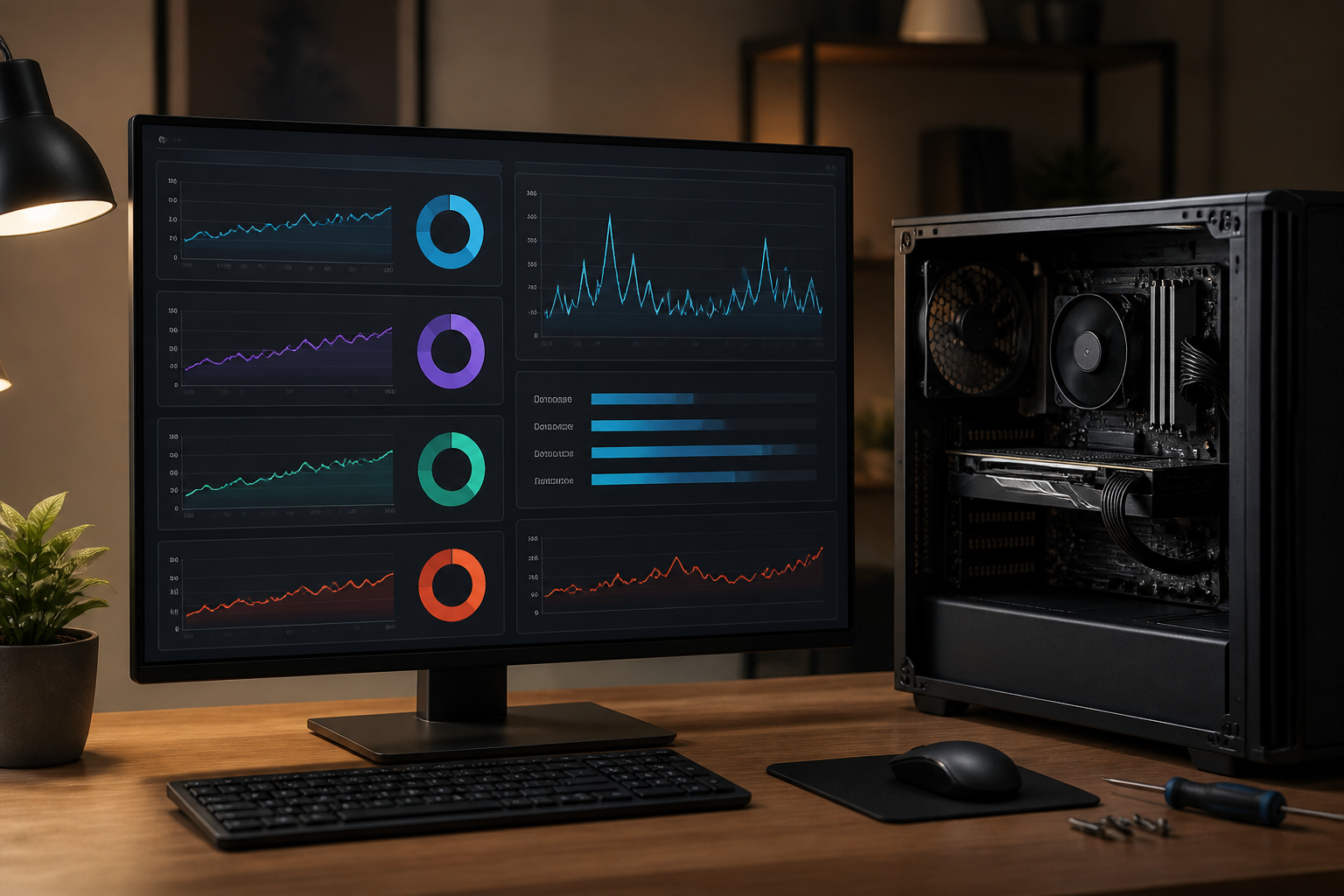
A computer that suddenly slows down, applications become unresponsive, or the screen freezes can indeed be alarming. The problem is, many people jump to the conclusion that the RAM is insufficient or that the hard disk needs to be replaced. In fact, similar symptoms can arise due to nearly full storage, excessive temperatures, problematic applications, drivers, or even failing hardware.
The first step is not to buy new components, but to recognize when the computer starts having issues and what you were doing at that time. This pattern often provides more useful clues than just looking at specification numbers.
Start with the freeze pattern, not guesses
Note the conditions when the computer freezes. Does the problem occur when opening many browser tabs, copying large files, running design applications, or just a few minutes after being turned on? Also, observe whether the cursor can still move, if the fan noise increases, or if the entire computer becomes unresponsive.
- Only one application is frozen: the problem is likely with the application, document, plugin, or its memory usage.
- The computer slows down when many programs are open: RAM or CPU usage may be nearing its limits.
- Freezes when opening or copying files: check the storage, drive connection, or file system.
- Freezes after the computer overheats: cooling and component temperatures are the main suspects.
- Random freezes accompanied by restarts or blue screens: driver, power, RAM, or hardware issues are more likely.
Check RAM and CPU usage
On Windows, open Task Manager by pressing Ctrl + Shift + Esc. On macOS, use Activity Monitor. Check Memory, CPU, and Disk usage when the computer starts to feel slow.
RAM is temporary working memory used by applications while they are running. If RAM usage approaches maximum capacity, the operating system typically moves some data to storage. This process can make the computer feel very slow, especially if it is still using a mechanical hard disk.
Don't just look at the percentage numbers. Check which applications are at the top of the list. Browsers with many tabs, video conferencing applications, photo editors, virtual machines, and cloud sync programs often use a significant amount of RAM.
What you can do now
- Close applications and tabs that are not in use.
- Disable rarely used browser extensions.
- Check applications that run automatically when the computer starts.
- Restart the computer if it has been used for days and its performance continues to decline.
- If your work needs have indeed increased, consider upgrading the RAM after ensuring the device supports it.
Upgrading RAM makes sense if the computer frequently runs out of memory during normal tasks. However, adding RAM will not solve the problem if the real cause is a failing storage or excessive temperatures.
Differentiating between full storage and problematic storage
Nearly full storage can hinder performance because the operating system and applications require free space for temporary files, updates, cache, and other working processes. Check the capacity of the main drive and leave enough space for daily activities.
Start by deleting temporary files, old installers, large videos, and unnecessary file duplicates. Do not delete system folders manually right away. Use built-in features like Storage Settings in Windows or storage managers in macOS to make it easier to identify the files to be cleaned.
Problematic storage has different signs. The computer can be very slow when opening folders, file copying processes may stop, or applications may experience errors when saving documents. If strange noises come from the mechanical hard disk, files frequently become corrupted, or the computer fails to read the drive, prioritize backing up your data immediately.
If the computer is still usable, copy important documents to another drive or cloud service first. Technical checks should be done after important data has a backup.
Check temperature and airflow
Computer components generate heat, especially the processor and graphics card. When temperatures are too high, the system may throttle its speed to protect the device. In worse conditions, the computer can freeze, shut down, or restart.
Pay attention to whether the fans are spinning very loudly, the bottom of the laptop feels too hot, or if problems only occur while gaming and running heavy applications. Dust buildup on vents can also hinder heat dissipation.
Simple inspection steps
- Ensure the laptop's ventilation is not blocked by pillows, mattresses, or soft surfaces.
- Safely clean dust from desktop and laptop vents.
- Ensure the fans are spinning normally and not making grinding noises.
- Use temperature monitoring applications from trusted sources if you need to observe heat patterns.
- If you have recently replaced components or thermal paste, double-check the installation.
Avoid concluding that high temperatures are based solely on the heat felt on the casing. Use monitoring data if you want to make decisions. What is considered normal temperature also depends on the type of processor, workload, device design, and room conditions.
Don't forget about drivers and applications
Freezes that start occurring after installing applications, updating drivers, or connecting new devices may relate to those changes. Make a list of recent changes before the problems arose.
Update the operating system and drivers from official sources. For graphics cards or specific devices, use the manufacturer's support page. If problems arise immediately after an update, consider rolling back the driver or uninstalling the newly installed application—but do so carefully and note the changes made.
Running a security scan is also worthwhile if the computer suddenly slows down, strange ads appear, the browser changes on its own, or there are unknown processes continuously using CPU and network. Use trusted security software and avoid installing "computer cleaners" that promise instant fixes.
When to stop trying on your own?
Self-checks are still reasonable for minor issues, but there are limits. Seek technical help immediately if the computer repeatedly fails to start, the drive makes abnormal noises, important data starts to get corrupted, there is a burning smell, or problems occur after exposure to liquid and impact.
For unclear cases, keep a simple record: time of occurrence, applications in use, error messages, temperatures, and recent changes to the computer. This information helps technicians work faster and reduces the risk of trial-and-error component replacements.
Conclusion
A freezing computer is not a diagnosis, but a symptom. Differentiate issues based on RAM usage patterns, storage activity, temperature, software changes, and signs of physical damage. With this order of checks, you can determine whether it is enough to close applications, clear space, improve cooling, back up data, or indeed need to replace components.
Most importantly, do not delay backing up when freezes are accompanied by file errors or signs of problematic drives. Performance can be improved later, but lost data may not be recoverable.
– Rio Yotto @rioyotto