When a computer suddenly freezes, applications close by themselves, or the system feels slow for no clear reason, the first step often taken is to guess: maybe the RAM is faulty, the hard disk is starting to fail, or there’s a virus. In fact, Windows usually logs some of these events in the system log.
The log does not always provide easy-to-understand answers. However, if read in the correct order, the log can help us identify patterns: problems arise after certain drivers run, specific applications crash, or storage devices start to experience issues.
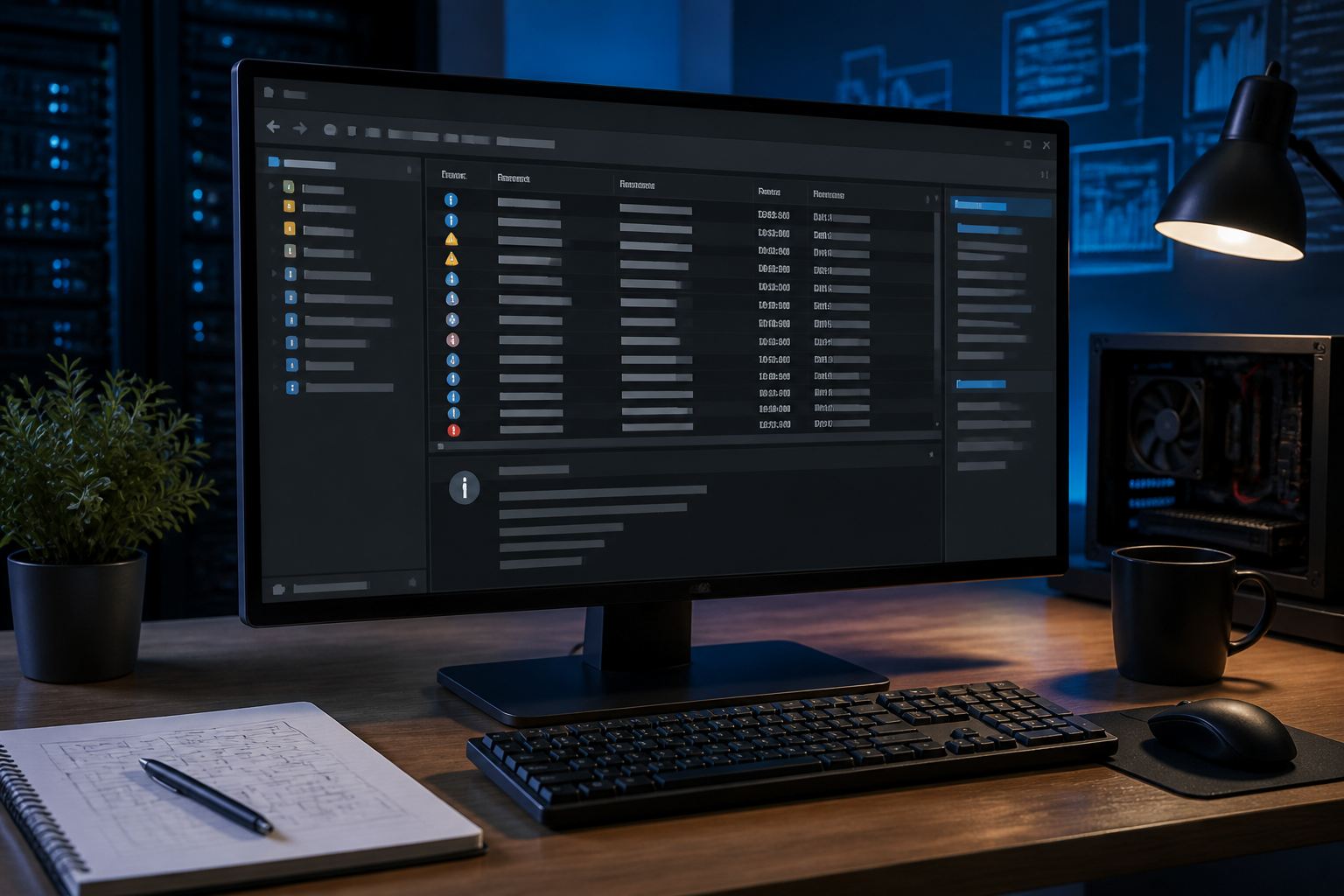
The built-in tool that can be used is Event Viewer. This is a Windows application for viewing event records from the operating system, applications, and some hardware components.
Don't Assume All Red Flags Are Causes
Before opening Event Viewer, there is one important thing: a large number of Error messages does not automatically mean the computer is broken. Windows and applications can log minor errors that do not impact daily work. Some messages even appear because a service tries to do something, fails, and then tries again.
Therefore, our goal is not to delete all errors until the log looks clean. The goal is to find events that are close in time to the actual problems we are experiencing.
For example, if the computer freezes at 10:15. The most interesting records are not all the errors from the past month, but the events around 10:15 that occur every time a freeze happens.
How to Open Event Viewer
- Press the Windows key, then type
Event Viewer. - Open the application. For a quick method, press
Win + R, typeeventvwr.msc, and then press Enter. - In the left panel, open Windows Logs.
- Start with System for driver issues, hardware, Windows services, or startup processes.
- Check Application if the problem is with a specific application.
Windows stores events from various sources in a centralized log. Event Viewer then displays information such as time, event source, severity level, and event identification number.
Steps to Read Logs Without Getting Overwhelmed by Information
1. Reproduce the Problem if Possible
If an application always crashes when opening a specific file, repeat that process while noting the time. If the computer only freezes after being used for an hour, note when the symptoms start to appear.
A simple time log is very helpful. Without it, we will only see hundreds of unrelated logs.
2. Filter by Time and Event Level
In the right panel of Event Viewer, select Filter Current Log. We can limit the time range and choose event types such as Critical, Error, or Warning.
Use this filter to narrow down the search, not to immediately conclude that all results are causes. After the list is shorter, compare the times with when the problem occurred.
3. Check the Source and Event ID
Open one of the records that is closest in time to the problem. Pay attention to three sections:
- Source: the component or application that logged the event.
- Event ID: the identification number of the type of event.
- General: a summary in more readable language.
If you want to search for additional information, use a combination of the source name and Event ID. For example, search for source name + Event ID + Windows. Avoid searching for just the ID number without the source name because the same number can have different contexts.
4. Open the Details Tab if the Summary Is Not Enough
The Details tab can display technical data that is not always visible in the summary, including process names, error codes, or device information. To share with a technician, select the XML view or copy the entire event content.
Do not modify or delete logs before saving a copy. Intact logs are often more useful when the problem needs to be checked a few days later.
How to Differentiate Strong Indicators from Coincidences
Stronger indicators usually have several characteristics: the timing is very close to the symptoms, they appear repeatedly, the source is consistent, and the problem stops after certain actions are taken.
Conversely, a single error that appears long before the computer freezes may not be related. Similarly, a Warning message that has appeared for months without causing any symptoms.
Use a simple approach: change one thing at a time. If the computer has issues after installing a new driver, note the condition before removing or updating the driver. This way, we can still compare whether the action truly had an effect.
If the Problem Feels Slow, Not a Crash
Event Viewer is more suitable for looking for events or failures. For ongoing performance issues, Windows also provides Performance Monitor. This tool can record CPU, memory, and storage usage over a certain period.
For example, Task Manager shows high CPU usage only momentarily. Performance Monitor can help see if that load lasts long enough and which processes are most frequently associated. This is more useful than drawing conclusions from a single screenshot.
For a simpler initial check, open Windows Security and select the Device performance & health page. This page provides a general check related to device health, storage, battery, and some system issues.
What You Can Do Now
- When the computer has issues, note the time of the event down to the minute.
- Open Event Viewer and check the System and Application logs.
- Use time filters to avoid reading the entire log history.
- Compare the Source, Event ID, and message content with the time of the problem.
- Save copies of important logs before making major changes.
- If the problem recurs, keep a simple record of the time, symptoms, and recent changes to the computer.
Event Viewer is not a predictive tool that always directly points to a faulty component. It is more like a technician's notebook: useful when we know when the problem occurred and can distinguish clues from coincidences.
By getting into the habit of noting times, filtering logs, and testing one change at a time, troubleshooting becomes more measurable. We do not have to immediately buy new RAM or reinstall Windows just because the computer froze once.
Sources & Further Reading
- Windows startup issues troubleshooting — Microsoft Learn
- Windows Event Log — Microsoft Learn
- Troubleshoot performance problems in Windows — Microsoft Learn
- Device performance and health in the Windows Security app — Microsoft Support
– Rio Yotto @rioyotto