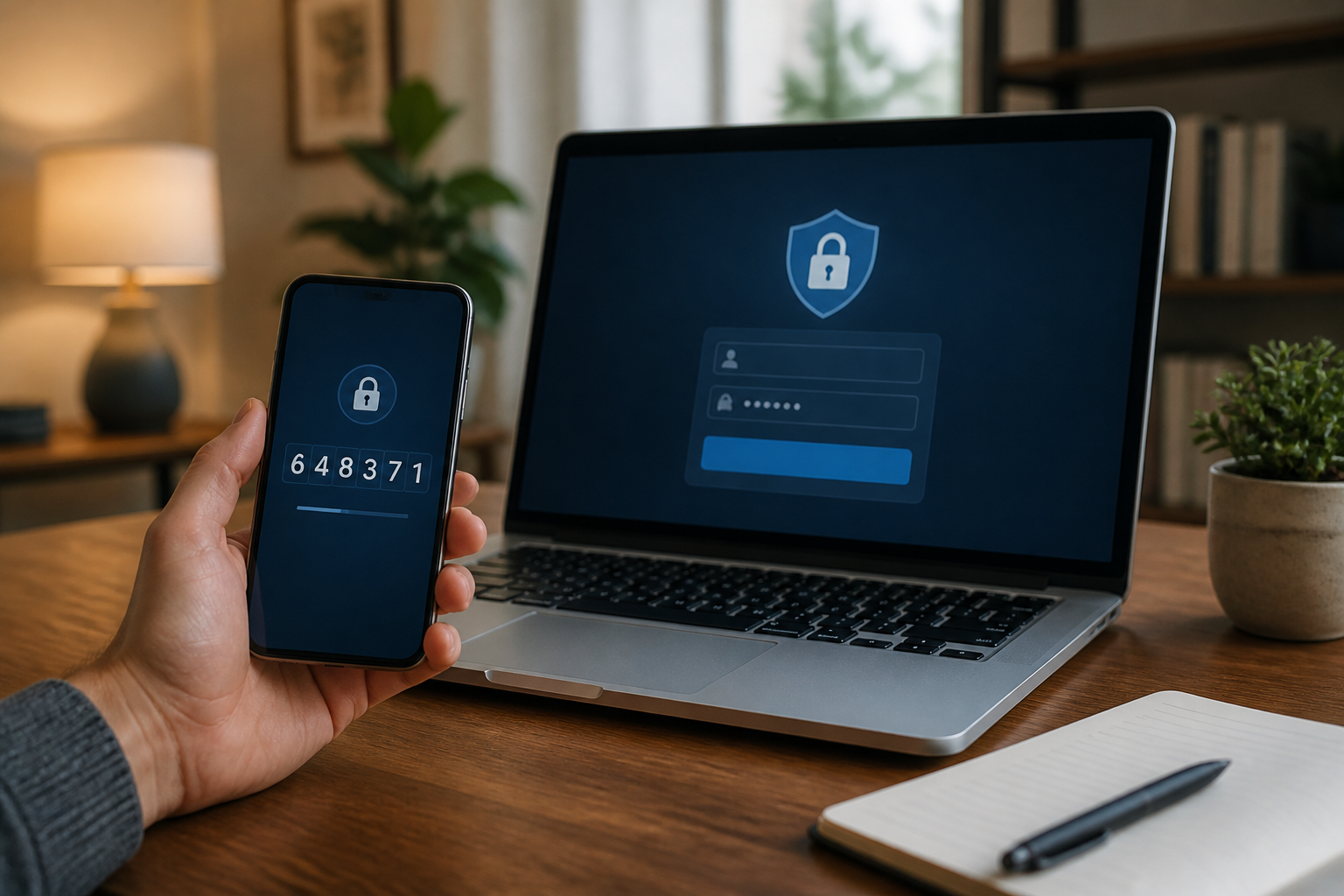
Many people only set up two-factor authentication after hearing about a friend's account being hacked. The problem is that the options available often feel confusing: using SMS, receiving notifications, or entering codes from an authenticator app.
An authenticator app is an application that generates one-time codes, usually six digits, that change every few seconds. These codes are used as a second layer after the password. Therefore, someone who only knows your password may not be able to access your account.
This method is quite practical for email, social media, work services, and certain financial accounts. However, it is important to understand its limitations: authenticator codes are better than SMS in many situations, but they can still be given to scammers if you enter them on a fake login page.
What’s the difference between authenticator and SMS codes?
SMS codes are sent via the cellular network. An authenticator generates codes directly on the device, so it usually does not require a cellular signal or internet connection when the code is generated. Google and Microsoft, for example, explain that codes from their apps can be used offline.
SMS is still useful when there are no other options, but it carries additional risks. Phone numbers can be problematic, SIM cards can be lost, or scammers may attempt to take over a number through social engineering against the carrier. For this reason, organizations like CISA place SMS below authenticator apps, security keys, and other modern methods in terms of protection order.
Nevertheless, do not consider an authenticator as perfect protection. The codes you type manually are not specifically tied to the site you are visiting. If you enter them on a fake site, scammers can forward the code to the original site before it expires.
Understanding three commonly confused terms
Password
A password is the main secret that you know. If a password is reused across multiple sites, a breach of one service can open the door to other accounts.
Authenticator code
This code is the second factor that changes periodically. The code is not a substitute for a password and should not be shared via chat, phone, or forms you open from suspicious links.
Recovery code
A recovery code is a backup when your phone is lost, damaged, or the authenticator app cannot be used. In some services, a single code can only be used once. This code should be stored like a spare house key: not displayed, but easily found by you when truly needed.
How to set up an authenticator without locking yourself out
- Ensure your recovery email is still active. Before enabling two-factor authentication, check if you can still access your recovery email and phone number.
- Install the official authenticator app. Download from the official app store and avoid apps with similar names from unknown developers.
- Open your account security settings. Look for menus like “2-Step Verification,” “Two-Factor Authentication,” or “Two-Factor Authentication.”
- Add the authenticator app. Services usually display a QR code. Scan the QR code from the authenticator app, then enter the code currently displayed to complete the registration.
- Save the recovery code. Don’t just take a screenshot and leave it in your gallery. Store it in a trusted password manager, print it and keep it in a safe place, or use another method that is not easily accessible to others.
- Test the backup method. Make sure you know how to log in if your phone is lost. Don’t wait until the device is broken to realize that all recovery paths are unavailable.
When switching phones, don’t rush to delete the old device
A common mistake occurs when someone sells or resets their old phone before transferring the authenticator account. As a result, the codes are still registered on the old device, while the new device is not ready to be used.
If the app provides synchronization or backup, enable it while understanding what is actually stored. Google Authenticator supports code synchronization through a Google account, while Microsoft Authenticator has backup features with certain limitations, including differences between personal and work accounts.
For apps that do not use synchronization, use the official transfer feature. Some apps provide an export and import process via QR code. After transferring all accounts, test the login on the new device first. Only then should you delete the authenticator from the old device and revoke access to that device from the account settings.
Do not automatically approve login requests
In addition to six-digit codes, some services offer “Approve” or “Deny” notifications on your phone. This feature is indeed more convenient, but it can be abused through MFA fatigue, a condition where scammers send multiple login requests until the victim is tired and presses the approve button.
If a login request suddenly appears that you did not initiate, press “Deny.” Do not consider the notification as a mere nuisance. Change your password if the requests are repeated, check the devices that are logged in, and revoke sessions that are unrecognized.
What does this mean for us?
Authenticators are suitable as a realistic security enhancement for important accounts. Start with your primary email because email often serves as a gateway to reset passwords for other services. After that, move on to banking accounts, cloud storage, marketplaces, and social media that hold a lot of personal data.
However, choose methods in a logical order. If a service supports passkeys or security keys, those cryptographic-based methods are more resistant to phishing than codes that must be typed manually. If not available, an authenticator is still a good choice and is usually stronger than SMS.
Security checklist you can do now
- Enable two-factor authentication on your primary email.
- Use the official authenticator app, not an app from random links.
- Store recovery codes in a safe place and do not send them to anyone.
- Enable app keys or biometric protection if available.
- Never enter codes after opening login links from suspicious messages.
- Regularly check the list of devices and login sessions.
- Prepare a plan before changing, selling, or resetting your phone.
The goal of an authenticator is not to make accounts immune to attacks. Its purpose is to add one important barrier when the password is already known to others. This barrier will work much better when accompanied by simple habits: checking the site address, not sharing codes, and preparing recovery paths before emergencies occur.
Sources & further reading
- CISA — Require Multifactor Authentication
- NIST — Digital Identity Guidelines: Authenticators
- Google Account Help — Get verification codes with Google Authenticator
- Google Account Help — Sign in with backup codes
- Microsoft Support — Back up your accounts in Microsoft Authenticator
– Rio Yotto @rioyotto