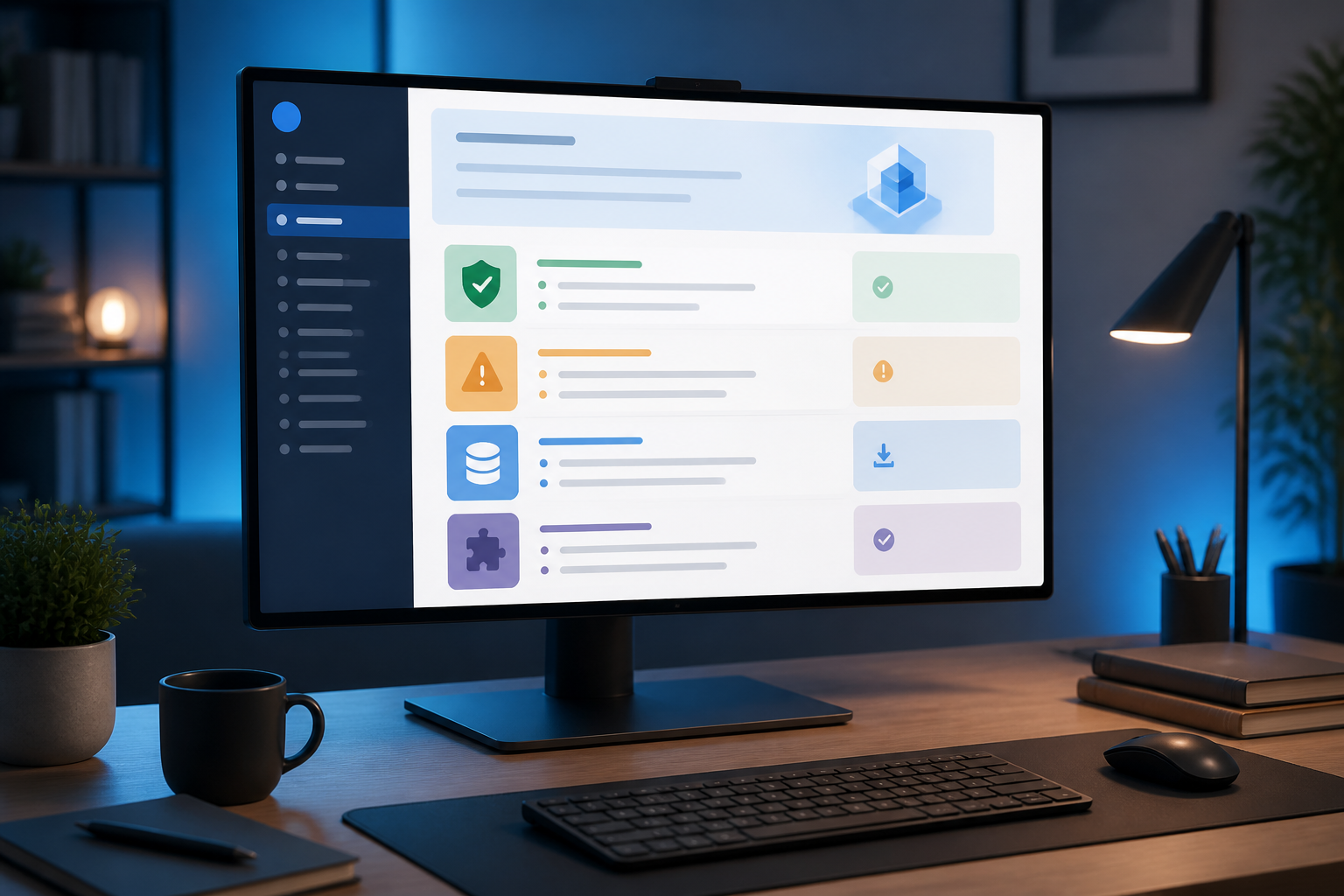
The Update button often seems like a simple decision. However, in software used for work, managing data, or running services, updates can change how applications behave. New features may be helpful, but changes in file formats, removal of old functions, or compatibility issues can also disrupt your work.
This is where the changelog becomes important. A changelog is a record of changes that explains what has been added, fixed, changed, or removed in a software version. This document is not just for developers. Regular users can also use it to decide whether an update is safe to install now or if it should be postponed.
A changelog is not just a list of new features
Many people only look for the “New Features” section. However, more important information may be found in other sections. Generally, a changelog can contain several types of changes, including:
- Added: new features or capabilities.
- Changed: modified behavior or mechanisms.
- Fixed: bugs that have been resolved.
- Deprecated: features that are still available but are being phased out.
- Removed: functions that have been deleted.
- Security: fixes related to security.
- Breaking changes: changes that may cause old configurations, plugins, scripts, or workflows to no longer function.
This distinction helps you read updates with more peace of mind. A new version that only fixes minor bugs certainly carries different risks than a version that changes the database structure or removes an old API.
How to read version numbers without relying too much on them
Many software applications use a version number pattern like 2.4.1. In an approach similar to semantic versioning, the first number often indicates major changes, the second number indicates feature additions, while the third number usually relates to minor fixes.
However, version numbers are not an absolute guarantee. Each project may apply different rules. Some software may still increase the major number for minor changes, while other projects may include major changes in the minor version. Therefore, use version numbers as an initial guideline, not the sole basis for decisions.
What matters more is the content of the changelog. Version 3.2.0 could be safer for your needs compared to version 3.1.8 if the first version only adds optional features, while the second fixes components related to critical data.
Four questions to ask before installing an update
1. Does this update fix the issues I am experiencing?
If you are experiencing a bug that disrupts your work, the update may be worth installing sooner. Look for keywords related to the issue, such as “crash,” “sync,” “export,” “login,” or “performance.” Ensure that the fix applies to the platform and version you are using.
Do not assume that every update will fix all issues. Changelogs usually provide a brief context, so specific problems may only be fixed for certain operating systems, editions, or configurations.
2. Are there any changes that affect my workflow?
Workflow is the series of steps you typically take to complete your work. For example, opening documents from a specific folder, sending data to another application, using plugins, or running automated scripts.
Minor changes to menus may not be significant. However, changes to storage locations, export formats, access rights, login systems, or plugin support can have a direct impact. Pay attention to terms like migration, compatibility, plugin, integration, format, and deprecated.
3. Is a backup available and can it be restored?
A backup that has never been tested is not fully reliable. Before important software updates, ensure that work files, databases, configurations, and project folders have separate copies.
For desktop applications, backups can be copies of data folders or official exports. For server applications, backups should include databases, configuration files, dependencies, and version information. Do not rely solely on synchronization features, as synchronization is not always a backup; changes or deletions can also be synchronized.
4. Does this update need to be installed now?
Not all updates have the same urgency. Security updates are usually more important than cosmetic features. Conversely, if an update brings significant changes but does not resolve the issues you are facing, waiting a few days or weeks may be a reasonable decision.
Postponing does not mean ignoring updates. It means giving yourself time to see reports from other users, check migration documentation, and ensure that the tools used remain compatible.
Differentiate between security updates, features, and major changes
Security updates typically fix vulnerabilities that can be exploited to access data, execute code, or disrupt systems. For software connected to the internet, such updates generally need to be prioritized higher.
Feature updates add new capabilities, such as format support, views, integrations, or additional settings. These features can be useful but are not always urgent.
Meanwhile, major changes may require additional preparation. Examples include database migrations, changes in configuration structure, removal of APIs, changes in permission systems, or project format changes. For this category, read migration guides, not just the changelog summary.
Safer update strategies
- Read the changelog from the current version to the target version. Do not just read the latest version notes if you have skipped several versions.
- Note the risky components. Mark plugins, integrations, scripts, file formats, and specific configurations.
- Create a recoverable backup. Store it in a separate location and, if possible, perform a recovery test on the copy.
- Test in a separate environment. For server software or important projects, use staging or a local copy before changing the main system.
- Prepare a rollback plan. Know how to perform a rollback, install a previous version, or restore a backup.
- Document the results. Record the new version, configuration changes, and any issues that arise for easy tracking.
What does this mean for us?
Reading the changelog does not need to be done like reading dozens of pages of technical documentation. Start by looking for three things: whether there are security fixes, whether your workflow is affected, and whether there are mandatory migration steps.
For regular users, this habit helps avoid surprises after updates. For developers or administrators, the changelog can be part of a more disciplined change process. Update decisions are no longer based solely on notifications or version numbers but on their impact on work and data.
A good update is not just the latest version. A good update is a change that is understood, adequately tested, and can be reverted if the results are not as expected.
In this way, you do not need to fear every update, but you also do not install them blindly. Software does need to be updated, but the process should still be treated as a technical decision—even if you are not a technician.
– Rio Yotto @rioyotto