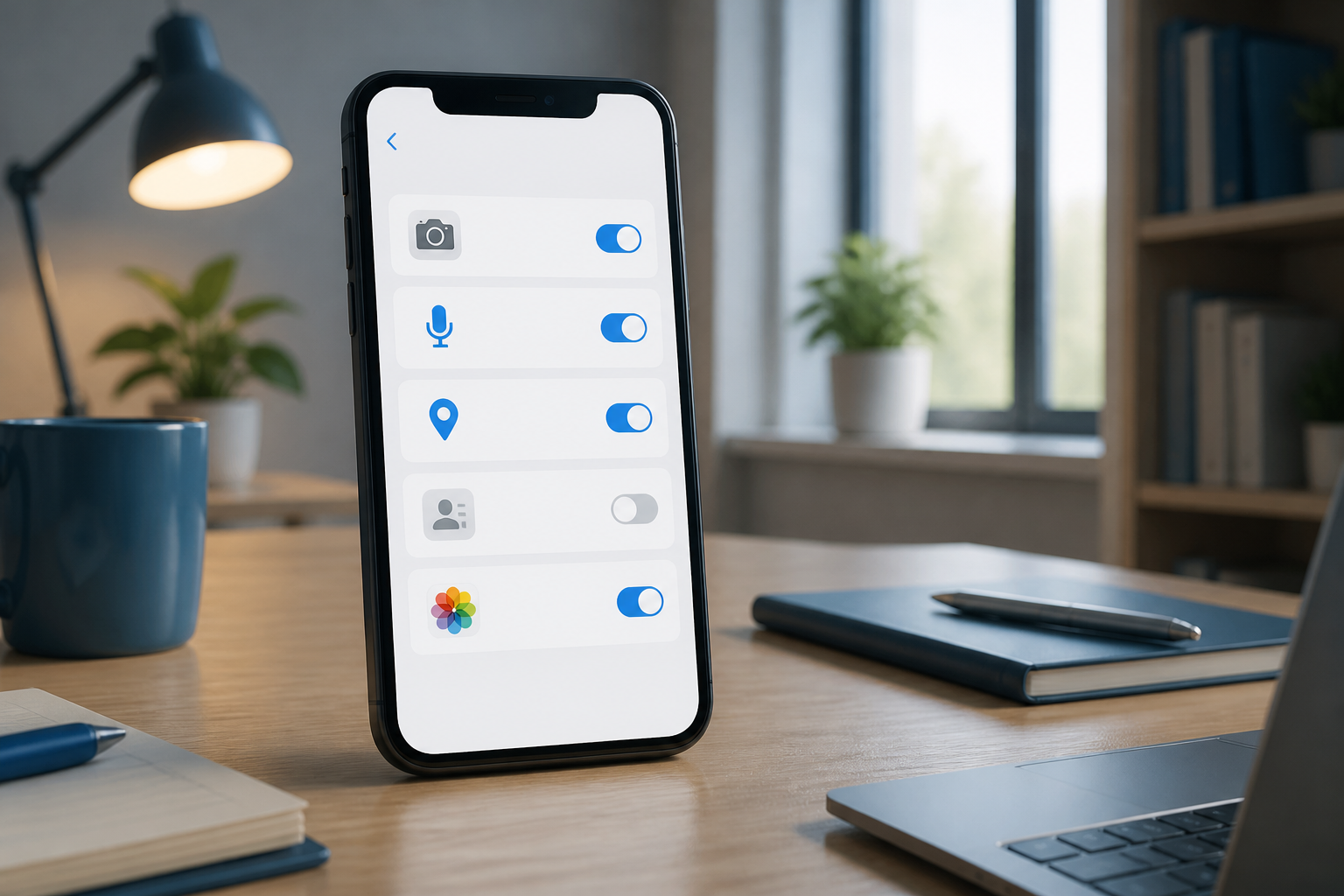
Every time we install a new app, we often face the same question: can this app access the camera, location, contacts, or microphone? Eager to start using the app, many people press the "Allow" button without reading.
However, app permissions are a form of access to certain parts of our device and personal data. Mapping apps do need location access. Video conferencing apps require camera and microphone access. However, a flashlight app requesting access to contacts or SMS should make us pause for a moment.
Understanding app permissions does not mean we should be suspicious of all apps. The goal is simple: to grant access that is truly necessary, limit the rest, and know how to revoke permissions when they are no longer relevant.
How do app permissions actually work?
Imagine your mobile device as a house with many rooms. The camera, microphone, contact list, photos, location, and files are different rooms. App permissions are the keys we give to allow apps to enter certain rooms.
Android and iPhone systems are designed so that apps must request permission before accessing certain features and data. These permissions can be changed again through device settings. On Android, permission management is usually available through Settings or Pengaturan, then the app and permissions menu. Android also provides a Privacy Dashboard in certain versions to see which apps access permissions and when that access occurs. Google explains how to check permission activity through the Privacy Dashboard.
On iPhone, similar settings are available through Settings > Privacy & Security. From there, users can see which apps request access to the camera, microphone, location, contacts, photos, Bluetooth, and other categories of data. Apple also explains how to review and revoke app access.
Not all permissions carry the same level of risk
Each permission needs to be assessed based on the app's function. Here’s a simple overview.
- Camera and microphone: reasonable for camera apps, video calls, document scanners, or social media when we are creating content. However, continuous access without a clear reason should be scrutinized.
- Location: makes sense for maps, ride-sharing, weather, or sports apps. If there is an option for "only while using the app," that option is usually more restrictive than access all the time.
- Contacts: may be needed by messaging apps to find friends who also use the service. However, shopping, gaming, or calculator apps generally do not need the entire contact list.
- Photos and videos: photo editing or social media apps do require them. If the system offers an option for specific photos only, use that option instead of granting access to the entire gallery.
- SMS, call logs, and files: these include permissions that need to be considered more carefully as they can expose personal information or verification codes.
- Bluetooth and nearby devices: reasonable for wireless device apps, headsets, printers, or item trackers. For apps unrelated to nearby devices, reconsider the benefits.
When do permission requests become a red flag?
Permission requests do not automatically prove an app is malicious. However, there are some patterns worth being suspicious of.
- Permissions unrelated to the main function. A calculator app requesting contacts, microphone, and location all at once without a reasonable explanation.
- Apps forcing all permissions. If basic functions can still operate without certain access, but the app keeps urging us to allow it, don’t rush to comply.
- Explanations are too vague. Reasons like "to enhance user experience" do not clarify what data is being used and for what purpose.
- Apps from dubious sources. Avoid installing apps from random links, APK files sent via chat, or sites with unclear reputations.
- Old permissions still active even if the app is rarely used. Apps that are no longer in use should be uninstalled or their access reviewed.
What can you do now?
1. Review apps with sensitive access
Start with the camera, microphone, location, contacts, SMS, photos, and files. On Android, go to Settings > Apps > select app > Permissions. The menu names may vary slightly depending on the brand and version of the device.
On iPhone, go to Settings > Privacy & Security, then select the type of data or sensor you want to check. From that list, access for each app can be turned on or off. Apple provides a guide for managing access to the camera, microphone, Bluetooth, and local networks.
2. Choose the most limited access
If there is an option for "while using the app," choose that instead of "always." If an app only needs one image, grant access to specific photos if the device provides that option. The principle is minimum access: grant just enough access to complete the task.
3. Check apps that have not been used for a long time
Old apps are often forgotten, but their permissions may still be active. Android provides an option to pause the activity of unused apps on certain devices. If an app is no longer needed, uninstalling it is usually simpler.
4. Pay attention to camera and microphone indicators
On iPhone, a green indicator appears when the camera is in use and an orange indicator when the microphone is used without the camera. If indicators appear when we are not using those functions, check the apps that have recently activated or open the device's privacy report. Similar features and details may vary on Android depending on the brand and version of the system.
5. Don’t assume “denied” means the app is definitely broken
Some apps indeed cannot perform certain features without permissions. However, we can still deny unnecessary access and see if the main functions continue to work. If the app immediately stops functioning just because we denied irrelevant access, consider looking for alternatives.
What about ad tracking permissions?
In addition to camera or location permissions, some platforms also request approval to track user activity across apps or websites owned by other companies. On iPhone, these settings can be reviewed through Settings > Privacy & Security > Tracking. Users can deny requests from specific apps or turn off tracking requests altogether. Apple explains these tracking settings in its official guide.
Denying tracking does not mean all ads will disappear. The impact is more related to whether our activity can be used to connect behavior across various apps and websites. This is a privacy choice, not a magic button to make the device completely anonymous.
Things to remember
App permissions should be treated like house keys: they don’t need to be given to everyone, but they also shouldn’t be locked away tightly without reason. Ask three questions before pressing “Allow”: is this feature really necessary, are there more limited access options, and do I trust the app and its source?
Conducting permission checks for a few minutes every few months can reduce unnecessary access. This small habit helps us use apps more comfortably without giving away too much data just to quickly bypass a pop-up.
Sources & further reading
- Google Android Help — Manage permissions from the privacy dashboard
- Google Play Help — Change app permissions on your Android phone
- Apple Support — About privacy and Location Services in iOS, iPadOS, and watchOS
- Apple Support — Control access to hardware features on iPhone
- Apple Support — Control app tracking permissions on iPhone
– Rio Yotto @rioyotto