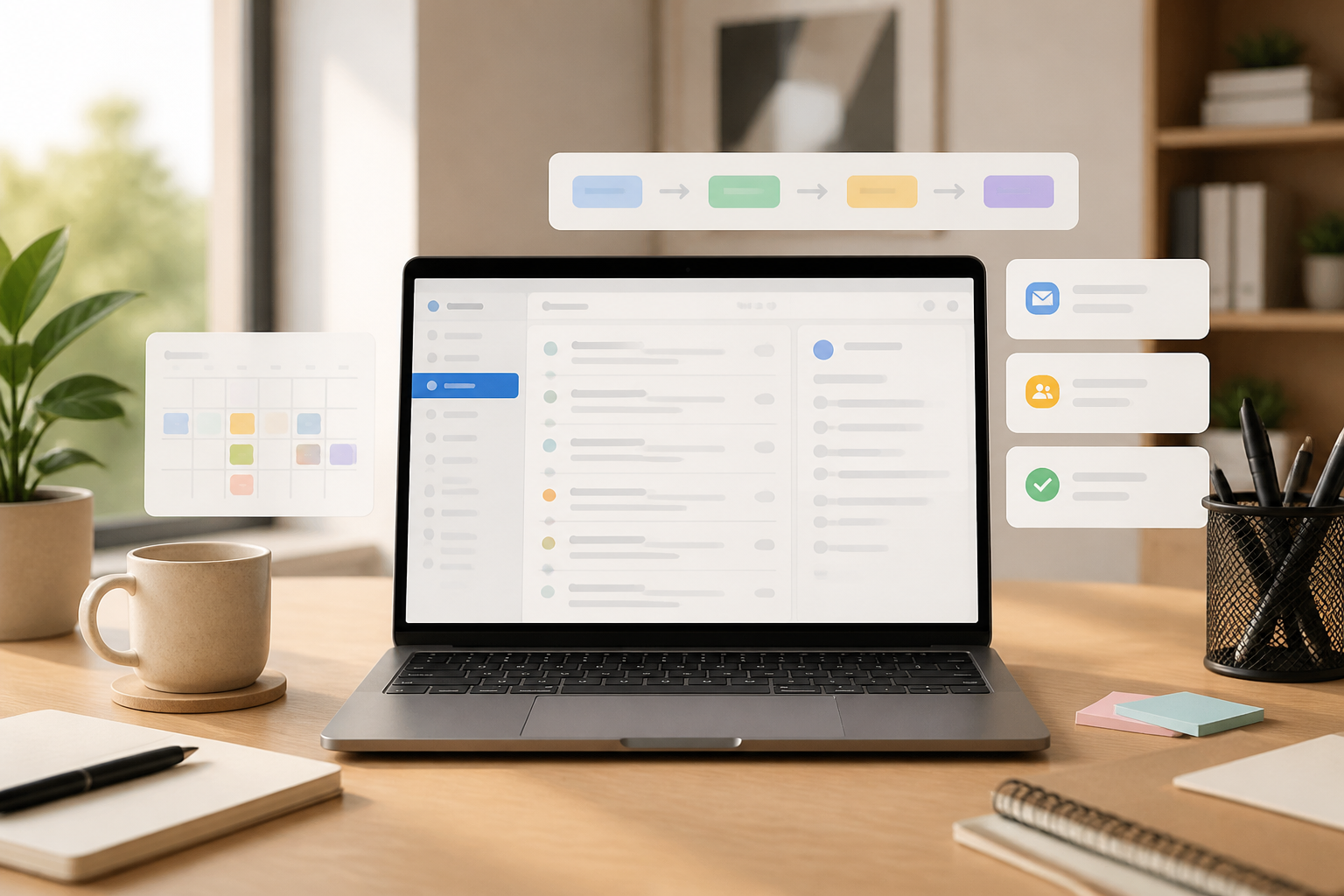
Many people check their email multiple times a day but still feel unsure about what is important. The problem is not always the number of emails. What is more exhausting is that all messages look the same: meeting invitations, reports, approval requests, promotions, system notifications, and conversations that do not yet require a response.
As a result, the inbox becomes a mix of an archive, a to-do list, and a storage place for things that have not yet been decided. We read the same messages repeatedly because we have not determined the next steps.
The solution is not to achieve "inbox zero," which is the state of having no emails at all in the inbox. A more realistic goal is to give each email a clear status: needs action, waiting on someone else, saved for reference, or not needed to keep.
Do Not Treat All Emails as Tasks
One of the biggest sources of stress is assuming that every email requires immediate action. In fact, most emails only contain information.
For example, a notification email about a schedule change does not always need to go on the to-do list. Similarly, a weekly report can be read during free time. If all messages are considered active work, the to-do list will appear longer than it actually is.
Try using four basic decisions when opening emails:
- Delete or archive if there is no value to retain.
- Reply now if the response is brief and can be completed in a few minutes.
- Turn into a task if it requires time, thought, or several steps.
- Mark as waiting if the next action depends on someone else.
These four options help reduce the habit of opening emails without ever really making a decision.
Make the Inbox a Sorting Place, Not a Warehouse
The inbox should be a transit place. Messages that are still there mean they have not been processed, not automatically important.
To start, create a few simple folders or labels. There is no need for too many. A structure like the following is usually sufficient:
- Action: emails that need to be worked on.
- Waiting: emails waiting for a response or decision from others.
- Reference: information that may be needed later.
- Archive: messages that do not need to appear in the inbox but are still wanted to be kept.
Folder names can be adjusted according to the email application used. The important thing is that each label has operational meaning. A folder labeled "Important" often does not help because it is too general. In contrast, the "Action" folder directly indicates what needs to be done.
Turn Long Emails into Concrete Tasks
Emails often feel heavy because their requests are still vague. Phrases like "Please review" or "Please follow up" do not clarify the actual work.
When an email requires time, turn its content into observable actions. For example:
- “Review vendor proposal” becomes “Read the proposal and note three questions by Wednesday.”
- “Follow up on payment” becomes “Check the status of invoice 104 and email the finance department.”
- “Prepare meeting materials” becomes “Gather second quarter sales data and create five slides.”
If the email application is connected to a task application, you can create tasks directly from emails. However, this transfer still needs to include a clear title and deadline. Simply marking an email with a star often shifts the problem without making it clearer.
Set Specific Times to Process Emails
Email notifications make us react to incoming messages rather than working on what is most important. For tasks that require concentration, it is better to check emails at specific times.
For example, set aside two or three short sessions:
- 15 minutes at the start of the day to check for important changes.
- 20–30 minutes after completing main tasks.
- 15 minutes before ending the day to close any open items.
This schedule is not a strict rule. If your work indeed relies on quick responses, use more frequent checks. However, for many administrative and creative tasks, turning off notifications during focus blocks can reduce attention shifts.
It is important to distinguish between important emails and urgent emails. Messages from payment systems may need to be checked immediately. Newsletters, routine reports, or conversations without deadlines usually do not need to disrupt current work.
Set Up Automatic Rules, But Don’t Rely Entirely on Filters
Email filters can help move messages based on sender, subject, or specific words. For example, newsletters can go directly to a reading folder, while notifications from work services can go to a system folder.
However, automatic rules should be created gradually. Overly aggressive filters can hide important messages. Start with categories that have low risk, such as promotions, automated reports, and notifications you already recognize.
After one or two weeks, check if there are any important emails misplaced. If so, adjust the rules. Good automation is not about having the most, but about reducing repetitive decisions without making important messages hard to find.
Short Replies Also Need Boundaries
The desire to reply to emails perfectly often delays simple messages. For routine communication, use a direct reply pattern:
- Acknowledge receipt: “I have received it.”
- Provide status: “I will check it today.”
- Mention a deadline: “I will send the results by Friday at the latest.”
- Explain needs: “I still need cost data before I can complete this.”
Replies like this do not have to be long. The important thing is that the recipient knows whether the message has been seen, what the next steps are, and when they can expect further updates.
What You Can Do Now
- Turn off email notifications for one work block.
- Select 20 old emails and decide: delete, archive, reply, turn into a task, or mark as waiting.
- Create a maximum of four main folders with clear functions.
- Take one complicated email and turn it into a task with verbs and deadlines.
- Create one simple filter for newsletters or routine notifications.
A healthy inbox is not an inbox that is always empty. A healthy inbox is one that does not force us to remember decisions that have not been made. When each email has a status and next steps, the mental load decreases—even if there are still some unfinished messages.
– Rio Yotto @rioyotto