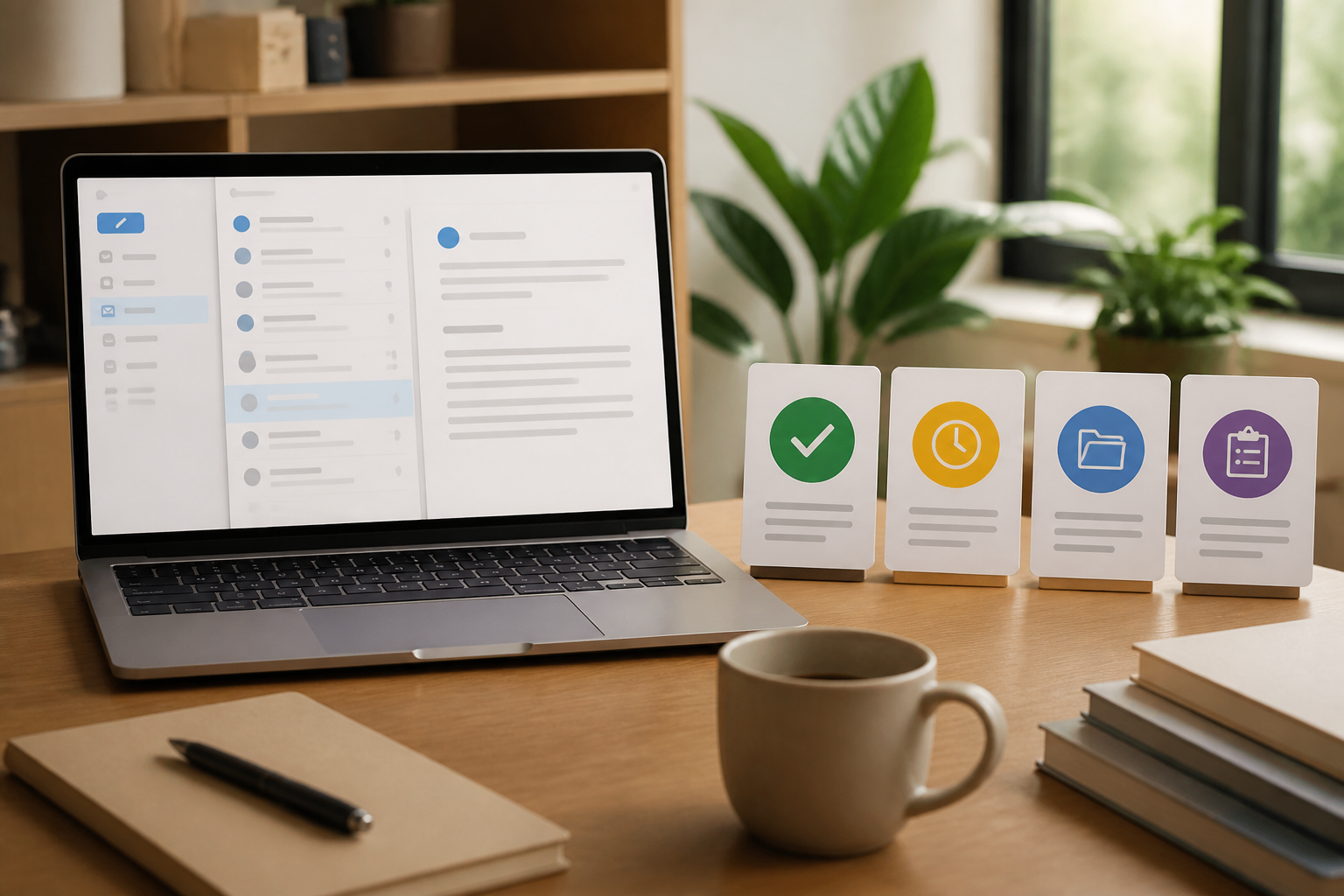
Many people open their inbox to find a single message, only to end up reading dozens of emails and feeling like they have been productive. The problem is that email mixes too many things: conversations, notifications, decision requests, documents, promotions, and tasks that may not need to be done today.
As a result, the inbox turns into a to-do list that lacks clear priorities. Old messages remain visible, important emails get mixed with routine information, and new tasks arise every time there is a notification.
The solution is not always to look for a new email application. A more fundamental step is to separate messages from tasks. Email is a place for incoming information. It is not automatically a place to manage all tasks.
Differentiate three types of email content
Before creating folders or filters, first recognize what actually comes into the inbox. Practically, most emails can be categorized into three groups.
1. Messages that only need to be read
Examples include routine reports, newsletters, system notifications, or copies of conversations that do not require a response. Such messages can be saved for reference but do not need to be kept in plain sight.
2. Messages that require decisions
Emails from clients requesting choices, supervisors needing approvals, or colleagues waiting for confirmations fall into this category. The task is not “reading emails,” but rather making specific decisions.
3. Messages that generate tasks
For instance, requests to create reports, fix documents, send data, or schedule meetings. If a task takes more than a few minutes, note it as a task in a place specifically used for managing work.
This differentiation is important because the action for each type of message is different. Reference messages can be archived, decisions need deadlines, while tasks need to be broken down into actionable steps.
Use the inbox as an entry point, not a storage place
Think of the inbox like a mail tray on your desk. Anything can come in there, but not everything should be allowed to pile up. Each time you process an email, choose one clear action:
- Delete if the message is not useful.
- Archive if it needs to be saved but does not require action.
- Reply if it can be resolved quickly.
- Schedule if it requires specific time to think or work on.
- Delegate if someone else is better suited to handle the task.
- Note as a task if there is a larger follow-up task.
Do not use the “unread” status as a task management system. That status only indicates that the message has not been opened, not that the task is incomplete or has a specific priority.
Create a simple folder structure
Email folders often fail because they are created too detailed. If every project, person, and type of document has its own folder, you end up spending time choosing a storage place.
To start, just use three or four categories:
- Action: emails that still require a response or work.
- Waiting: emails that you have replied to but are still waiting for the other party.
- Reference: information that may be needed later.
- Archive: old messages that do not need to be opened frequently.
Folder names are not absolute rules. What matters is that each category has a function that is easy to remember. If you are unsure where to place an email, the structure may already be too complicated.
Automate repetitive emails
Filters or email rules are useful for reducing small repetitive tasks. In Gmail, filters can group messages based on certain criteria and then label, archive, delete, or forward messages automatically. Gmail's official guide explains how to create filters.
In Outlook, rules can be used to move messages, change their categories, or apply actions based on certain conditions. A rule generally consists of a name, conditions, and actions, and can have exceptions. Microsoft's official documentation explains how to set up rules in Outlook.
Start with low-risk automation, such as:
- Moving newsletters to a reading folder.
- Labeling invoice emails.
- Archiving system notifications that do not need to be read immediately.
- Grouping emails from certain services into a reference folder.
Avoid creating rules to delete emails right away. A small mistake in keywords or sender addresses can make important messages invisible. Test the rules with a few messages first, then review the results after a few days.
Turn emails into clear tasks
If an email requires work, do not just star it and hope to remember it. Rewrite the request as a task with specific verbs and outcomes.
Examples:
- Less clear: “Email from Rina about the proposal.”
- More clear: “Check the pricing page on Rina's proposal and send comments by Thursday at 3 PM.”
A good task answers three things: what needs to be done, when it needs to be completed, and what the final outcome looks like. If relevant, keep a link to the original email so the context remains easy to find.
This way, you do not have to open the inbox repeatedly just to remember what someone requested. The inbox holds the source of information, while the task list holds your work commitments.
Schedule time to process emails
Opening emails every time a notification comes in makes it easy for attention to shift. For work that requires concentration, it is better to set aside specific times to process the inbox, such as at the start of the day, after lunch, and before closing work.
This schedule does not have to be rigid. If your work indeed relies on quick responses, make exceptions for senders or keywords that are truly important. However, not every email needs to be treated as an emergency.
What does this mean for us?
A tidy inbox does not mean the number of emails must always be zero. A more realistic target is for each message to have a clear status: completed, saved for reference, waiting for someone else, or converted into a task.
Start today by selecting the last 20 emails. Delete the useless ones, archive those that only need to be saved, move messages that are still waiting for responses, and then turn work requests into tasks with deadlines. After that, create one simple filter for routine emails.
Productivity does not come from reading emails faster. It comes from ensuring that each message ends with the right action—including the decision to do nothing.
Sources & further reading
- Google Help: Create rules to filter your emails
- Microsoft Support: Manage email messages by using rules in Outlook
– Rio Yotto @rioyotto