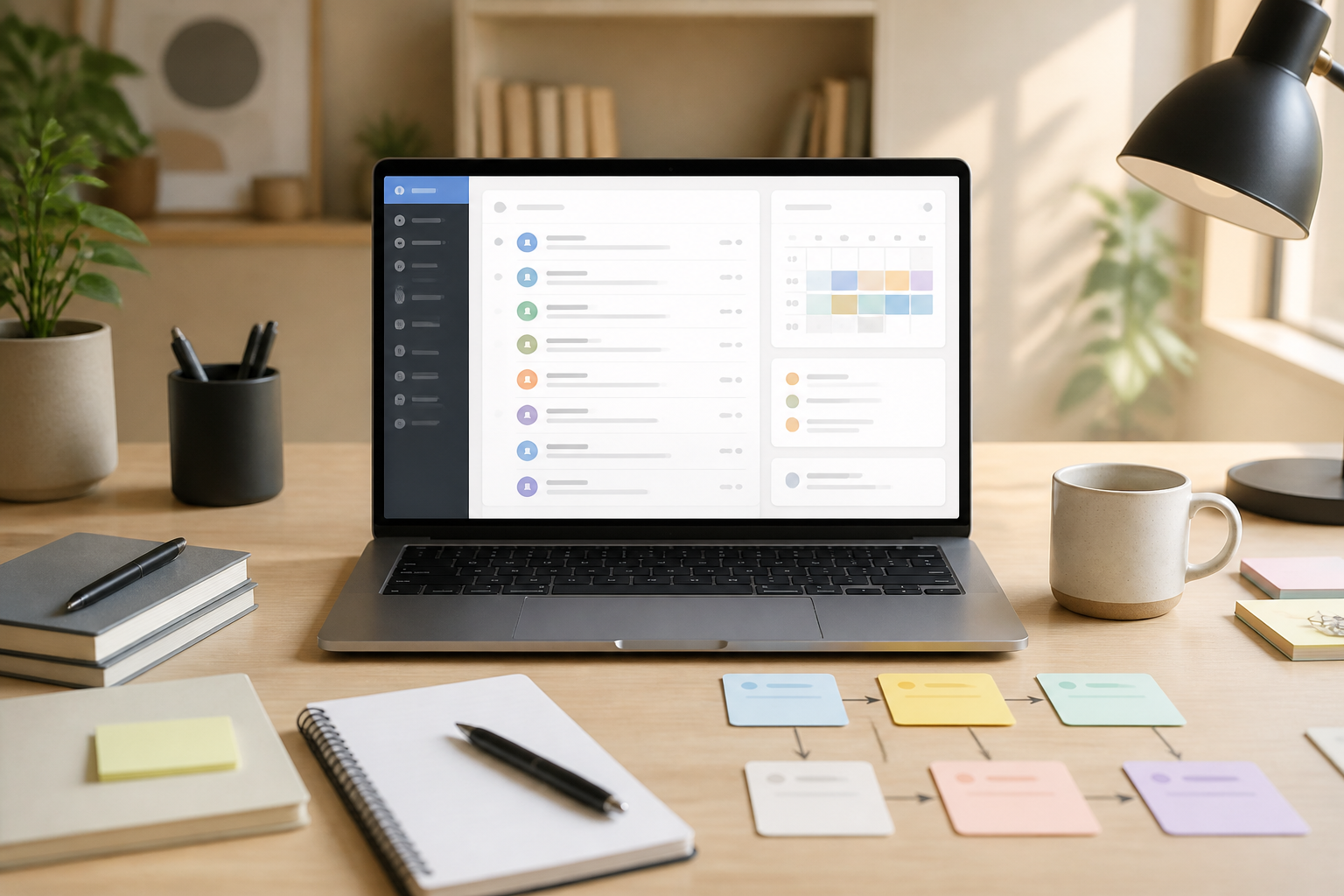
Every time you open your email, you might see a mix of different messages: work requests, receipts, newsletters, app notifications, meeting invitations, and unfinished conversations. When everything comes into one place, the inbox slowly turns into a to-do list that never really gets completed.
The problem is not just the number of emails. What’s more exhausting is the small decisions that need to be made repeatedly: should this message be replied to now or later, should it be saved or deleted, is it important or just attention-grabbing?
A good email system helps reduce those decisions. The goal is not to chase an empty inbox at all times, but to ensure that each message has a place and a clear action.
Stop Treating Your Inbox as a To-Do List
The inbox should be understood as a tray for incoming messages, not the main workspace. New messages come in there, then get processed. After that, emails should be moved to one of the following conditions:
- Needs Action: there is work to be done.
- Waiting: you have replied and are waiting for the other party.
- Reference: the information may be needed later.
- Completed: no further action is required.
This is not a strict rule, but a useful mental model. If an email requires work that takes more than a few minutes, don’t rely on the inbox as a reminder. Move the task to a task list app or calendar, then archive the email if it doesn’t need to be in front of you.
Use Three Simple Decisions When Processing Email
When checking email, avoid opening messages without a purpose. For each email, make one of three main decisions.
1. Reply Now if It’s Brief
If the response can be completed in a few minutes and doesn’t require research, reply right away. However, don’t use this rule to justify delaying actual lengthy work. Emails that require document drafting, data checking, or in-depth discussions should be turned into tasks.
2. Schedule If It’s Not Time Yet
The snooze feature allows emails to be temporarily hidden and reappear at a chosen time. In Gmail, snoozed emails leave the inbox temporarily and can come back tomorrow, next week, or at a specific time. ([support.google.com](https://support.google.com/mail/answer/7622010?hl=en-3&utm_source=openai))
Use snooze for messages that are not relevant right now, not to indefinitely postpone issues. For example, a payment reminder email that only needs to be checked on a specific date, or a message from a coworker that can only be followed up after a meeting.
3. Archive If No Action Is Needed
Archiving does not mean deleting. Emails can still be searched when needed, but they no longer clutter the active message list. Gmail provides search with operators like label: to find messages based on labels, so archived emails can be accessed without piling up in the inbox. ([support.google.com](https://support.google.com/mail/answer/7190?ctx=gmail&hl=en&utm_source=openai))
Create Labels or Categories Based on Actions, Not Too Many Topics
Many people create dozens of folders based on projects, clients, years, and document types. Such systems may look neat, but they are often too cumbersome to maintain. As a result, emails remain in the inbox because users are confused about where to store them.
Start with three or four labels that answer practical questions:
- Action: needs to be done by you.
- Waiting: waiting for a reply or decision from someone else.
- Reference: information that may be useful in the future.
- Read Later: articles or materials that are not urgent.
In Outlook, a similar concept can be created using categories. Microsoft explains that categories can be used to tag, group, and filter messages; one message can also have more than one category. ([support.microsoft.com](https://support.microsoft.com/en-us/outlook/use-categories-in-outlook?utm_source=openai))
What matters is not the name of the label, but its consistency. If a label does not help you make a decision, it may not need to exist.
Let Filters Handle Repetitive Tasks
Emails from banks, shopping platforms, cloud services, or newsletters usually have recognizable patterns. Instead of moving them one by one, create filters based on the sender's address, subject, or specific words.
In Gmail, filters can be used to automatically organize messages, including archiving them or applying labels. This feature is suitable for messages that are important to keep but do not need to disrupt attention every day. ([support.google.com](https://support.google.com/mail/answer/9259770?hl=en&utm_source=openai))
For example, technology newsletters can be labeled Read Later right away. Transaction notifications can be labeled Finance. However, do not immediately archive all messages from important senders. Test filters for a few days to ensure no messages that should go to the main inbox are missed.
Don’t Rely Too Much on Automatic Filtering
Features like Focused Inbox in Outlook can separate messages into Focused and Other tabs based on estimated relevance. This system can also learn from user decisions, such as when messages are moved from one tab to another. ([support.microsoft.com](https://support.microsoft.com/en-us/outlook/mail/focused-inbox-for-outlook?utm_source=openai))
These features help reduce noise, but they are not a substitute for human judgment. Messages that seem unimportant may contain deadlines, contract changes, or security information. Check other folders or tabs periodically, especially if email is used for work and important administration.
Schedule Email Checking
If your work does not require responses every minute, constantly checking email only breaks up your workday. Try setting two or three specific sessions, such as in the morning, after lunch, and one hour before finishing work.
Outside of those sessions, turn off notifications for non-urgent emails. You can still make exceptions for certain addresses or categories if there are messages that need immediate attention.
This schedule does not have to be rigid. If your work depends on quick responses, use more realistic rules. The point is to distinguish truly urgent communication from messages that only feel urgent because their notifications pop up.
What You Can Do Now
- Delete or archive 20 emails that clearly do not require action.
- Create a maximum of four labels or categories based on work status.
- Choose three types of recurring emails that can be handled with filters.
- Use snooze for messages that are only relevant at a certain time.
- Set two or three inbox checking schedules each day.
- For one week, note filters or rules that incorrectly categorize messages, then fix them.
An effective email system does not have to look perfect. What matters is that you can identify what needs to be done, what is waiting, and what just needs to be stored. When the inbox stops being a place to store everything, your attention is no longer dictated by the last message that came in.
Sources & Further Reading
- Google Gmail Help: Organize & archive email
- Google Gmail Help: Refine searches in Gmail
- Google Gmail Help: Snooze emails until later
- Microsoft Support: Focused Inbox for Outlook
- Microsoft Support: Use categories in Outlook
– Rio Yotto @rioyotto