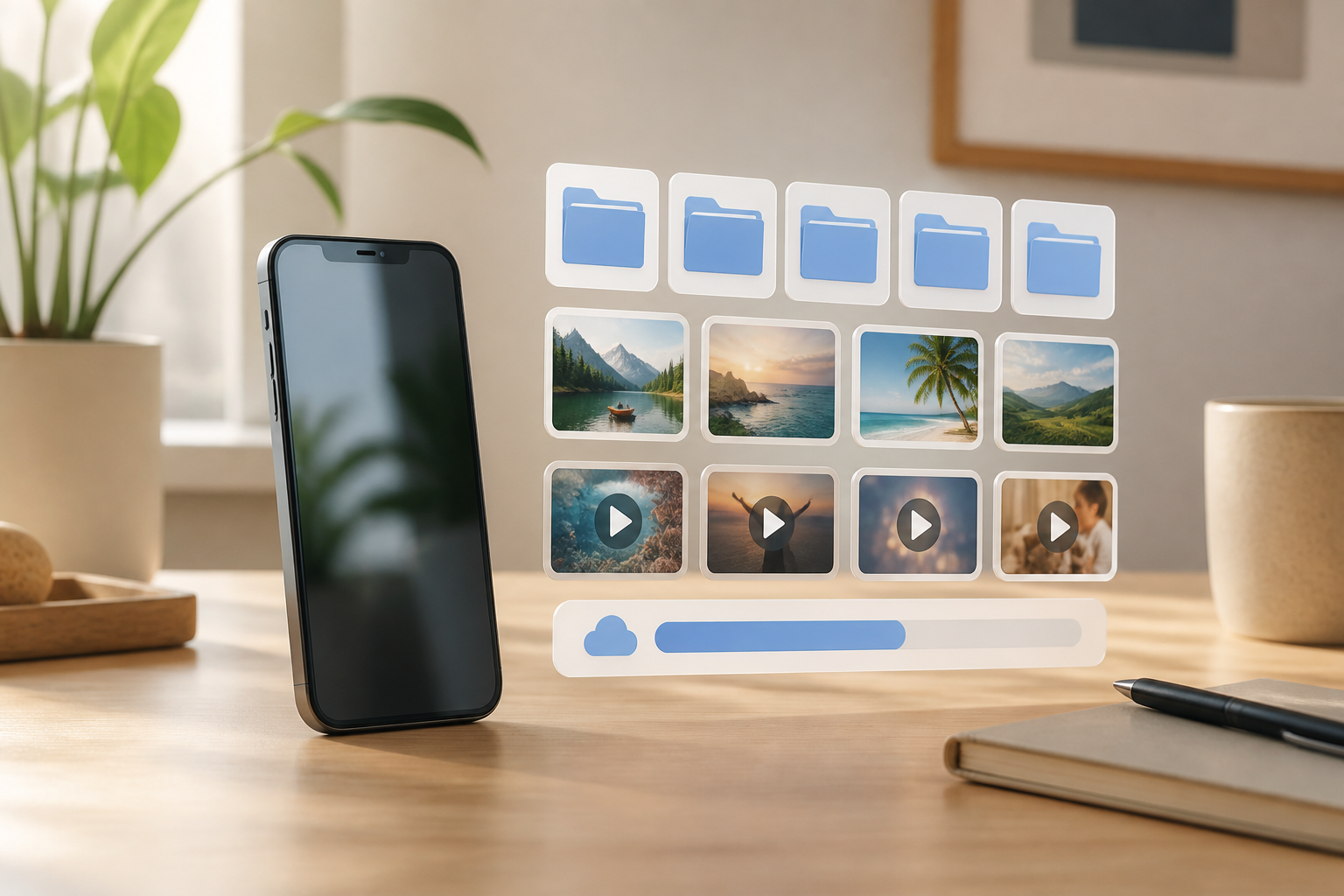
The "storage almost full" notification usually appears at inconvenient times: when you want to take a photo, install an app, or receive a file from WhatsApp. Many people then rush to delete photos, even though the cause of the full phone may not necessarily be the gallery.
Storage is the space within the phone for saving photos, videos, apps, documents, and temporary data. This space is different from RAM, which is the memory that helps apps run. Therefore, cleaning storage is not the same as closing apps or deleting all apps from the screen.
The good news is, you don’t need to buy a new phone right away. By checking the areas that take up the most space, you can clean your device more safely.
Start by checking what takes up the most space
Don’t guess. The first step is to open the storage menu on your phone.
- On many Android phones, open Settings, then look for a menu like Storage, Device Care, or Battery and device care.
- On iPhone, open Settings, then select General and iPhone Storage.
The menu names may vary depending on the brand and version of the operating system. If you have trouble finding it, use the search bar in Settings and type "storage".
There, you will usually see a list of categories, such as apps, photos and videos, documents, audio, and system data. Pay attention to the three largest sections. Those are the areas most likely to free up space.
Check videos before photos
Photos can indeed accumulate, but videos are usually much larger. A few minutes of video from the phone camera can take up more space than dozens of regular photos.
Open the gallery, then sort or search by video if that feature is available. Check especially for:
- Long videos that are no longer needed.
- Forgotten screen recordings.
- Videos that have been sent multiple times via messaging apps.
- Duplicate videos that have been moved or downloaded more than once.
Before deleting, play the first few seconds to ensure the file is indeed unimportant. If you want to keep memories, transfer them first to a computer, cloud storage, or another medium that you know how to access.
Organize the downloads folder
The Download folder often becomes a dumping ground for files that are only used once: PDFs, promotional images, old forms, downloads from the browser, or documents sent via WhatsApp.
Open the file manager app. It may be called Files, File Manager, or Documents. Go to the downloads folder and check its contents one by one.
You can delete files that are no longer needed, but don’t delete all files with unfamiliar names right away. If in doubt, open the file or check the last accessed date. Identity documents, payment proofs, work letters, and school files should be moved to a special folder first.
Check media from WhatsApp and messaging apps
Family groups, communities, and work can cause the phone to automatically save many photos, videos, GIFs, and documents. Often, these files are saved even if they are only viewed once.
In WhatsApp, you can open the storage management section to see the conversations or file categories that take up the most space. Select large files, then check them before deleting.
Be aware of the difference between deleting files from the device and deleting messages for everyone. The two are not the same. Deleting media from your phone does not always delete messages or copies on other people's devices.
To prevent recurring issues, consider turning off automatic downloads for videos or documents that don’t always need to be saved. This way, you can choose which files to download.
Delete apps that are truly unused
Apps that are rarely opened still take up space, especially if they store additional data. Look at the list of apps by size, then ask yourself three questions:
- When was the last time this app was used?
- Is there still an important function within it?
- Can I reinstall it if needed later?
Delete apps that are clearly not used. For apps you still want to keep but have too much data, check if there is a cleaning feature within the app.
Do not randomly delete system apps that you do not recognize. Some built-in apps may seem unimportant, but they can be needed for certain functions on the phone.
Differentiate between cache and app data
Cache is temporary files that help apps load content faster. Deleting cache is usually relatively safe, although apps may need to reload some images or pages.
App data is different. Deleting it can make the app return to its original state. You may be logged out of your account, lose local settings, or delete unsynchronized data.
Therefore, if you find the option Clear cache and Clear data, do not confuse the two. As a first step, choose to clear cache only. Use clear data only if you understand the consequences and have ensured that important data is safely stored.
Don’t forget the Trash folder
On many phones, deleted photos and files do not disappear immediately. They go into a folder like Recently Deleted, Trash, or Recycle Bin and still take up space for a while.
After deleting files, open the trash folder in the gallery or file manager app. Check its contents once again. If you are sure you don’t need them, empty that folder.
This step is not mandatory to do immediately. Keeping files in the trash folder for a few days can actually serve as a safeguard if you accidentally delete something.
What does this mean for us?
A full phone is not just a matter of convenience. Apps may fail to update, the camera may not be able to save new photos, and file transfer processes can be disrupted. However, cleaning storage in a hurry also risks losing important documents or memories.
A safer pattern is to check, select, move if necessary, then delete. Don’t rely on cleaning apps that ask for too many permissions or promise to make your phone "like new" with just one button.
What you can do now
- Open the storage menu and note the three largest categories.
- Check videos, the downloads folder, and media from messaging apps.
- Delete apps that are truly unused.
- Use the clear cache feature with caution.
- Check the Trash folder after finishing cleaning.
- Leave some free space so the phone can continue to function and receive updates.
Make storage checks a small habit, such as once a month. Fifteen minutes to tidy up files is usually safer than waiting until the phone can no longer store anything.
– Rio Yotto @rioyotto