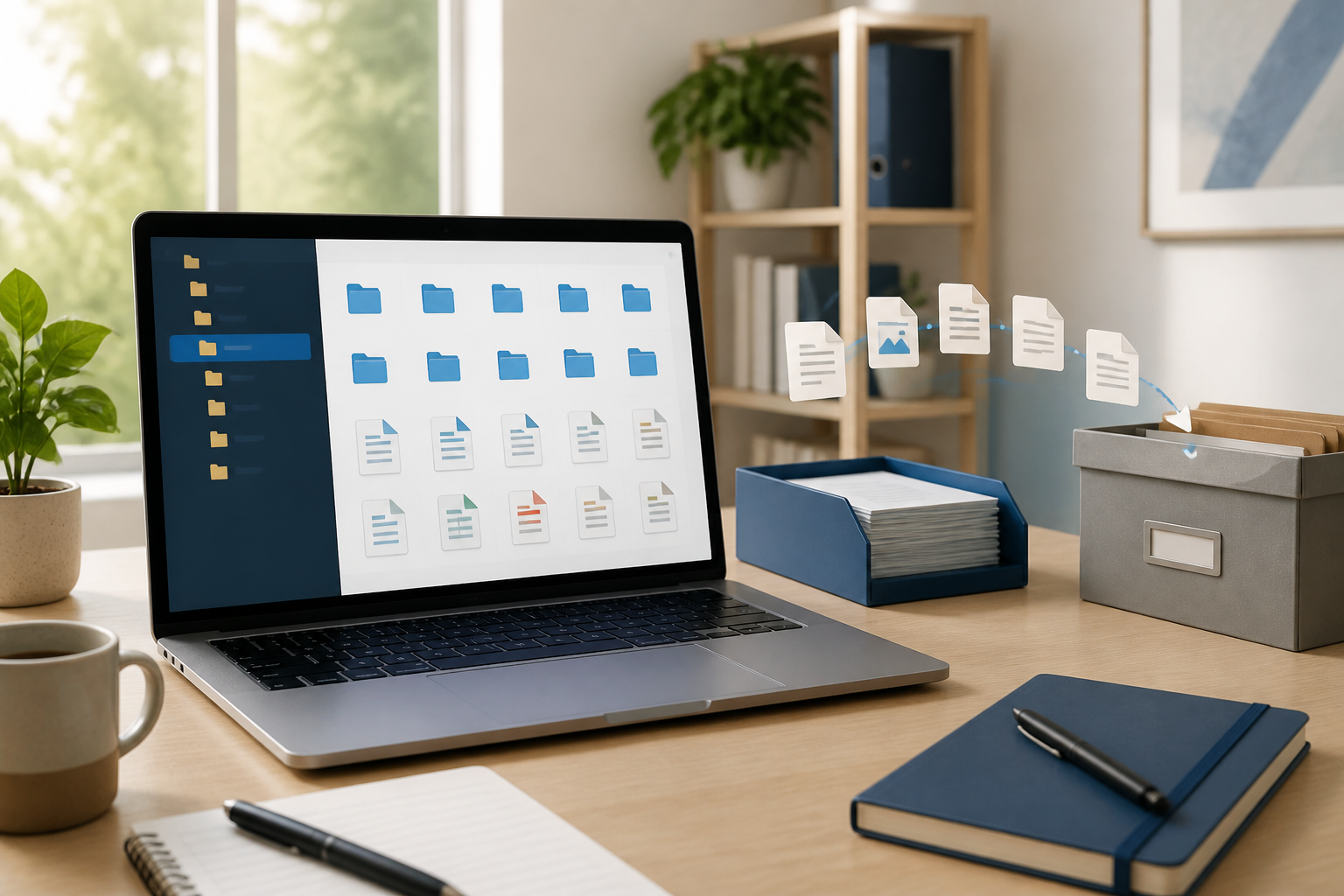
Many people waste time not because their work is too difficult, but because they have to search for files that they have already saved. Documents can be in the Downloads folder, on the desktop, in email attachments, chat applications, or different cloud services. When the file names are also unhelpful, a five-minute task can turn into a half-hour search.
Organizing digital files does not have to start with a complicated system. The goal is simple: every important file has a logical place, an easily readable name, and a clear status. This way, you do not have to rely on memory to find the documents you need.
The Problem Is Not the Number of Files, But the Lack of Clarity
A full folder is not necessarily a problem if its contents are organized. Conversely, a few dozen files can be overwhelming if they all have names like final.docx, final-revisi.docx, or dokumenbaru2.pdf.
There are three common sources of chaos. First, files come in from too many paths. Second, there are no consistent naming rules. Third, active files, archives, and temporary copies are mixed in the same place.
As a result, we often create new copies simply because we are unsure which file is the correct one. Over time, storage grows, document versions become confusing, and the risk of editing the wrong file increases.
Build a Folder System That Aligns with Your Work
A good folder system does not need to mimic the organizational structure of a company. Create it based on how you work daily. For personal use or small projects, the following structure is usually sufficient:
- 00_Inbox for new files that have not been processed.
- 01_Active for projects or documents currently being worked on.
- 02_Reference for materials that are frequently read but not currently edited.
- 03_Archive for completed work.
- 99_Temporary for files that are only needed for a short time.
The numbers at the beginning help folders appear in a consistent order. You can change the folder names as needed, but the principle remains the same: separate files based on status and function, not just by file extension type.
For example, grouping all PDF files into one folder may not be helpful. Project contract PDFs, payment proofs, and reading materials have different contexts. It is easier if files are placed based on their project or activity.
Use File Names That Answer Three Questions
A good file name should help you answer: what is this file about, related to when, and what is its version or status. One easy pattern to use is:
YYYY-MM-DD_Topic-Name_Status
For example:
2026-09-02_Sales-Report_August_Draft.xlsx2026-08-28_Collaboration-Proposal_PT-Maju_Final.pdf2026-09-01_Product-Team-Meeting-Minutes_Approved.docx
The year-month-day date format organizes files chronologically when sorted by name. Avoid using names like latest or final version because those statuses can easily become inaccurate after subsequent changes.
For files that are still being worked on, use clear statuses like Draft, Review, or Approved. If documents have many revisions, add version numbers, such as v01 and v02. Choose one pattern and use it consistently.
Make the Downloads Folder a Transit Space
The Downloads folder often turns into an endless warehouse. All email attachments, documents from the browser, images, and installation files mix together there. In fact, this folder should only serve as a transit space.
Take five minutes at the end of the day or week to process its contents. Each file can be categorized into one of the following four decisions:
- Move to a work or archive folder if still needed.
- Rename if the default name is unclear.
- Delete if it is just a temporary copy or no longer useful.
- Postpone briefly by moving it to the
00_Inboxfolder if you cannot decide yet.
Importantly, do not leave all files in Downloads just because you haven't had time to organize them. A transit space that is never emptied eventually becomes a new source of confusion.
Differentiate Working Files from Final Outputs
In many projects, source files and final outputs have different needs. Source files may contain spreadsheets with formulas, raw images, or documents with many comments. Final outputs usually only need to be read or sent to others.
Create separations like:
Project/01_SourceProject/02_WorkProject/03_Final-OutputProject/04_Archive
This separation reduces the risk of source files being overwritten by new versions and makes it easier to find documents ready to be shared. If working with a team, the final output folder also serves as a clearer marker of which files can be used.
Do Not Rely on Search as the Only System
The search feature on computers and in the cloud is indeed very useful, but search is not a substitute for structure. You may be able to find files based on certain words, but you may not know if it is the latest version, a personal copy, or a document that is no longer valid.
Search works best when supported by consistent file naming. Therefore, folder systems and naming remain important even if you are accustomed to using the search feature.
Add keywords that you will actually remember. For example, client names, reporting periods, or document types. Avoid including too much information that makes the file name hard to read.
Be Cautious with Duplication and Cloud Synchronization
The same file in multiple locations does not always mean a backup. If all copies are synchronized and one file is deleted, that change can also be applied in other locations. Synchronization helps access from various devices, but it is not a substitute for backups that have version history or separate copies.
For important documents, designate one primary location. Other locations should only be used for sharing or backups as needed. Do not create multiple copies without a clear reason, especially for frequently changing files.
Practically, you also need to check whether sensitive files are stored in the right accounts or folders. Identity documents, contracts, and financial data should not be mixed with folders that are easily shared with others.
A 15-Minute System You Can Start Now
You do not need to organize your entire computer in one night. Start from the area that most often causes problems:
- Choose one area, such as the Downloads folder or Desktop.
- Delete files that are clearly unnecessary.
- Create four folders based on status: Inbox, Active, Reference, and Archive.
- Move important files to the most logical locations.
- Rename the ten most frequently searched files.
- Set a regular time, such as every Friday afternoon, to process new files.
After that, do not chase a perfect system. A system that can be adhered to is more useful than a folder structure that looks neat but is too cumbersome to maintain.
What Does This Mean for Us?
File management is a small part of productivity, but its impact is felt every day. A simple structure can reduce repetitive decisions, prevent version errors, and make it easier to resume work after a break.
Start with three habits: name files clearly, treat Downloads as a transit space, and separate active documents from archives. If done consistently, you will not only have a tidier computer but also a calmer and more predictable workflow.
– Rio Yotto @rioyotto