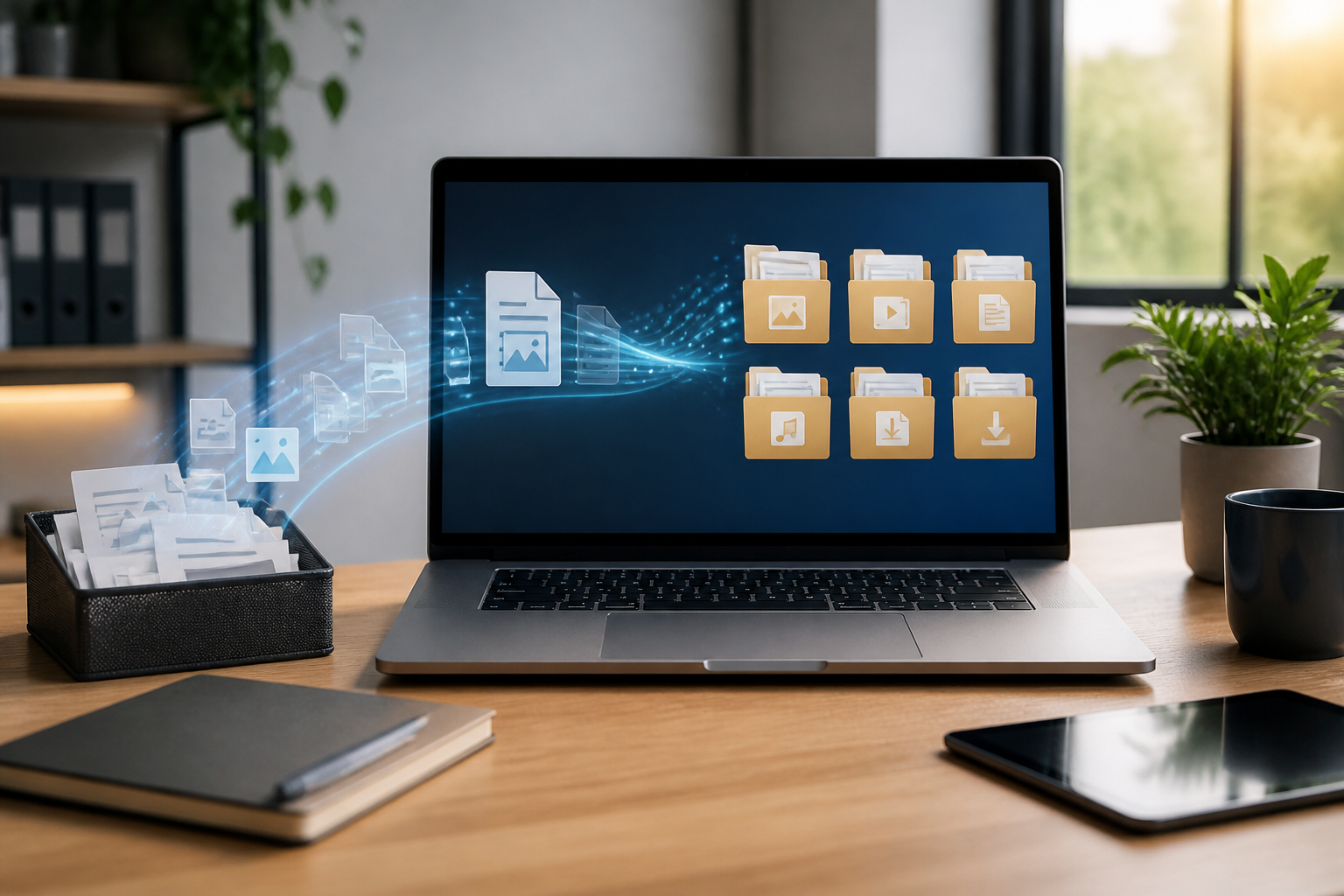
The Downloads folder is almost always the first victim of rushed digital work habits. Presentation files, invoices, photos, Word documents, application installers, and email attachments mix in the same place. When you need to find a specific file, you end up opening dozens of similar names while hoping to find the right document.
The problem is not just too many files. The Downloads folder is designed as a temporary stop, not as a primary archive. Once a file is downloaded, there should be a small decision: will this file be worked on, saved, shared, or discarded?
Change Your Perspective on the Downloads Folder
Think of the Downloads folder like a mail tray on your desk. New mail can sit there, but it’s not ideal if all the old mail is left to pile up. The tray needs to be emptied regularly to avoid becoming an incomprehensible archive.
Use four simple purposes for each file:
- Work on: files that still need to be opened, edited, or reviewed.
- Save: important files that may be needed again.
- Share: files that need to be sent or added to a shared workspace.
- Delete: temporary files, duplicate copies, or anything that is no longer useful.
These four options are sufficient for most situations. You don’t need to create twenty subfolders before the system works.
15-Minute Workflow Every Weekend
Choose a fixed time, such as Friday afternoon or Monday morning. Open the Downloads folder, sort files by the most recent date, and then process them one by one. Don’t start by opening all the files. Begin with making initial decisions.
- Delete what is clearly unnecessary. For example, installer files that are already installed, images used for a single upload, or document copies that are already saved elsewhere.
- Move active files. If you are working on a proposal, move it to the project folder. A folder like
Work/Project Ais more useful than letting active files get lost among old downloads. - Save final documents in one main location. Choose a computer, cloud drive, or team document system as the primary source. Avoid saving final versions in three places without a clear reason.
- Assign status to unclear files. If you’re not sure what to do with it, place it in a temporary folder like
Needs-Reviewwith a deadline, such as seven days.
Deadlines are important. Without them, a temporary folder just becomes a new version of the Downloads folder.
Differentiate Between Work Files, Reference Files, and Temporary Files
Much clutter occurs because three types of files are treated the same. Work files are documents that are still changing. Reference files are only read when needed. Temporary files are used for one process and should disappear.
For example, if you download a tax guide to read one section, that may be a reference file. Meanwhile, a budget spreadsheet that you are still editing is a work file. A PDF export to be sent to a client is a final result that needs to be saved in the project folder or shared document system.
This differentiation helps determine actions without having to think about a perfect folder structure. Work files should be easily accessible, reference files should be easy to find, and temporary files should not be given a permanent place.
Use Cloud Drive as a Workspace, Not a Copy Warehouse
Services like Google Drive provide folders, search, important markers, and filters to help find files. This means you don’t always need to create a very deep folder structure. A clear enough folder combined with good search is often faster than opening tiered folders one by one.
However, the ease of searching is not an excuse to keep all copies. Set a simple rule: one main file, then use links or shortcuts when the file needs to appear in another context. This way, changes to the document do not stop at one copy while another version remains outdated.
For team documents, save final files in a space accessible to those who actually need them. Don’t make your personal Downloads folder a shared workspace just because the files first entered your laptop.
Don’t Rely on Automatic Cleanup Without Checking Its Settings
Automatic features like Storage Sense in Windows can help clean up temporary files and the Recycle Bin. However, the default settings do not automatically delete the contents of the Downloads folder unless you set it up. If those settings are changed, first check what types of files will be cleaned up.
Automatic cleanup is useful for temporary files but risky if applied to folders containing invoices, legal documents, payment proofs, or work materials that have not been moved. Automation should handle predictable matters, not decisions that require context.
Example Workflow You Can Try Immediately
Imagine you have five files in the Downloads folder:
- Application installer that has been successfully installed: delete.
- Client proposal draft: move to project folder.
- Invoice that needs to be recorded: move to finance folder.
- PDF article you want to read: put in the Needs-to-Read folder with a deadline.
- Photo for social media upload: process or delete after the upload is complete.
All these decisions can be made in a few minutes. What makes it effective is not speed, but consistency.
What Does This Mean for Us?
Good file management doesn’t have to start with a perfect archiving system. Start with one habit: the Downloads folder must have an exit point. Every new file needs to have a purpose, even if that purpose is to be deleted.
Try this workflow for two weeks. If the folder remains full, don’t immediately add subfolders. Check the source of the problem: is the browser downloading too many files, are you saving too many copies, or is there no specific time to process them?
Productivity doesn’t always mean using new applications. Sometimes, the biggest results come from reducing small pending decisions—including simple decisions about where a file should go.
Sources & Further Reading
– Rio Yotto @rioyotto