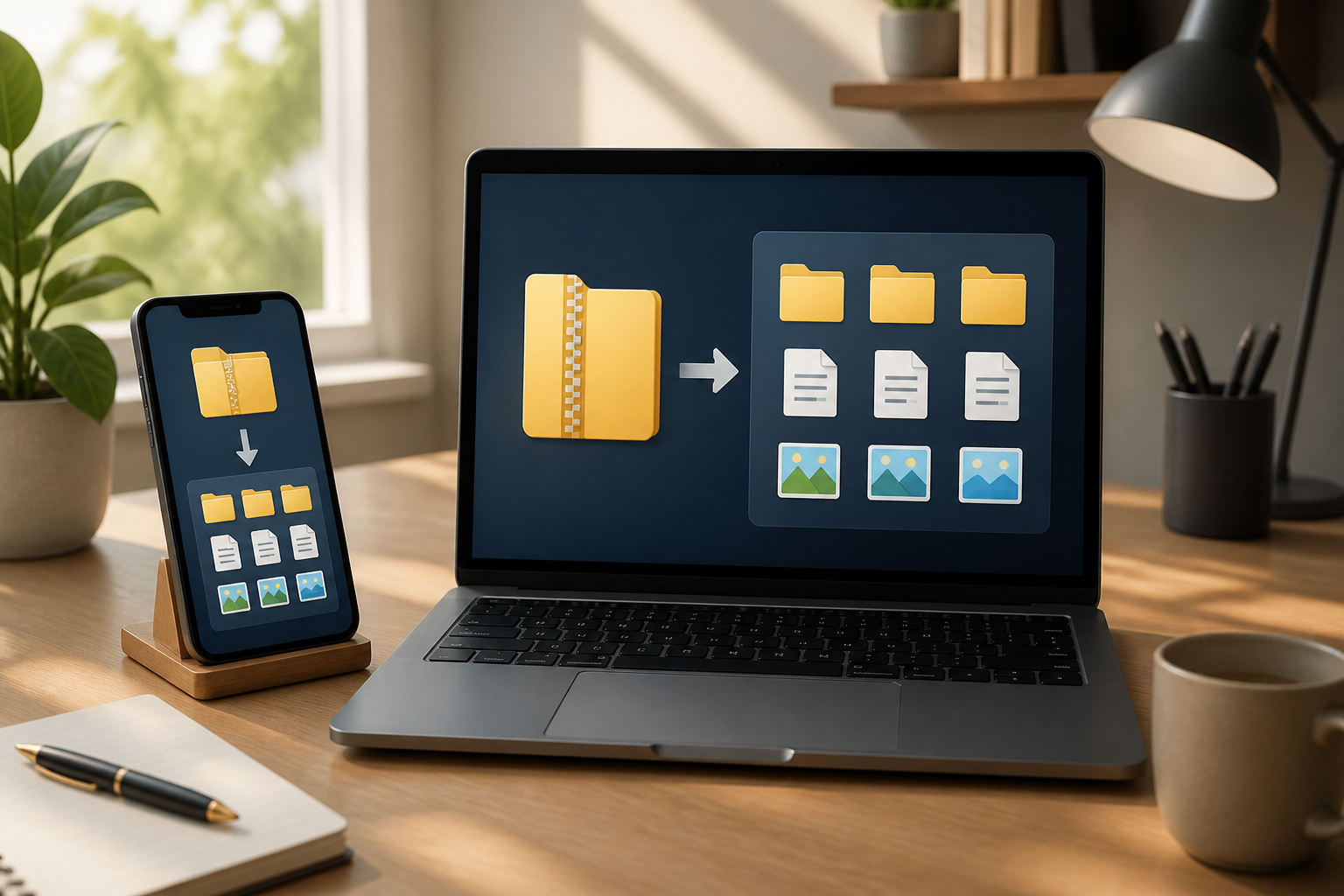
Have you ever received a file with a name ending in .zip, .rar, or .7z, and then wondered which application to use to open it? You're not alone. Files like these are often used to send multiple documents at once, but they look different from regular photo, PDF, or Word files.
In simple terms, ZIP, RAR, and 7z files are archive containers. Imagine packing several clothes into one suitcase for easier transport. The contents can include photos, documents, videos, or other folders. To use the files inside, you need to extract or unpack them first.
Why do people use ZIP or RAR files?
There are two main reasons. First, multiple files can be combined into one. Instead of sending 30 photos one by one, someone can put them into a single ZIP file.
Second, the size of some files can be reduced. This process is called compression. However, the result is not always significantly smaller. Text documents are usually easier to compress, while photos and videos that have already been compressed may only decrease slightly.
The different names like ZIP, RAR, and 7z primarily indicate the archive format used. For regular users, what's important is not memorizing the differences, but knowing how to safely open those archives.
How to open ZIP files on a phone
Many modern smartphones can open ZIP files without additional apps. The steps may vary slightly depending on the phone brand and file manager app used, but the general flow is usually as follows:
- Open the File, Files, File Manager, or similarly named app.
- Locate the ZIP file in the Download, Downloads, or the folder where the file is stored.
- Tap the ZIP file once.
- Select Extract, Extract, or Open with if that option appears.
- Choose the destination folder, then wait for the process to complete.
After extraction, a new folder usually appears with a name similar to the ZIP file. Open that folder to view the photos, documents, or other files inside.
If your phone cannot open the file, you may need to install an archive manager app from the official app store. Choose an app with a good reputation and pay attention to the permissions requested. An app for opening archives should not require unrelated access, such as reading SMS or managing calls.
How to open ZIP or RAR files on a laptop
On Windows, ZIP files can usually be opened directly. Here's how:
- Right-click the ZIP file.
- Select Extract All or Extract All.
- Choose the storage location for the extracted files.
- Click Extract.
For RAR or 7z files, your laptop may require a special application like an archive manager that supports those formats. Once the app is installed, right-click the file, then look for options like Extract Here or Extract to....
Extract Here means the contents of the archive will be extracted in the same folder. Meanwhile, Extract to... usually creates a new folder to keep the archive contents organized. For beginners, the second option is often safer because the files won't mix with other documents.
What to do if the file asks for a password?
Some archives are password-protected. This doesn't mean the file is corrupted. The creator of the file intentionally locked its contents so that not everyone can open it.
The password is usually sent through a separate message, written in an email, or using previously agreed-upon information. If you receive a file from a friend or colleague, ask for the password through a trusted communication channel.
Do not try to enter sensitive data carelessly, such as ATM PINs, email passwords, or identification numbers, just because you are asked to open an archive. The file password should be a specific word or code for that archive, not your main account password.
Check the contents before opening files inside
Archive files can store many types of files, including harmful ones. Therefore, do not open all contents immediately just because the file was sent by someone you know. A friend's or colleague's account could be compromised.
Pay attention to the following:
- Are you actually expecting that file?
- Does the file name and sender's message make sense?
- Does the archive contain files that are inconsistent with the context?
- Are there program files like
.exe,.bat, or.scr? - Are you being asked to disable antivirus software to open the file?
Photos usually have extensions like .jpg, .jpeg, or .png. Documents can end with .pdf, .docx, or .xlsx. Extensions do not automatically guarantee file safety, but they can help you recognize the type of file before opening it.
If the contents of the archive seem suspicious, do not run the file. Confirm with the sender through a new message, not by directly replying to instructions inside the file.
Do not open archives directly from the Download folder
The Download folder often becomes a dumping ground for various old files. To make it easier to remember the contents of the archive, move or extract it to a clear folder, such as Office Documents, Family Event Photos, or Tax Files.
This habit may seem simple, but it helps avoid two problems: files being hard to find later and accidentally opening the wrong archive. After ensuring the contents are safely stored, the original archive can be deleted if no longer needed.
If the extraction process fails
Messages like “file is corrupted,” “unexpected end of archive,” or “cannot open file” can appear for several reasons. The file may not have finished downloading, got corrupted during transmission, or was created using a format not supported by your application.
What you can do:
- Download the file again from the same source.
- Ensure there is enough storage space on your phone or laptop.
- Ask the sender to resend the archive.
- Use an archive manager app that supports the file format.
- If the file consists of multiple parts, make sure all parts have been received.
Do not rename extensions carelessly. Changing .rar to .zip, for example, does not automatically change the file format. The file name changes, but the structure inside remains the same.
What you can do now
When receiving ZIP, RAR, or 7z files, remember three simple steps: recognize the sender, extract to a neat folder, and check the contents before opening. You do not need to understand the technical workings of compression to use archive files correctly.
Archive files are essentially just digital suitcases. That suitcase makes it easier to carry many items at once, but it still needs to be checked before being opened and used.
– Rio Yotto @rioyotto