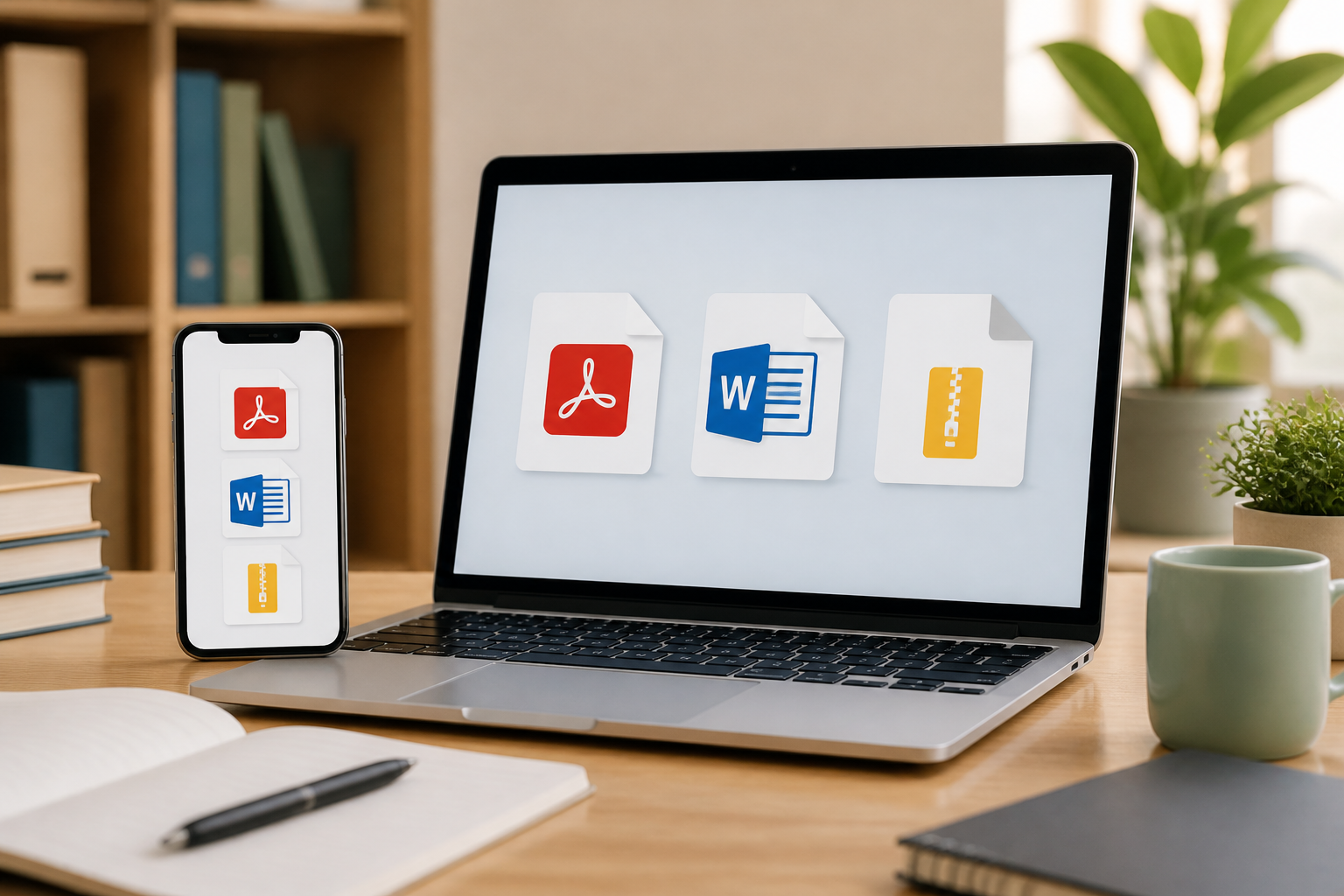
File names like .zip, .pdf, or .docx often make smartphone users hesitant: what app should they open it with, is it safe, and how do they send it back? In fact, these three file types are commonly used for work documents, forms, photos, and assignments.
Understanding file types is important because each format serves a different purpose. For instance, PDF is a document whose appearance is 'locked', DOCX is a document that can still be edited, while ZIP is a container that holds multiple files at once.
Understanding the Three Most Common File Types
1. PDF for Documents That Need to Stay the Same
PDF is typically used for letters, invoices, forms, tickets, payment receipts, or official documents. The appearance of a PDF tends to remain the same when opened on a phone, laptop, or someone else's device.
Therefore, PDF is suitable for reading and printing. However, editing its content is not always easy. Some PDFs can indeed be filled out or signed, but many others are read-only unless using specific applications.
2. DOCX for Documents That Still Need Changes
DOCX is a document format commonly created with Microsoft Word or other word processing applications. This file type is suitable for letters, proposals, assignments, or manuscripts that still need revisions.
If someone asks you to 'send a Word file', they usually mean a DOCX file. Do not convert it to PDF if the recipient still needs to edit the document's content.
3. ZIP for Combining or Reducing File Size
ZIP is not a specific document's content, but rather a container. A single ZIP file can contain many photos, documents, or folders. These files are gathered to make it easier to send them all at once.
ZIP can also reduce the total file size, although the level of compression varies. Compressed photos, for example, may not become significantly smaller after being placed in a ZIP file.
How to Open Files on Your Phone
The steps may vary slightly between Android and iPhone, but the principle is the same: tap the file, then let the device choose the appropriate application.
- Open the app where the file was received, such as WhatsApp, email, or other messaging apps.
- Tap the file to download it.
- Once downloaded, tap the file again or select the share menu and open it with the appropriate application.
- For PDF, use a PDF reader or browser.
- For DOCX, use Microsoft Word, Google Docs, or another document processing app.
- For ZIP, use the built-in file manager app. Choose options like Extract, Extract, or Open here.
If the file cannot be opened, do not immediately conclude that the file is corrupted. It could be that the required application is not installed, the file has not finished downloading, or the phone's storage is nearly full.
How to Extract ZIP Files
ZIP files must be extracted first so that the contents can be used one by one. Extracting means pulling the files out of the ZIP container.
- Open the File, Files, or file manager app on your phone.
- Look for files with the
.zipextension. - Tap the file, then select Extract or Extract.
- Select a storage location if prompted. For beginners, use an easily found location, such as the Download or Documents folder.
- Open the extracted folder and check its contents.
Do not delete the ZIP file before ensuring that all its contents have been successfully extracted. If the process is interrupted or some files fail to open, the original ZIP can serve as a backup.
How to Send Files Without Format Errors
Before hitting the send button, ask yourself one question: does the recipient need to edit this file or just read it?
- For reading or printing: send PDF.
- For editing: send DOCX or the original format requested.
- To send multiple files at once: use ZIP.
- For photos or videos: send as files if the original quality must be preserved.
In messaging apps, select the attachment icon and then choose Document or File, not always the gallery icon. Sending through the document menu usually helps maintain the file name and format.
If the file is too large, you can upload it to a cloud storage service and then send the link. However, check the access settings before sharing. Options like 'anyone with the link can view' mean that others who obtain the link may be able to access the file.
Be Cautious of Suspicious Files
File extensions provide clues about the type of file, but they do not guarantee that the file is safe. Files from unknown senders, especially those asking you to install applications or enable certain settings, should be treated with caution.
Be wary if:
- The file name feels urgent, such as claiming an account will be blocked soon.
- The file asks you to enter a password or card information.
- The file directs you to an unknown link.
- The file requests the installation of applications outside the official app store.
- The sender is known, but the message content feels unusual.
If you receive a ZIP from someone you know but are not expecting any delivery, confirm through another channel before opening it. Someone's account may be compromised.
What Does This Mean for Us?
You do not need to memorize all file types. Just remember three simple patterns: PDF for fixed appearance, DOCX for editable documents, and ZIP for collections of files.
Also, make it a habit to check the file name before opening or sending it. Ensure the selected file is correct, its size is reasonable, and the recipient indeed has a reason to receive the file. This small habit prevents sending personal documents to the wrong person, reduces confusion, and makes digital communication feel much easier.
– Rio Yotto @rioyotto