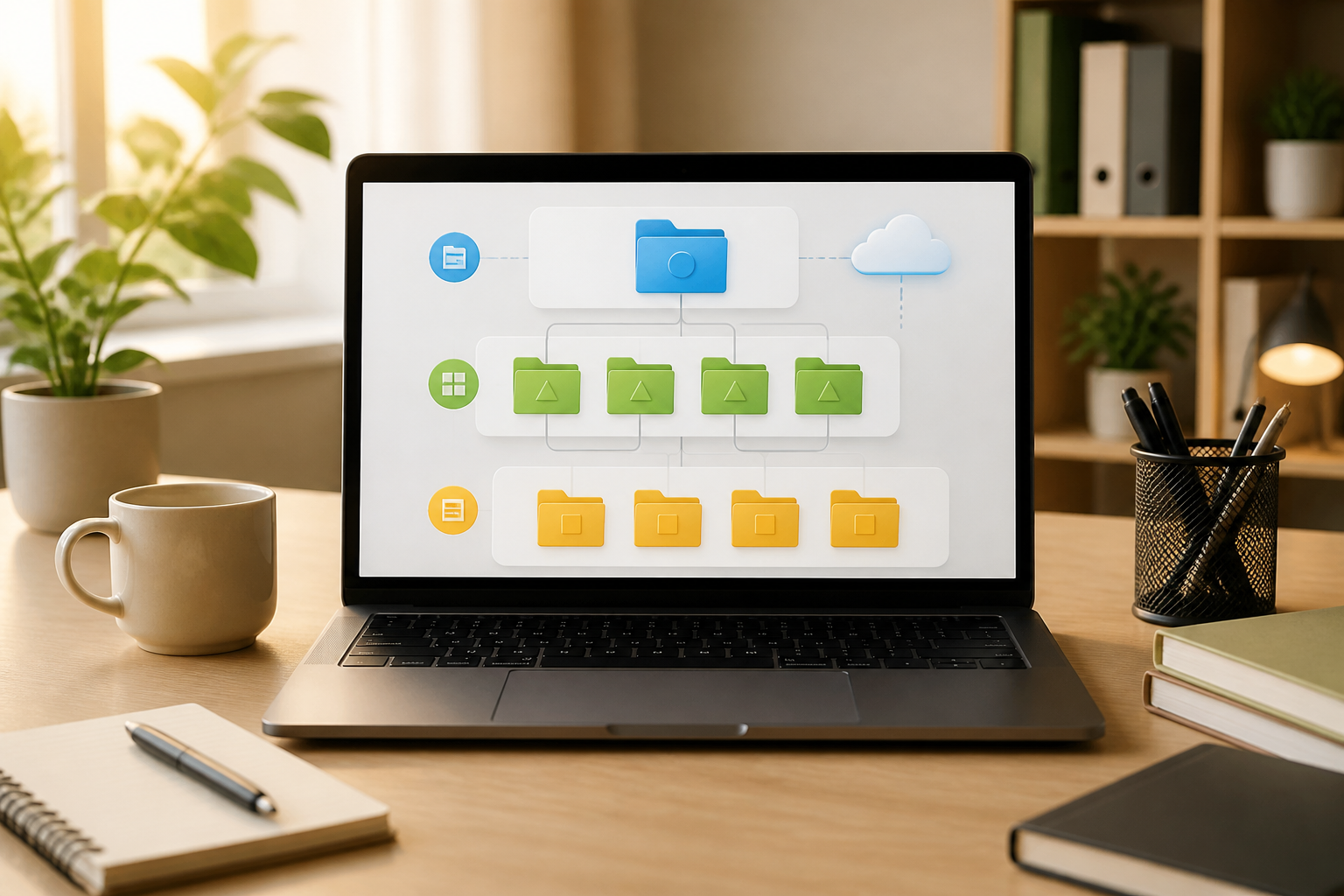
Searching for work documents shouldn't feel like digging through a digital archive. However, in practice, many people store files on their desktop, in the Downloads folder, cloud storage, chat applications, and on multiple devices at once. When a document is needed, time is wasted not on work, but on remembering where the file was last seen.
This issue is usually not due to someone being lazy about organizing files. The problem is that storage systems are often built based on momentary habits: creating a new folder when a new project arises, downloading attachments without moving them, or saving document versions with names like final_new_last_revision.docx.
A more practical solution is to create a simple system with three layers: active workspace, reference archive, and long-term storage. This system does not require special applications. What is needed is consistent rules.
Why Do Folder Structures Often Fail?
Folder structures often fail because they are created too detailed from the start. A single project might have folders for briefs, research, raw materials, revisions, exports, communication proofs, and various other subfolders. In theory, it looks neat. In reality, people become confused about where to store files.
Another mistake is mixing several functions in one place. The same folder is used for working on files, storing references, and archiving final results. As a result, inactive files continue to mix with ongoing work.
A good structure is not the most detailed one, but one that helps you quickly answer three questions:
- What file is currently being worked on?
- What file only needs to be read or referenced?
- What file is completed but still needs to be stored?
The Three-Layer System
1. Active Workspace
The first layer contains things that are currently being worked on. Its contents should be limited. If all projects from the past five years are in the active workspace folder, that folder no longer helps to focus.
Create one main folder, for example, 00_ACTIVE. Inside it, use one folder for each project or work area that still has routine activity.
00_ACTIVE/
├── Client-Site-A/
├── Monthly-Report/
└── New-Product-Research/
Folder names should indicate the work, not just a person's name or a date. Budi's Folder is less informative than Lebaran-Campaign-2026. If a project has an important deadline, a date can be added in a consistent format, for example, 2026-04-Sales-Report.
Inside the project folder, do not create too many subfolders right away. Start with a few sections that are truly necessary:
01_Materialsfor raw files and references used.02_Processfor documents that are still being worked on.03_Sendfor files that will be shared or submitted.
The numbers at the beginning of folder names help maintain consistent order across various file manager applications.
2. Reference Archive
The second layer contains materials that are not currently being worked on but may still be revisited. Examples include templates, internal guides, old contracts, technical documentation, research results, and examples of past work.
Create a folder like 10_REFERENCE. Differentiate this folder from the active workspace so that reading materials do not clutter the list of ongoing projects.
10_REFERENCE/
├── Templates/
├── Internal-Guides/
├── Product-Documentation/
└── Work-Examples/
Here, what matters is not just the storage location, but also the context. A file named template.docx will be hard to find months later. A name like Internal-Meeting-Minutes-Template.docx is much easier to understand.
3. Long-Term Storage
The third layer is the archive. It contains completed projects that no longer require routine changes. This folder can be named 90_ARCHIVE, then divided by year or type of work.
90_ARCHIVE/
├── 2024/
├── 2025/
└── 2026/
Moving completed projects to the archive has both psychological and practical benefits. The active work list becomes shorter, while old documents remain available if needed.
An archive is not the same as a backup. Archive helps organize files, while backup is a copy to guard against loss or data corruption. Files stored only on one laptop are not truly safe, even if the folder is very neat.
Daily Naming Rules
A good file name should help you understand the content without needing to open it. Use an easily guessable pattern, for example:
[Date]_[Project]_[Document-Type]_[Status]Examples include:
2026-09-17_Campaign-A_Instagram-Poster_Draft.pdf2026-09-17_Sales-Report_Weekly_Final.xlsx2026-09-17_Meeting-Minutes_Product-Team_Approved.docx
Use the date in year-month-day format so that files can be sorted chronologically. Avoid too many variations in status. Just use agreed terms like Draft, Review, Approved, or Final.
However, do not use the word Final as an excuse to create many copies. If a document is still frequently changing, consider using version history from cloud storage services or the version history feature in document applications.
Inbox Rules for New Files
New files often become messy because they go directly into various places. To address this, provide a temporary folder named INBOX_FILE. All files from downloads, email attachments, or device transfers can go there first.
This folder is not a permanent storage place. Schedule a short time, such as ten minutes every afternoon or twice a week, to process its contents:
- Delete files that are no longer needed.
- Rename files that still have random names.
- Move files to active projects, references, or archives.
- Add dates or notes if the context is not clear.
In this way, you do not need to make storage decisions every time you receive a file. All decisions can be gathered in one small session that is easier to manage.
What Does This Mean for Us?
Good file management is not about having the prettiest folders. The goal is to reduce the burden of remembering. When the location, name, and status of files follow a consistent pattern, the brain does not need to constantly store information like “is the latest version on the laptop or in chat?”
This system also helps when working with others. Clear file names reduce repeated questions, prevent sending the wrong version, and make the handover process smoother.
There are still limits. Not all files need to be stored forever. Keeping too many documents can also increase the risk of sharing the wrong version or accidentally opening sensitive information. Therefore, archives should be reviewed periodically.
What You Can Do Now
Do not try to tidy up all storage at once. Start with the most frequently used folders:
- Create three main folders:
00_ACTIVE,10_REFERENCE, and90_ARCHIVE. - Move only ongoing projects to
00_ACTIVE. - Create a folder
INBOX_FILEfor new files. - Choose one date naming rule and start using it today.
- Set aside 15 minutes each week to process temporary files.
After the system has been running for two or three weeks, pay attention to parts that often make you hesitate. If you repeatedly do not know which folder a file should go into, that is a sign that the rules need to be simplified—not a sign that you need more subfolders.
– Rio Yotto @rioyotto