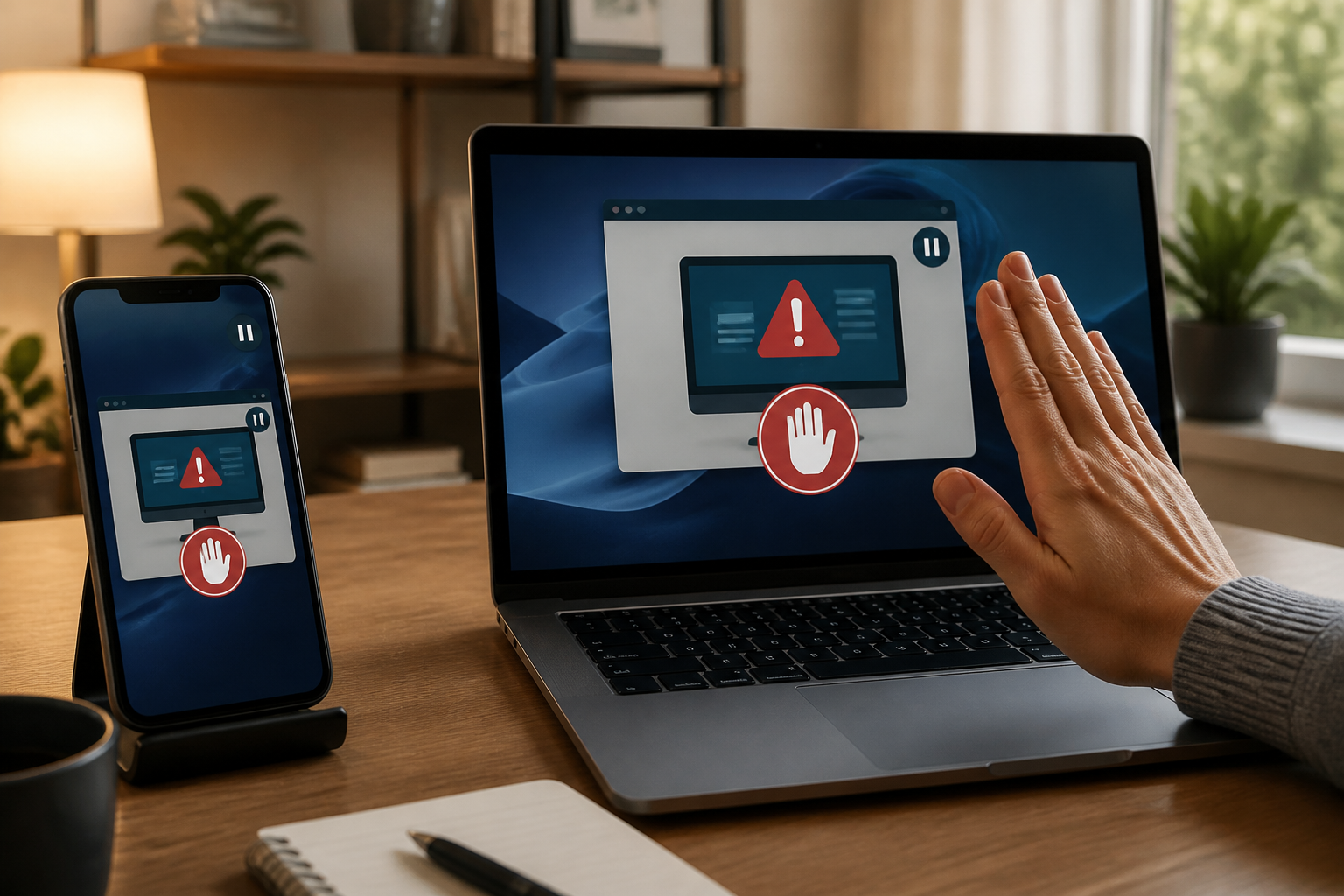
Screen sharing often feels like a shortcut. Someone claims to be from a bank, marketplace, customer service, or technology company, then asks us to install support applications like AnyDesk or TeamViewer so they can 'check' the issue. Within minutes, our phone or computer screen is visible on their side.
The problem is, scammers do not always need a password to harm their victims. If they can see the screen while we access mobile banking, email, WhatsApp, or verification codes, important information can be read directly. In some cases, they also request remote control so they can click menus, open applications, or change settings on our behalf.
The FTC warns that tech support scams often start with calls, messages, or pop-ups claiming to have found security issues. The perpetrators then ask for remote access or payment to 'fix' problems that do not actually exist. ([consumer.ftc.gov](https://consumer.ftc.gov/articles/how-spot-avoid-and-report-tech-support-scams?os=io.....&utm_source=openai))
Screen sharing is not just showing an image
Many people imagine screen sharing as simply sending a selected screenshot. However, in many applications, a screen sharing session can display anything that appears on the screen during the active session. New notifications, contact names, email content, account numbers, and one-time codes can all be visible if they appear at that moment.
Some remote support applications also have device control features. This means that the person on the other side may not only be watching but also moving the cursor, typing, opening menus, or asking us to press certain buttons. This feature is useful when we are indeed being assisted by a technician we know and contacted through official channels. However, the risks are high if the request comes suddenly.
Google Pay, for example, advises users to close screen sharing applications like AnyDesk and TeamViewer before using payment services. This advice indicates that the shared screen can compromise the confidentiality of the transaction process. ([support.google.com](https://support.google.com/pay/india/answer/10768310?hl=en-IN&utm_source=openai))
Five signs that a screen sharing request should be declined
- The request comes without us initiating it. We are not contacting support services, but suddenly someone claims that our account or device is having issues.
- The perpetrator creates a panic atmosphere. They say the account will be blocked, there are suspicious transactions, or the device will be damaged if we do not act within minutes.
- We are asked to find a service number through ads or messages. Numbers found in search results, pop-ups, SMS, or emails may not be official. The FTC also advises users to contact companies through apps, official websites, or numbers printed on cards and official documents. ([consumer.ftc.gov](https://consumer.ftc.gov/consumer-alerts/2026/01/how-handle-unexpected-calls-claim-your-money-risk?utm_source=openai))
- The perpetrator asks us to open financial applications. This is a very strong reason to end the conversation. There is no legitimate need to show balances, PINs, OTP codes, or login processes to someone we do not know.
- The perpetrator asks to keep the conversation secret. Scammers often forbid victims from consulting family or banks, claiming it will disrupt the 'security process.' Official services do not need to isolate us from help from others.
What is safe to do if you really need help?
Screen sharing is not always bad. A family member may help fix phone settings, or an official technician may assist in checking a computer. The key is we initiate that relationship, not following instructions from unexpected calls or messages.
- Download applications only from app stores or official websites.
- Ensure the application name and developer are correct.
- Close email, chat, gallery, and financial applications before starting a session.
- Do not open mobile banking or enter passwords while the screen is shared.
- Use a one-time session if available, then end it after the issue is resolved.
- Check again if the application is still running or has special access permissions.
A simple analogy: screen sharing is like opening the door to your home and letting someone else see the room you are entering. We can do this with a technician we truly know, but not with strangers knocking on the door while shouting that the house is on fire.
If you have already shared your screen, do this
Do not just change your password and assume the problem is solved. The following actions need to be taken as soon as possible:
- Stop the screen sharing session. Press the stop button, close the application, and hang up the call. If there is remote control, revoke the permission first.
- Temporarily disconnect from the internet. Turn off Wi-Fi or mobile data if the perpetrator is still seen controlling the device.
- Uninstall suspicious support applications. Also check accessibility permissions, device administrators, screen recording, and newly installed applications.
- Change passwords from trusted devices. Start with your main email, banking accounts, marketplace, and accounts that use similar passwords. The FTC recommends changing shared passwords and performing a security scan if the scammer accessed the device. ([consumer.ftc.gov](https://consumer.ftc.gov/consumer-alerts/2018/07/warn-your-friends-about-tech-support-scams?utm_source=openai))
- Contact your bank or financial service through official channels. Request a transaction review, temporary blocking, or additional security measures if financial applications were opened.
- Check account activity. Look for logins from foreign devices, changes to recovery numbers, automatic forwarding emails, unfamiliar small transactions, or messages sent without our knowledge.
- Consider resetting the device. If there are foreign applications, strange symptoms, or persistent device control, carefully save important data and seek help from a trusted technician to perform checks or resets.
Simple rules that are easy to remember
People who contact us unexpectedly should not ask for control over the device, verification codes, or access to financial applications.
If there is an issue with the account, end the conversation and contact the company through the app or official website that we opened ourselves. Do not use the phone number provided by the caller. Do not feel rude for hanging up—taking a few minutes to verify information is much safer than allowing a stranger to guide us into our own accounts.
Screen sharing is a useful feature, not a warning sign in itself. The risks arise when the feature is used under pressure, with someone whose identity has not been verified, or alongside sensitive activities like bank logins. In digital security, the ability to stop, close applications, and double-check is often more valuable than moving quickly.
Sources & further reading
- How To Spot, Avoid, and Report Tech Support Scams — Federal Trade Commission
- Beware of screen sharing apps — Google Pay Help
- How to handle unexpected calls that claim your money is at risk — Federal Trade Commission
- Warn your friends about tech support scams — Federal Trade Commission
– Rio Yotto @rioyotto