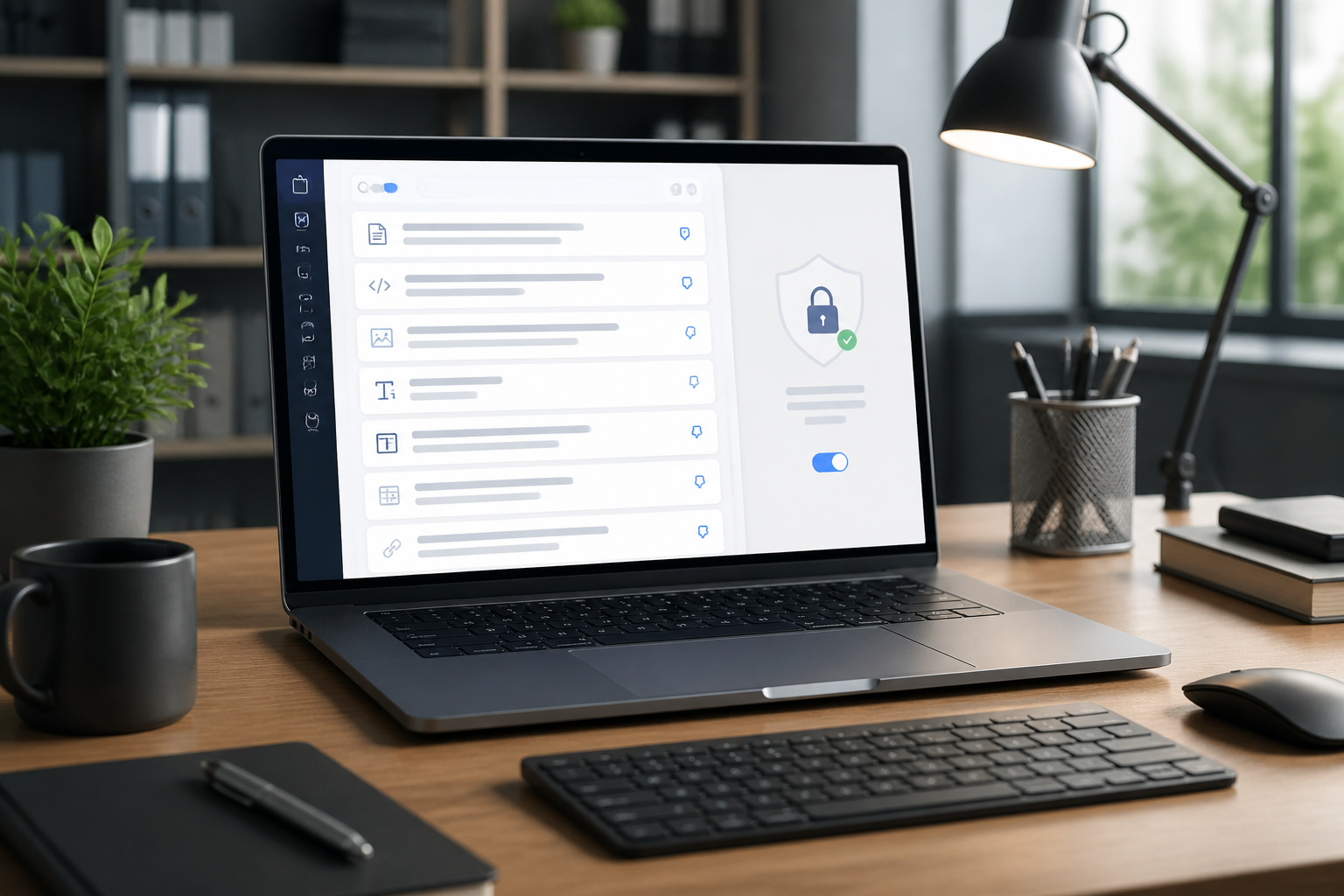
Copying and pasting text may seem like a small task, but in a day, we can repeat it dozens or even hundreds of times. Copying account numbers, code snippets, email addresses, message formats, or the same sentences repeatedly can be time-consuming if each item has to be searched and copied again.
This is where a clipboard manager comes in handy. This application stores the clipboard history, which is a temporary space that holds data when we press Ctrl+C or Command+C. This way, we can retrieve the text we just copied without switching between windows.
However, a clipboard manager is not just a productivity tool. Since it stores everything we have copied, this application also has the potential to collect passwords, OTP codes, API tokens, home addresses, and customer information. The benefits are significant, but its usage needs to be managed from the start.
What Does a Clipboard Manager Actually Do?
The default clipboard of an operating system usually only remembers the last item. Once you copy new text, the previous content is replaced. A clipboard manager expands this capability by storing multiple items in the form of history.
In practice, you can press a specific shortcut to open the history list and then select the item you want to paste. Some applications also provide additional features such as:
- searching for items based on specific words;
- marking frequently used text as favorites;
- grouping text snippets by project;
- saving text formats, links, or images;
- excluding certain applications from clipboard logging.
A simple example: an online store admin might frequently paste customer response templates. A programmer might repeatedly use terminal commands, configuration snippets, or documentation URLs. With a clipboard manager, these items do not need to be copied from the same source every time they are needed.
Real Benefits for Daily Work
1. Reducing Repetitive Tasks
If you often send the same message format, create reports, or fill in data between applications, clipboard history can reduce unnecessary steps. The time saved from one activity may be small, but it adds up throughout the day.
2. Reducing Copying Errors
Manually copying long numbers or technical commands increases the risk of typos. Retrieving correctly copied items from history is usually safer than retyping them.
3. Helping with Context Switching
We often need to gather information from multiple windows at once: browsers, spreadsheets, text editors, and communication applications. A clipboard manager can serve as a temporary stopover before all information is placed in the target document.
4. Useful for Developers and Technical Workers
Code snippets, Git commands, endpoint addresses, and short configurations are often reused. Favorite features or search functions make these collections easier to find than storing them in many small text files.
Often Overlooked Risks
The main risk of a clipboard manager comes from the assumption that all clipboard contents are safe to store. In reality, the clipboard often contains data that should only be used once.
- Passwords: passwords copied from a password manager can end up in the clipboard history.
- OTP Codes: verification codes that should expire shortly may remain stored for several minutes or hours.
- Tokens and API Keys: credentials for cloud services or code repositories can be exposed if clipboard history is not protected.
- Personal Data: identification numbers, addresses, phone numbers, or customer information can linger in applications.
- Cross-Device Synchronization: if clipboard history is sent to other devices or cloud services, the impact of a leak becomes broader.
Clipboard manager applications also have special access to copied data. Therefore, installing random applications from unknown sites is not a wise choice. For sensitive work, the developer's reputation, security model, and data storage methods are more important than the number of features.
How to Use a Clipboard Manager More Safely
1. Separate Regular Data and Sensitive Data
Use a clipboard manager for non-sensitive text such as email templates, lists of common commands, or snippets of sentences. For passwords, tokens, and OTP codes, use a password manager or autofill features specifically designed for sensitive data.
2. Enable Automatic Deletion
Choose a reasonable storage duration. For office needs, a history of a few hours may be sufficient. There is no strong reason to keep all clipboard contents for months, especially on shared computers or work laptops that are often taken on the go.
3. Exclude Sensitive Applications
If an application provides exclusion features, use them for password managers, banking applications, specific terminals, or forms that process customer data. Keep in mind that this feature is not always perfect, but it is still better than allowing all applications to be recorded without limits.
4. Turn Off Synchronization if Not Needed
Clipboard synchronization is indeed convenient, but it adds another data transfer path. If you do not really need access to history from other devices, it is safer to keep data only on the local device.
5. Lock Access to Clipboard History
If available, use a PIN, password, or automatic locking. This protection does not replace the operating system's security, but it can reduce risks when others use the same computer.
6. Clean History Regularly
Make it a habit to delete history, especially after completing work involving customer data, internal documents, or financial information.
The rule of thumb: if information should not be visible to others borrowing your laptop, do not let it be stored longer than necessary.
Features Worth Looking For When Choosing an Application
You do not need to choose an application with the longest list of features. Prioritize aspects that are directly related to security and workflow:
- clear and transparent local storage;
- automatic deletion based on time;
- exclusions for specific applications;
- fast history search;
- keyboard shortcut support;
- ability to easily delete a single item or the entire history;
- active privacy documentation and security updates.
For many users, the built-in features of the operating system may be sufficient. New additional applications are worth considering if you truly need extensive history, search, or better item organization.
What Does This Mean for Us?
A clipboard manager is suitable for people whose work frequently involves switching between applications and using repetitive text. It can make work feel lighter without drastically changing the workflow.
However, a clipboard manager should be treated like a work drawer, not a safe. Store templates and regular text snippets in it, but do not make it a storage place for passwords, tokens, or identity data. With automatic deletion, exclusions for sensitive applications, and without unnecessary synchronization, its productivity benefits can be gained without silently increasing risks.
– Rio Yotto @rioyotto