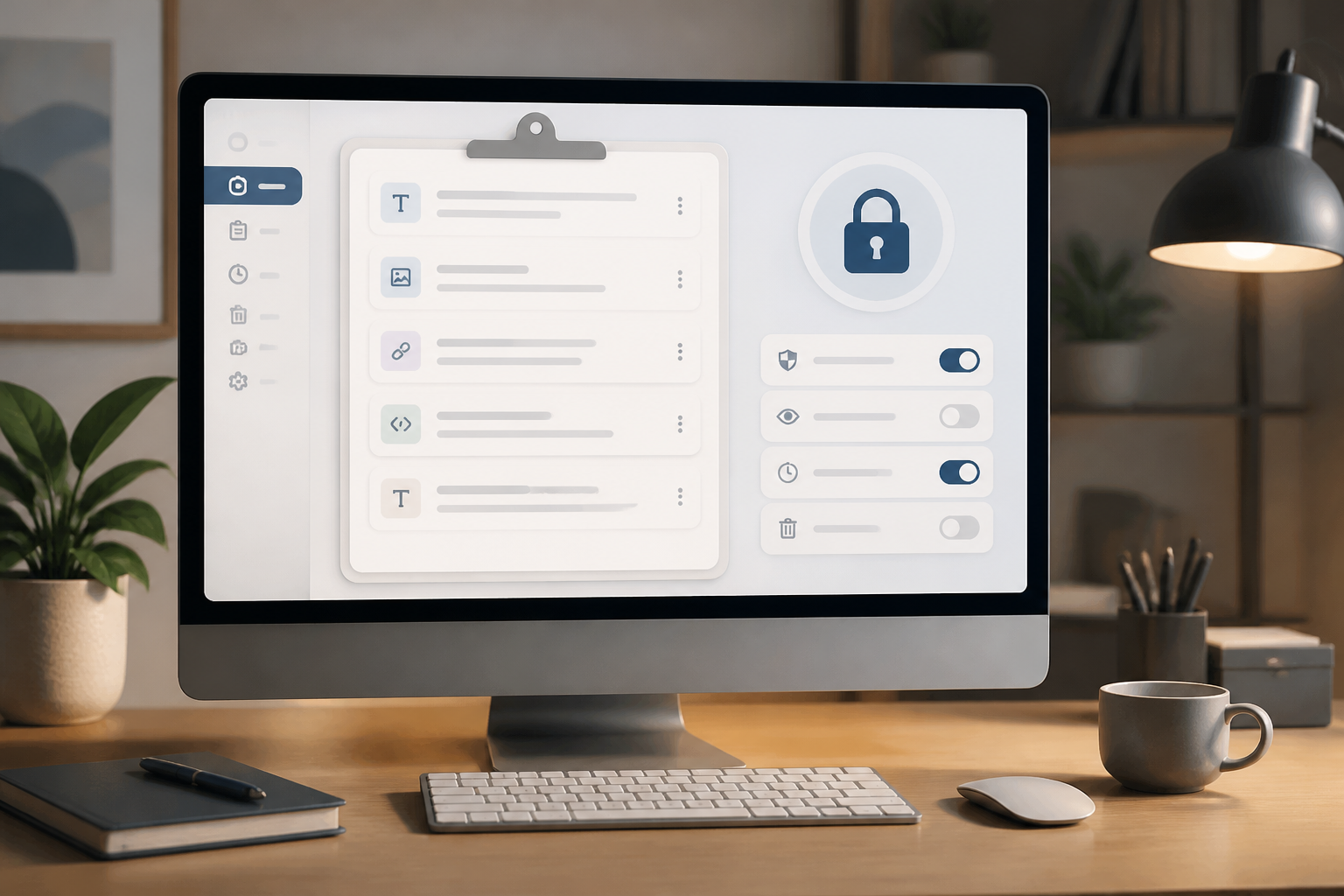
Copying and pasting text may seem like a small task, but in a day we can do it dozens of times: moving account numbers, email addresses, code snippets, website addresses, and even the same message to multiple applications. Therefore, a clipboard manager feels very helpful.
The problem is, anything copied usually has the potential to enter the clipboard history. If you've ever copied a password, OTP code, identification number, or the content of a personal message, that data may still be stored longer than expected. A clipboard manager is not a feature to be avoided, but it should be treated like a workspace drawer: useful, easily accessible, and not suitable for storing everything.
What exactly is a clipboard manager?
The clipboard is a temporary space used by the system to store data when you press the copy command. By default, many systems only store the last item. A clipboard manager adds the ability to store several previous items so you can retrieve text or images that were copied before.
For example, you are creating a report. You can copy titles, source addresses, statistical figures, and notes alternately, then retrieve everything without having to open the source document multiple times. For administrative work, research, programming, and content management, this can reduce repetitive tasks.
However, these benefits come with risks. The clipboard history may contain information that should only be used once. If the clipboard application has cloud synchronization, overly broad permissions, or does not automatically delete data, the exposure window for that data becomes larger.
What data should not be stored?
The simplest rule is: if data should not be visible to others, do not intentionally store it in the clipboard history. Some examples to watch out for include:
- Passwords and passphrases.
- OTP codes, recovery codes, and access tokens.
- Payment card numbers or account information.
- Identification numbers, full addresses, and customer data.
- Server configuration snippets containing API keys or secrets.
- Personal messages copied to be forwarded to other applications.
In practice, we can still accidentally copy that data. Therefore, clipboard manager settings need to help mitigate the impact of mistakes, not just rely on user memory.
Set history to not store for too long
Start by checking how many items are stored and how long they are kept. For most needs, storing dozens of items for days is not always necessary. A shorter limit makes old data disappear faster if the device is borrowed, lost, or accessed by others.
If available, enable automatic deletion based on time. You can choose a short duration, such as a few minutes or one hour, depending on your needs. For shared work computers, a shorter duration usually makes more sense. For research work that requires many text snippets, the duration can be longer, but there should still be a limit.
Also check whether the clipboard history remains stored after the device is turned off. Some applications store data in local storage so that the history can be recovered when the computer is turned back on. This feature is convenient, but not always necessary.
Turn off synchronization if not really needed
Clipboard synchronization allows you to copy text from one device and then paste it on another device. This feature can be useful when working from a laptop and phone, but it means the clipboard content moves across more than one device and possibly through additional services.
If you often copy sensitive data, consider turning off synchronization. Local clipboard is usually sufficient for daily tasks. If synchronization is still necessary, read the settings carefully: which devices are connected, whether the data is encrypted, and whether the history can be deleted from all devices.
This does not mean that every synchronization service is unsafe. The point is to limit the data transfer paths as needed. The more devices and services that receive copies of information, the more places need to be secured.
Use exclusion features for sensitive applications
Some clipboard managers provide exclusions for certain applications. Password managers, banking apps, and authenticator apps can sometimes notify the system so that copied content is not included in the clipboard history. If this option is available, enable it for applications that handle sensitive data.
Keep in mind that not all applications support such protection in the same way. Do not assume that the exclusion feature is an absolute guarantee. Get into the habit of copying sensitive data only when necessary, pasting it immediately, and then deleting it from the clipboard if the system or application provides that command.
Do not install clipboard managers indiscriminately
Clipboard managers can read the data you copy. That is their main function, but also the reason why choosing the right application is important. Download applications from official sources, check the developer's name, review the permissions requested, and read the privacy policy if the application runs on multiple devices.
Be wary of applications that request access unrelated to clipboard functions, such as full access to the entire system or the ability to send data without a clear reason. In office environments, use applications that have been approved by the IT team because the clipboard can process customer data or internal documents.
If using a browser extension to manage the clipboard, double-check the permissions of that extension. Extensions that can read page content and the data you copy have broader access than just regular copy-paste features.
What you can do now
- Open the clipboard settings in the system or application you are using.
- Limit the number of items and enable automatic deletion.
- Turn off synchronization between devices if not needed.
- Add exclusions for password managers and sensitive applications.
- Delete clipboard history containing passwords, OTPs, or personal data.
- Review clipboard applications and revoke excessive access.
Think of the clipboard as a temporary workspace, not a vault. Data can pass through there, but do not let it accumulate.
The bottom line
Clipboard managers can make work faster and reduce repetitive copy-paste activities. Risks arise when the history is left unlimited, synchronized across many devices, or used to store confidential information.
A balanced approach is to continue utilizing these features, but with short retention periods, limited synchronization, trusted applications, and the habit of not copying sensitive data longer than necessary. These small adjustments may not feel burdensome, but they can reduce the chances of personal information being left in easily accessible places.
– Rio Yotto @rioyotto