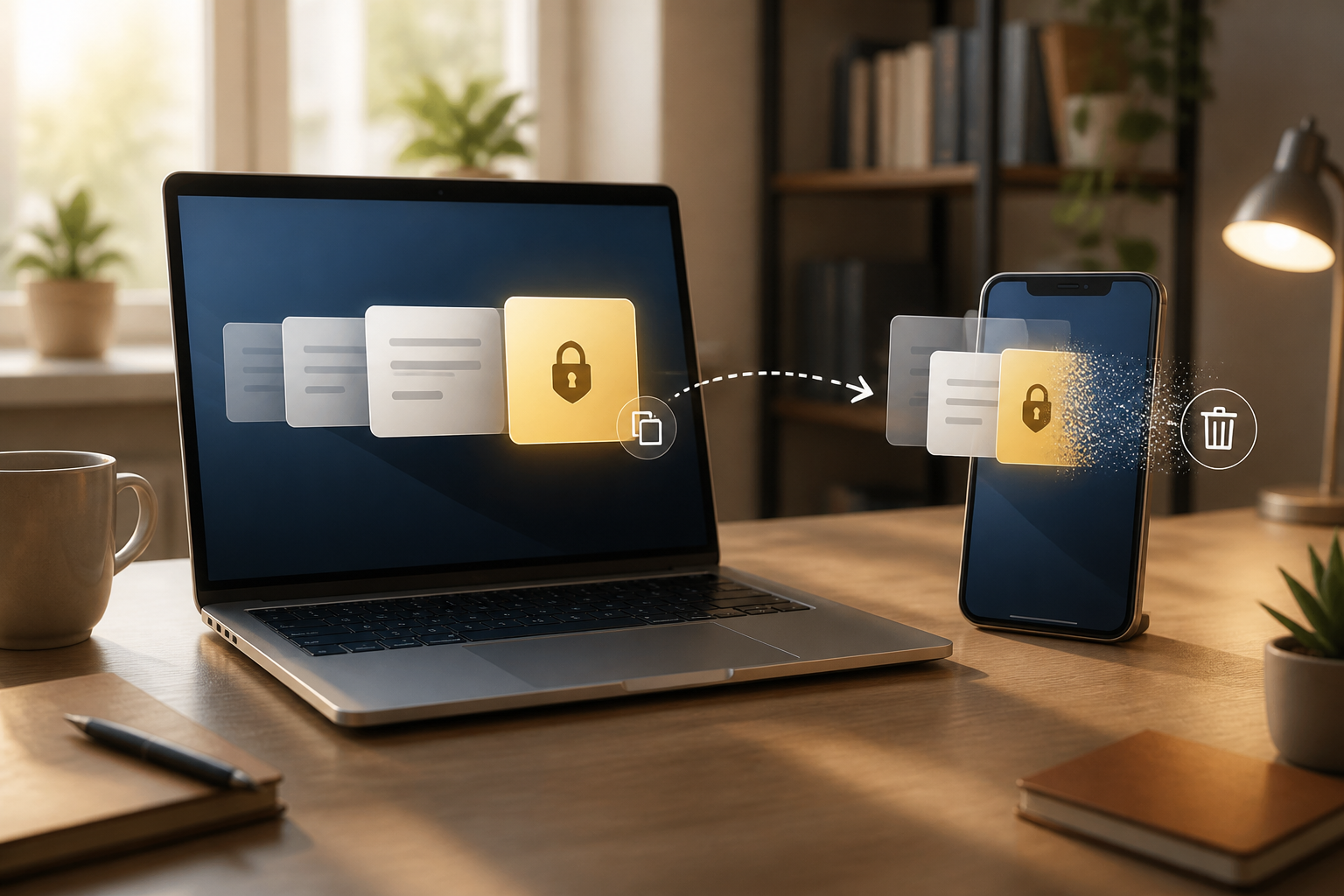
Almost everyone uses copy-paste every day: copying addresses, moving sentences, entering OTP codes, or sending account numbers via chat applications. The problem is, after pressing Copy, the data does not disappear immediately. Usually, the data is temporarily stored in the clipboard, which is a small workspace used by the device to hold something before it is pasted elsewhere.
The clipboard does help work become faster. However, if we copy sensitive information and then forget to clear it, that data can linger longer than expected. On certain devices, the clipboard can also store multiple copy histories or sync with other devices.
What is the actual function of the clipboard?
The clipboard is a temporary storage area in the device's memory. When you press Copy, the system places text, images, or other data there. When you press Paste, the target application retrieves that content.
A simple example is like moving a note from one desk to another. You copy a phone number from contacts, open a messaging app, and then paste it. The clipboard acts as the hand that carries that note during the process.
In regular use, the clipboard only stores the last copy. However, some operating systems, keyboards, or clipboard management applications can store the history of several previous items. This feature is useful for administrative tasks, but it also increases the risk if the stored data is sensitive.
What data should not be left in the clipboard?
Not all clipboard contents carry the same level of risk. Copying an article title is certainly different from copying the following data:
- Passwords and PINs.
- OTP codes or account recovery codes.
- Payment card numbers.
- Account numbers and identity information.
- Home addresses, phone numbers, or customer data.
- Internal document text or work information.
The risk does not mean that every application will read the clipboard indiscriminately. Many modern systems provide certain restrictions and warnings. However, the clipboard remains an area that needs to be treated with caution, especially when the device is shared, borrowed, or when installing applications of unclear reputation.
Clipboard on mobile: practical, but needs attention
On mobile devices, copy-paste activities often occur when filling out forms, entering verification codes, or transferring information from the browser to other applications. Third-party keyboards or clipboard history features sometimes store copies for reuse.
The menu names and steps vary, but the principle is the same. Open the clipboard panel on the keyboard being used, check if there is any copy history, and then delete items containing sensitive information. If there is an option to disable clipboard history, consider turning it off if you rarely need that feature.
Also, pay attention to cross-device synchronization features. Some ecosystems allow text copied on one device to be pasted on another. This is convenient, but it means that copied data can move further than you realize. For passwords, security codes, or personal data, it is better to use a password manager or sharing features specifically designed for sensitive information.
Clipboard on computers: don’t forget the copy history
Modern computers can provide clipboard history. This feature helps when you want to retrieve some text that was just copied. However, that history can become a problem if someone uses the same computer after you finish working.
Make it a habit to check whether clipboard history is active, especially on office computers, family computers, or devices that are frequently lent out. If you copy a password or card number, immediately delete the history after you are done. On some systems, copying plain text afterward can replace the last content, but this step does not always delete the entire history.
Safe habits when using copy-paste
- Copy only when necessary. Do not copy an entire document if you only need one sentence or one number.
- Delete sensitive copies after use. Check the clipboard panel or keyboard history if that feature is available.
- Do not paste secret data into random applications. Ensure you are on the correct site or application before pressing
Paste. - Check the content before pasting. Malware or user errors can make the clipboard content different from what you think. This is especially important when copying digital wallet addresses, account numbers, or technical commands.
- Avoid untrusted keyboards and applications. Use applications from official stores and check the permissions they request.
- Use a password manager for credentials. This way, you won’t need to copy passwords manually often.
- Lock the device when left unattended. Clipboard protection does not help much if someone else can access the entire device.
What if I accidentally copied sensitive data?
Don’t panic. Immediately delete the clipboard content and its history if available. If what was copied is a password, consider changing it, especially if it was pasted into the wrong application or site. If what was copied is an OTP code, do not reuse that code and request a new one if necessary.
For financial information, double-check transactions or account activities. If data was accidentally sent to the wrong recipient, contact the relevant parties as soon as possible. Quick action is usually more useful than trying to guess whether the data has been misused.
What does this mean for us?
The clipboard is not a dangerous feature. In fact, copy-paste is one of the most helpful functions in everyday technology use. What needs to change is the habit of treating it as if it does not store anything.
Think of the clipboard like a temporary table: suitable for placing something for a moment, but not a place to store valuable items. After finishing copying passwords, codes, or personal data, clean it up again. This small habit does not require additional applications, but it can reduce the chances of important information being left in inappropriate places.
– Rio Yotto @rioyotto