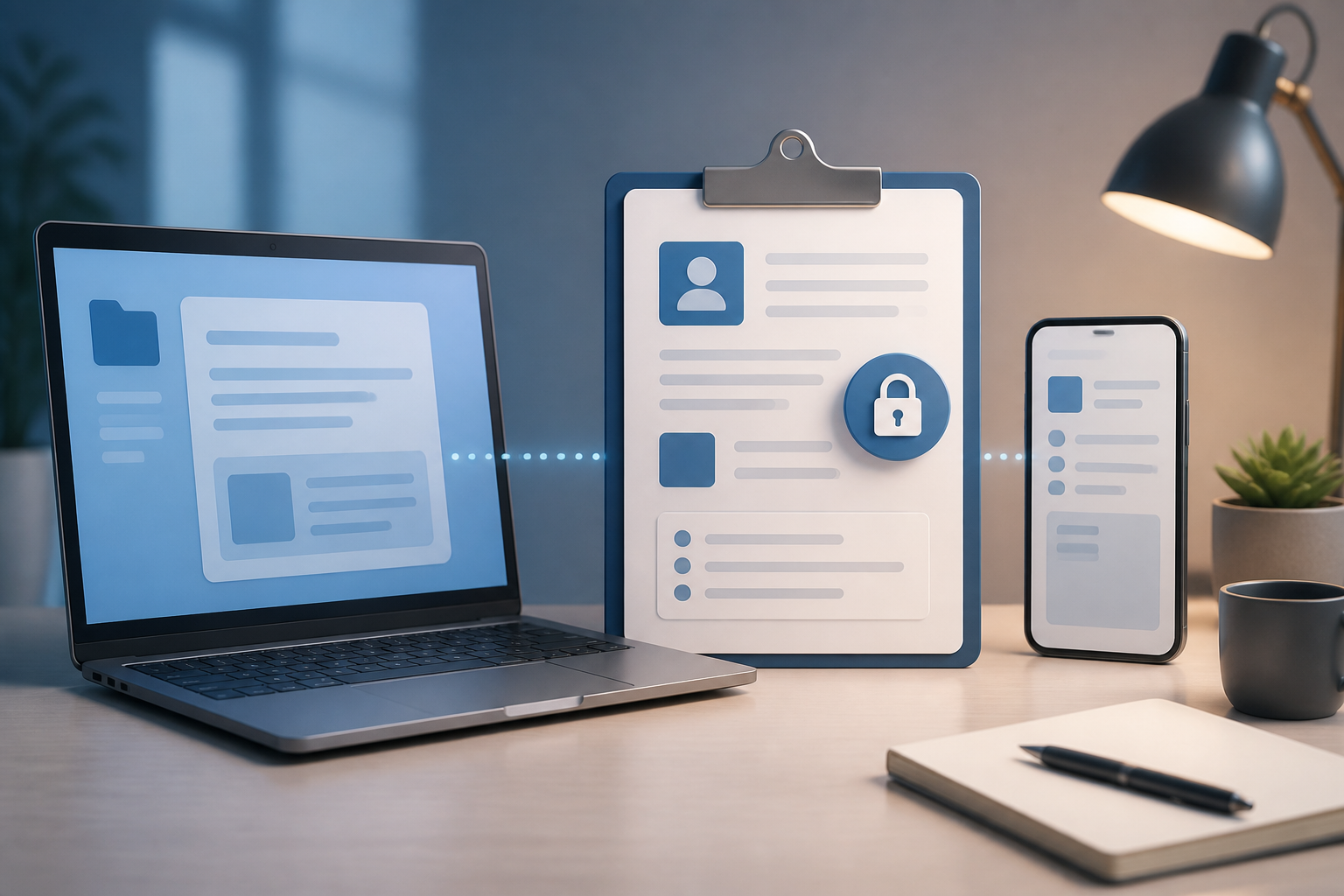
We use copy-paste almost every day: copying OTP codes, transferring account numbers, taking addresses from chats, or pasting passwords into login pages. The problem is, many people assume that text that has been copied disappears immediately after being pasted. In fact, that content is usually still temporarily stored in the clipboard, which is a small storage space used by devices to hold copied data.
The clipboard does help work get done quickly. However, if used carelessly, it can also become a temporary resting place for sensitive information. This risk is not a reason to stop using copy-paste, but rather a reminder to be aware of what is being copied, where the data is being pasted, and when that data should be cleared.
What is the clipboard, really?
The clipboard is temporary memory that stores data when we select the Copy or Cut command. That data is then retrieved when we execute the Paste command.
For example, when you copy an account number from a WhatsApp message and then paste it into a mobile banking app, that number first goes into the clipboard. After it has been successfully pasted, some devices still retain that copy for a while. On certain devices, the clipboard can also store the history of several previous items.
The clipboard does not only contain text. Images, links, tables, and other snippets of data can also be stored. Therefore, treat the clipboard like a temporary workspace: practical, but do not let important documents linger too long.
Why should we pay attention to the clipboard?
1. Sensitive data can be left behind
Passwords, verification codes, card numbers, home addresses, or identity data are often copied because it is faster than typing. If not cleared, that data can remain available when you click on another text field and select the paste option.
The risk is not only when the device is borrowed by someone else. You yourself might accidentally paste data into the wrong field, such as pasting an OTP code into a group chat or entering an account number into a search field.
2. Certain applications can read the clipboard
The clipboard operates at the operating system level, so applications that have access according to the device's mechanisms can interact with it. On modern platforms, restrictions and security notifications can help, but user habits remain important.
If you copy a password and then open an untrusted application, that data may become riskier than if the password were typed directly or filled in by a password manager.
3. Clipboard history makes data last longer
The clipboard history feature can be very useful when you frequently copy several snippets of text. However, the same benefit makes old information easier to find again. An OTP code or card number copied a few minutes ago may still appear alongside other items.
Clipboard and passwords: which is safer?
For passwords, the best choice is usually not to copy and paste manually. Use a password manager that can automatically fill in login fields or help create unique passwords for each account.
A password manager does not eliminate risk, but it reduces the need to view, memorize, or transfer passwords via the clipboard. It also helps prevent the habit of using the same password across multiple services.
If you must copy a password, do so only on personal devices and ensure that no suspicious applications are open. Once done, clear the clipboard if your device or application provides that option.
Safe habits you can adopt now
- Double-check before pasting. Look at the clipboard contents and ensure that the data to be pasted matches the intended field. This two-second habit can prevent troublesome mistakes.
- Do not copy sensitive data without reason. If numbers or codes can be typed safely, it is not always necessary to move them via the clipboard.
- Clear the clipboard after use. Some devices provide options to clear the clipboard contents or delete its history. If not, you can copy plain, non-sensitive text as a replacement, although this method is not guaranteed for all devices.
- Avoid copying passwords on public devices. Shared office computers, library computers, or loaned devices are not ideal places to enter important data.
- Be cautious with keyboard and clipboard manager applications. Additional applications that offer clipboard history features should be chosen carefully. Check their reputation, the permissions they request, and whether those features are truly necessary.
- Turn off clipboard synchronization if not needed. Some device ecosystems can synchronize copied data across devices. This feature is convenient, but it also means that information copied on one device could be available on another.
What does this mean for us?
The clipboard is not a dangerous feature. It is a simple tool that makes many tasks faster. What needs to change is how we treat it. Do not consider the clipboard a safe storage place, let alone a temporary note for passwords or important numbers.
Think of the clipboard like a hand carrying a piece of paper. As long as it is used to transfer data from one place to another, it is useful. However, once the task is complete, that paper should not be left lying around on the desk.
Quick checklist before copy-pasting
- Does the content I copied contain sensitive information?
- To which application or site will this data be pasted?
- Is the device I am using truly mine or trustworthy?
- Is the clipboard history or synchronization feature currently active?
- Does the clipboard need to be cleared after the task is completed?
With these five simple questions, copy-pasting can remain a practical habit without neglecting security. Technology does not always require complicated steps; often, a little attention to daily processes is enough to reduce many mistakes.
– Rio Yotto @rioyotto