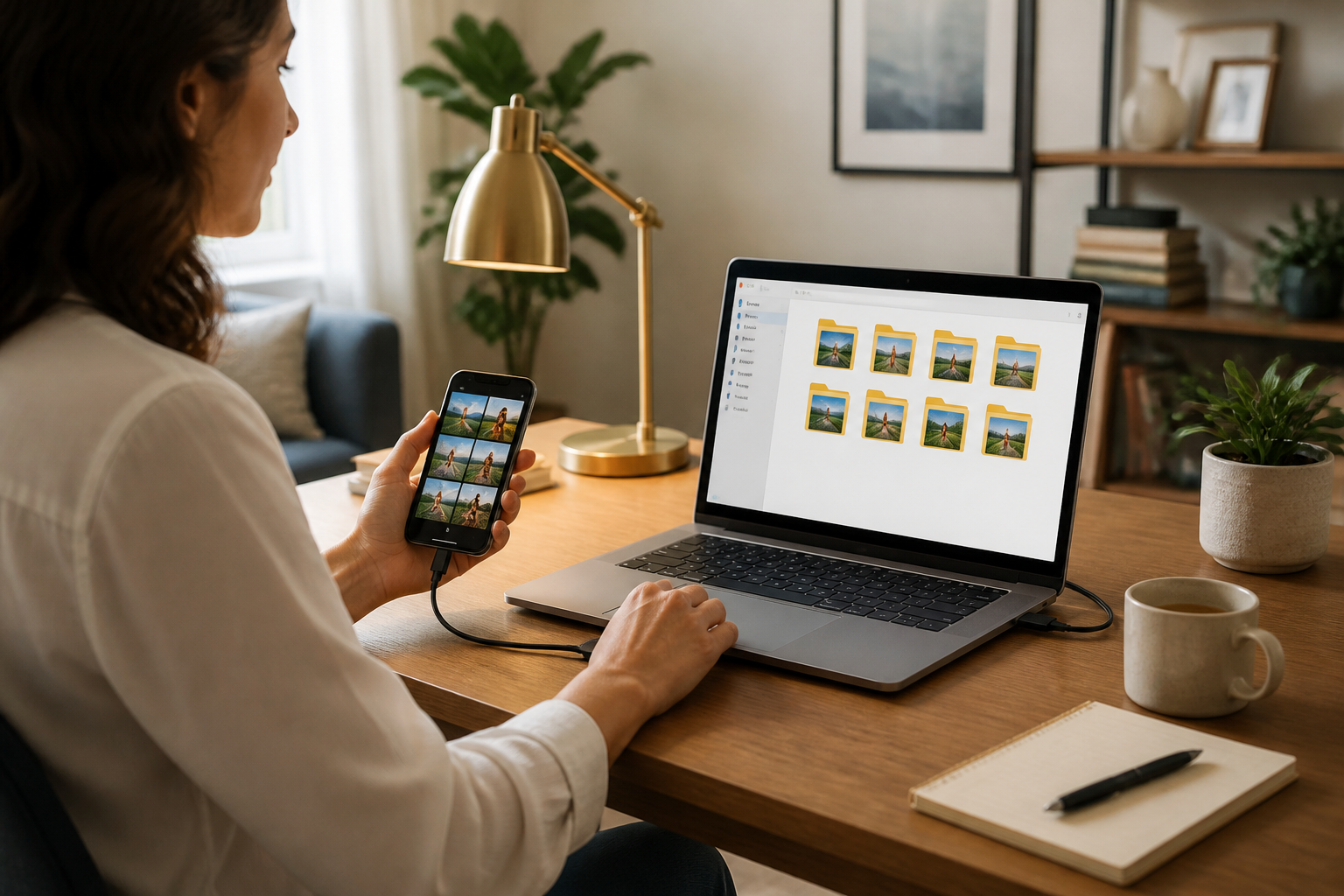
Photos and videos are often the main reason why phone storage fills up quickly. The problem is, many people postpone transferring files because they think the process is complicated: having to find the right cable, navigate confusing folders, or fearing that photos might get lost.
In fact, transferring files from your phone to your laptop doesn't have to be done in a complicated way. You just need to choose a method based on the situation: whether you have a USB cable, an internet connection, or just want to transfer a few files.
Before you start, understand the difference between “moving” and “copying”
Copying means creating a duplicate of the file in another location. The photo remains on the phone, but a copy is also stored on the laptop.
Moving means the file is transferred from one location to another. Once the process is complete, the original file is usually deleted from the initial location.
For beginners, it's safer to use the copying method first. Make sure the photo is fully accessible on the laptop before deleting it from the phone. It's like moving items from an old house: don't throw away items in the old house before ensuring they have arrived at the new house.
Method one: using a USB cable
A USB cable is the most straightforward option and is usually suitable for transferring many photos or videos. This method does not require the internet, so it won't consume your data quota.
- Connect your phone to the laptop using a USB cable that supports data transfer.
- Unlock your phone's screen.
- If a USB notification appears, select an option like Transfer files, File Transfer, or MTP. MTP is a mode that allows the laptop to read the phone's storage.
- On the laptop, open File Explorer or the file manager.
- Look for your phone's name in the list of devices.
- Open the
DCIMfolder, then enter theCamerafolder to find photos from the phone's camera. - Select the desired files, then copy them to a folder on the laptop.
Photos from other apps may be stored in different folders. Images from screenshots are usually found in the Pictures or Screenshots folder. Files downloaded from the internet can be found in the Download folder.
If the phone only charges and does not appear on the laptop, do not immediately assume that the phone or laptop is broken. It could be that the cable only supports charging, not data transfer. Try a different cable or change the USB mode from the notification on the phone.
Method two: using Google Drive or cloud storage
Cloud storage is a service that stores files on the internet so they can be accessed from multiple devices. Examples include Google Drive, OneDrive, and similar services.
This method is useful if you do not have a cable or want to access files from another laptop.
- Open the cloud storage app on your phone.
- Select the button to upload files.
- Choose the photos or documents you want to save.
- Wait until the upload process is complete.
- Open the same service from the laptop using the same account.
- Download the files to the laptop.
Be mindful of mobile data usage. Large video files can consume your quota and take longer to upload. If possible, perform this process while connected to a trusted Wi-Fi network.
This method also requires sufficient storage space on your account. If you receive a message indicating that space is full, you may need to delete old files that are no longer needed or use the USB cable method.
Method three: sending files via email or messaging apps
For one or two photos, email or messaging apps can be the most practical way. You can send files to your own email address and then open them from the laptop.
However, this method is less suitable for many photos and videos. Some messaging apps may also automatically reduce the size of photos. As a result, image quality may decrease.
If original quality is important, look for options like send as file or document, rather than as a regular photo. This way, the file is more likely to be sent in its original size and quality.
Method four: using nearby sharing features
Some phones and laptops support nearby file sharing features, such as Quick Share or similar features. This method allows files to be sent without cables through a direct wireless connection.
Typically, you only need to enable the sharing feature on both devices, select the file on your phone, and then choose the laptop's name as the recipient. The devices may request approval before the transfer begins.
This feature is convenient for a few files, but the results depend on device support and connection settings. If the laptop is not detected, ensure that Bluetooth and Wi-Fi are active, and check if the devices are set to be discoverable.
Folders you should create on your laptop
After the files have been successfully transferred, do not let everything pile up in the Download folder. Create a simple structure so that files are easy to find.
- Family Photos for personal photos.
- Documents for identification cards, forms, or work files.
- Photos 2026 to group photos by year.
- Videos for large video files.
File names can also help. Instead of leaving names like IMG_4821.jpg, you can change it to Vacation-Bandung-June-2026.jpg. It doesn't have to be perfect; what matters is that the name helps you understand the file's content months later.
Common mistakes to avoid
- Do not unplug the cable while the copying process is still ongoing.
- Do not delete photos from the phone before ensuring that the copies can be opened on the laptop.
- Do not move all folders randomly if you do not know their contents.
- Do not send personal documents through devices or accounts that are not your own.
- Do not use flash drives or cables from untrusted sources if the device requests the installation of strange applications.
What you can do now
First, select five photos as a trial. Copy them using a USB cable or send them through the method that is easiest for you. Once the files are visible on the laptop and can be opened, then proceed with a larger number.
If your goal is to free up storage on your phone, delete files only after checking their copies. For important files like identification documents, contracts, or memory photos, it is advisable to keep at least two copies in different locations.
In summary, you do not need to memorize all technology terms. Remember three things: choose the appropriate method, copy before deleting, and organize files after they arrive on the laptop. With these simple habits, transferring files no longer feels like a daunting technical task.
– Rio Yotto @rioyotto