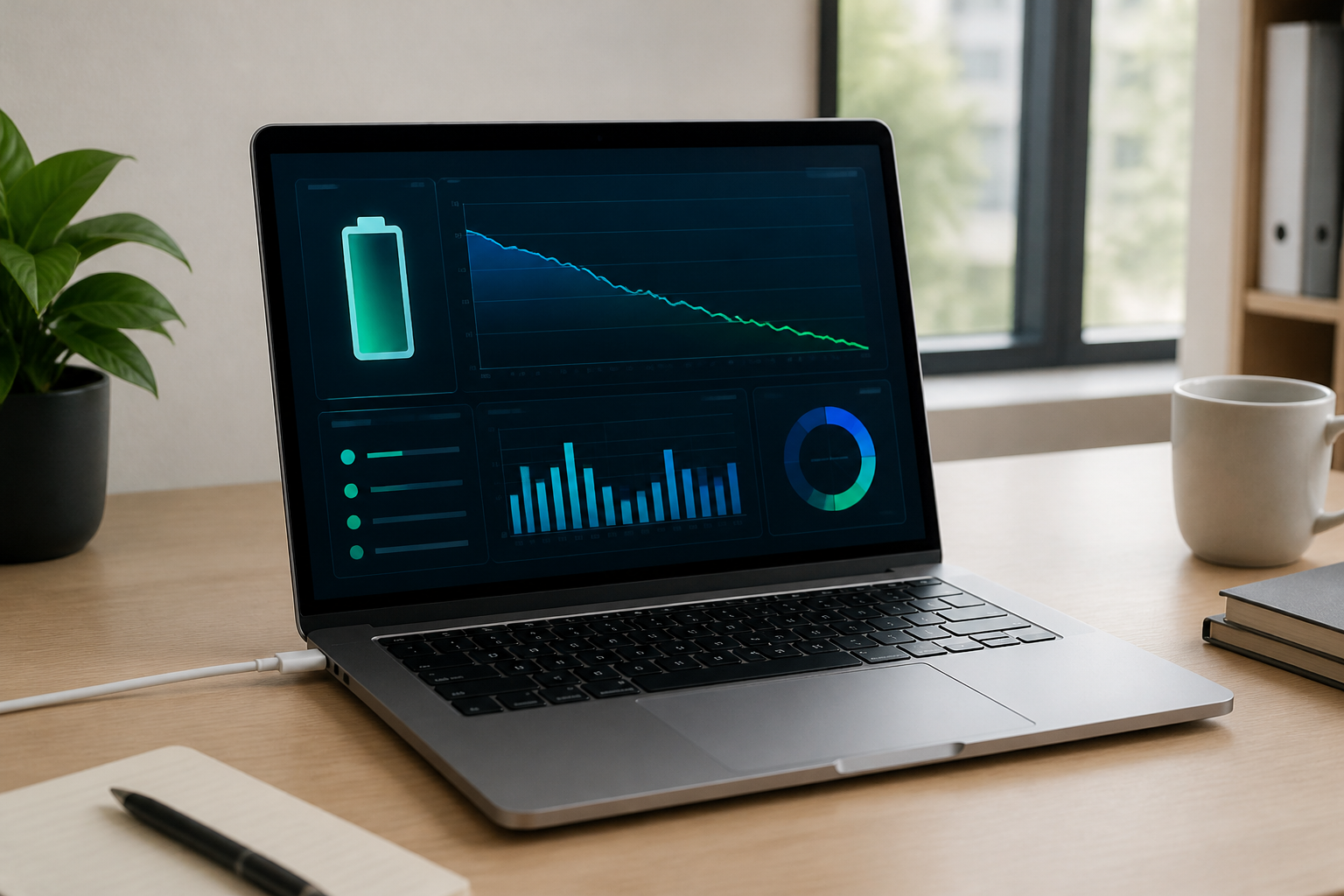
A laptop that used to last for hours but now only lasts a short time can be frustrating. However, the cause isn't always a faulty battery. It could be that there are apps running in the background, the screen is too bright, too many devices are connected, or the browser has too many tabs open.
The first step is not to rush into buying a new battery. First, find out where the laptop's energy is going. This way, you can distinguish between battery capacity issues and problems caused by habits or apps.
Differentiate Between Worn-Out Batteries and Power-Hungry Batteries
Batteries have a maximum capacity that decreases with age and charge cycles. If the capacity has significantly diminished, the laptop will indeed drain faster even when used for light tasks.
On the other hand, a power-hungry battery is usually marked by high power consumption when the laptop is performing certain tasks. For example, the battery drains quickly when participating in video meetings, editing videos, playing games, or having many browser tabs open. Once those apps are closed, power consumption typically decreases.
This distinction is important. Reducing screen brightness will not restore the capacity of a worn-out battery, while replacing the battery won't solve the problem if the main cause is apps that remain active.
Check the Apps Consuming the Most Power
On Windows
Open Settings, then go to System and select Power & battery. In some versions of Windows, you can find a list of battery usage by app.
Pay attention to the apps that appear at the top. Video conferencing apps, browsers with many tabs, design software, games, and cloud synchronization apps often consume more energy than regular document processing apps.
Don't immediately uninstall an app just because it's at the top of the list. First, ask yourself if that usage aligns with your activities. If you just participated in a two-hour video meeting, it's normal for the meeting app to consume a lot of power.
On macOS
Open System Settings, then select Battery. You can see a summary of energy usage and apps that are consuming a significant amount of power.
For a more detailed check, open Activity Monitor, then select the Energy tab. Columns like Energy Impact show how much impact an app has on current power consumption. The 12 hr Power column, if available, helps identify apps that have been quite active in the last few hours.
These numbers are not a measure of battery health. They simply help identify processes that are currently or recently working hard.
Check Apps Running at Startup
Apps that automatically run at login can make the laptop work from the start, even when you haven't consciously opened them. Some are indeed important, like security managers or device drivers. Others merely add convenience features.
On Windows, go to Settings > Apps > Startup. There, you can see which apps automatically activate and their estimated impact on the startup process. Disable apps that don't need to run immediately, especially those that are rarely used.
On macOS, go to System Settings > General > Login Items. Check the apps that open automatically and those allowed to run in the background.
Use a gradual approach. Disable one or two apps, then observe the laptop's behavior for a few days. If you find a function that you actually need, you can enable it again.
Don't Ignore the Browser
Browsers are often a hidden source of power consumption. A single tab with a text document is usually light, but a tab with video, real-time dashboards, design apps, or pages that continuously update data can actively use the processor and memory.
Try opening the built-in task manager of the browser. In Chrome or Chromium-based browsers, press Shift + Esc to see tabs and extensions that are using significant resources. In other browsers, look for a task manager or diagnostic menu with a similar name.
Also, check the installed extensions. Extensions that are no longer used should be removed, not just left inactive. If a site keeps making the laptop's fan spin, close that tab and see if the temperature and power consumption return to normal.
Adjust Screen and Power Mode Reasonably
The screen is usually one of the components that most easily affects battery life. Lowering the brightness a few levels often has a real impact, especially on laptops with large or high-resolution screens.
Use power-saving mode when reading, writing, or doing light tasks. This mode typically reduces processor performance, background activity, and screen brightness. For heavy tasks like rendering or code compilation, you may need to use high-performance mode and connect the charger.
Also, set the screen timeout and laptop sleep mode. These settings prevent the laptop from staying on when you leave it to grab a drink or engage in another conversation.
Be Aware of Continuously Active Devices and Connections
Bluetooth, Wi-Fi, USB devices, cameras, and microphones can increase power consumption, although the impact varies on each laptop. Certain USB devices, like external hard drives or additional lights, clearly draw power from the laptop.
Disconnect devices that are not in use. If you're working without the internet, enable airplane mode or turn off unnecessary connections. Don't make this step a rigid rule; security and work needs are still more important than saving a few percent of battery.
Take Notes Before Replacing the Battery
For two or three days, note the conditions when the battery drains quickly:
- What apps are open?
- What is the screen brightness level?
- Is the laptop being used for video calls, gaming, or heavy tasks?
- Does the laptop feel hot or is the fan constantly running?
- How long does the battery last from 100 percent to around 20 percent?
This simple note-taking helps identify patterns. If the battery drains quickly only during heavy tasks, the issue may be normal power consumption that you weren't aware of. If the laptop is hot and draining even when doing nothing, check for background apps, system updates, malware, or cooling issues.
When to Check or Replace the Battery?
Consider having a technician check if the laptop suddenly shuts down, the battery percentage jumps abnormally, the device struggles to charge, or the bottom of the laptop is swollen. A swollen battery is not just a durability issue and should not be used further.
If battery performance gradually declines but the laptop is still physically safe, you can check the battery health report from the operating system or the manufacturer's official app. Compare the design capacity with the current full charge capacity.
In summary: don't guess the cause of battery drain. Check apps, startup, browser, screen, power mode, and connected devices. Once the source of the problem is identified, the solution is usually cheaper and simpler than immediately replacing the battery.
– Rio Yotto @rioyotto