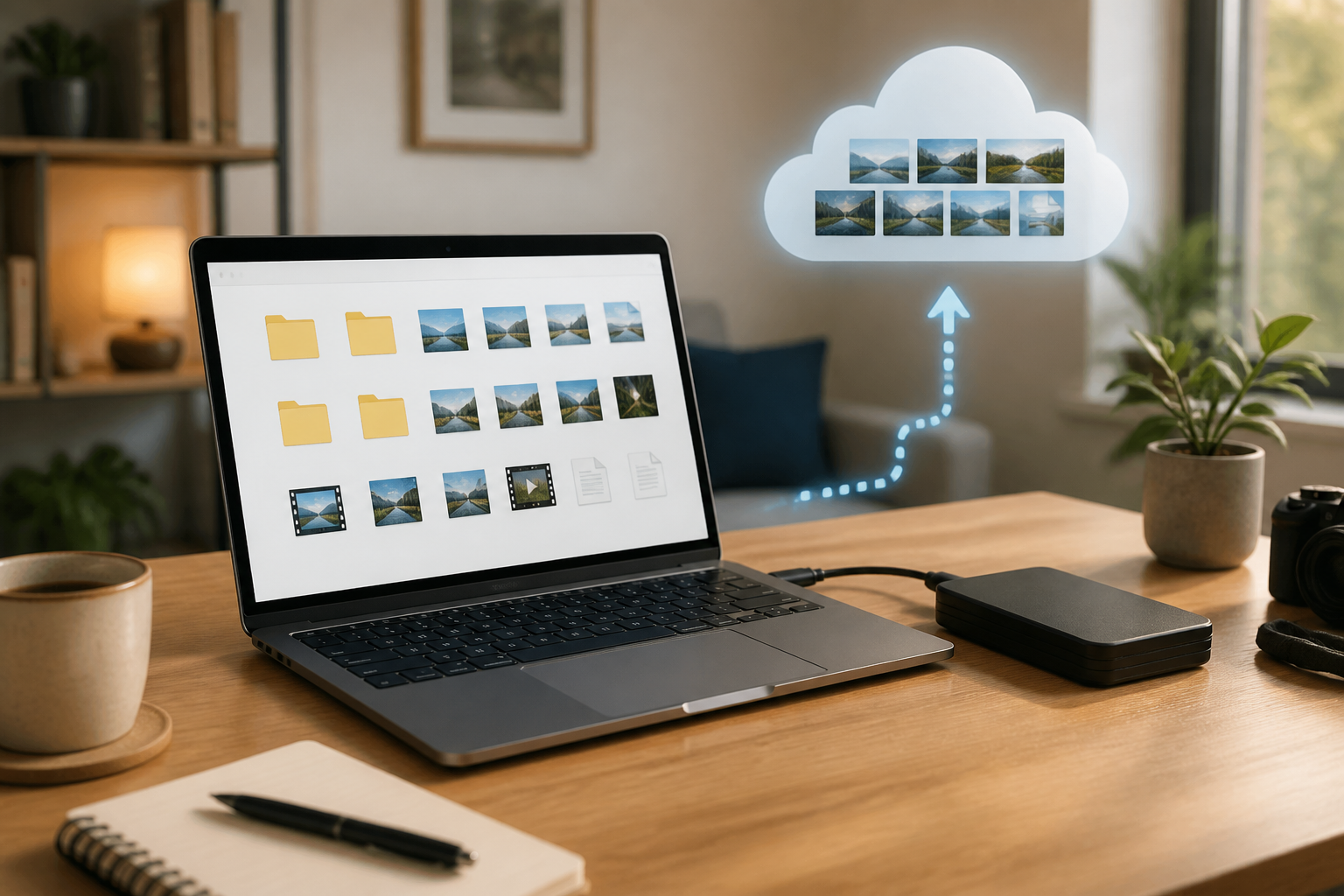
Many people only think about backup after their laptop breaks, their phone is lost, or important files are accidentally deleted. In fact, backup is not just a task for large companies. For regular users, backup can be as simple as storing copies of family photos, work documents, or school data elsewhere.
It is important to understand that storing files on one device does not mean those files are safe. If the laptop gets damaged, the account is locked, or the phone is lost, that single copy is also at risk. Backup helps mitigate the impact when such things happen.
What exactly is meant by backup?
Backup is a copy of data stored separately from the original data. If the original file is damaged, lost, or inaccessible, that copy can be used to recover the data.
For example, a photo that is only stored on a phone cannot be considered backed up. However, if that photo is also copied to a computer, external hard drive, or online storage service, you already have additional protection.
Backup is different from simply moving files. If you move a photo from your phone to your laptop and then delete the photo on your phone, you still only have one copy. If the laptop breaks, that photo is still lost. Backup means there is at least one other copy that is kept safe.
Why is one copy not enough?
Digital devices can experience many issues that are not always predictable. Hard drives can fail, phones can be lost, cloud accounts can be locked, and files can be overwritten with incorrect new versions.
There is also the risk of human error. Files can be deleted while cleaning up storage, folders can be mixed up, or important documents can be saved with hard-to-find names. Backup does not prevent all mistakes, but it provides a way to revert to a previous state.
Another risk is ransomware, a type of malware that locks or encrypts files and then demands a ransom. If all files are only on one computer and that computer gets infected, a separate backup can be a lifesaver.
The easy-to-remember 3-2-1 principle
One simple way to design a backup is the 3-2-1 principle:
- 3 copies of data: one original data and at least two additional copies.
- 2 different types of media: for example, a computer and an external hard drive, or a computer and cloud storage.
- 1 copy stored in a different location: not in the same place as the main device.
This principle is not a strict rule that everyone must apply perfectly. However, it helps us identify weaknesses in our file storage habits. Copying all data to two different folders on the same laptop, for example, is not enough because both folders will be lost if the laptop fails.
Choose a backup method according to your needs
1. External hard drive or flash drive
External media is suitable for storing documents, photos, videos, and archives that rarely change. The advantage is that data can be accessed without an internet connection, and its capacity is usually quite large.
However, do not keep the backup hard drive constantly connected to the computer. If the computer gets infected with malware, the connected external device could also be affected. After completing the backup, disconnect the device and store it in a safe place.
2. Cloud storage
Cloud storage is file storage on servers owned by service providers accessed via the internet. Examples include services that sync folders between computers and online servers.
Cloud storage is practical for frequently used documents from multiple devices. If the laptop fails, you can still access files from other devices. The downside is that this service relies on an internet connection, and its free space is usually limited.
Keep in mind that synchronization is not always the same as backup. If a file is deleted on one device and that change is synced, the file could also be deleted from the cloud. Therefore, check if the service you are using has version history or a recoverable trash feature.
3. Automatic backup
Automatic backup helps reduce reliance on memory. You can set it up so that photos, documents, or specific folders are copied periodically.
This method is suitable for people who often forget to perform manual backups. However, occasionally check the results. An automatic backup that fails due to full storage or account issues is not very helpful.
What data should be prioritized?
You do not always have to back up everything on your device. Start with data that is difficult or impossible to replace:
- Family photos and videos.
- Important identity and administrative documents.
- Work documents, assignments, or projects.
- Financial records and transaction archives.
- Contacts, personal notes, and calendars.
- Configuration files or recovery codes for important accounts.
Applications can usually be re-downloaded, but the data within them may not be recoverable. Therefore, the main focus of backup should be personal data and documents that hold value for you.
What you can do now
- Create a list of important data. Check your phone, laptop, and cloud accounts to find files that must not be lost.
- Choose one additional backup location. Use an external hard drive or cloud service that meets your needs.
- Copy data into organized folders. Use folder names based on categories and years for easy checking.
- Set a schedule. Frequently changing data can be backed up weekly, while photo archives can be backed up monthly.
- Test the backup results. Open several files from the copy to ensure they are truly usable.
- Store one copy separately. Do not keep all devices and backups in the same bag or room.
Good backups also need security
Backups contain important data, so they must be protected. Use strong passwords for cloud accounts and enable two-factor authentication if available. For external hard drives, store them in places that are not easily exposed to heat, water, or impact.
If the backup contains sensitive documents, consider encrypting the files or the storage device. Encryption means the data is transformed into a form that is not easily readable without the correct key or password.
Do not consider backup as a one-time task. Data continues to grow and change. A more important habit than buying expensive devices is to create a simple, scheduled, and easily checkable process.
The bottom line
Backup is a way to reduce losses when devices, accounts, or files encounter issues. You do not need to immediately build a complicated system. Start with one additional copy, separate from the main device, and then gradually enhance its protection.
If you want a simple guideline, remember the 3-2-1 principle: three copies of data, two types of media, and one copy in a different location. These small steps can make a big difference when something unexpected happens.
– Rio Yotto @rioyotto