Many people only think about backup after important files are truly lost. Family photos, work documents, financial records, or college assignments can disappear in seconds when a laptop fails, a phone is lost, or a storage account is locked.
A backup is an additional copy of important files stored elsewhere. The goal is not to have multiple versions of files for no reason, but to ensure there is a way to recover data when the primary copy has issues.
One of the easiest ways to understand backup is the 3-2-1 rule: have at least three copies of data, use two different types of storage media, and store one copy in a different location.
What does the 3-2-1 backup rule mean?
1. Three copies of data
The number three means there should be at least three copies of the file in total. One is the original file being used, while the other two are backup copies.
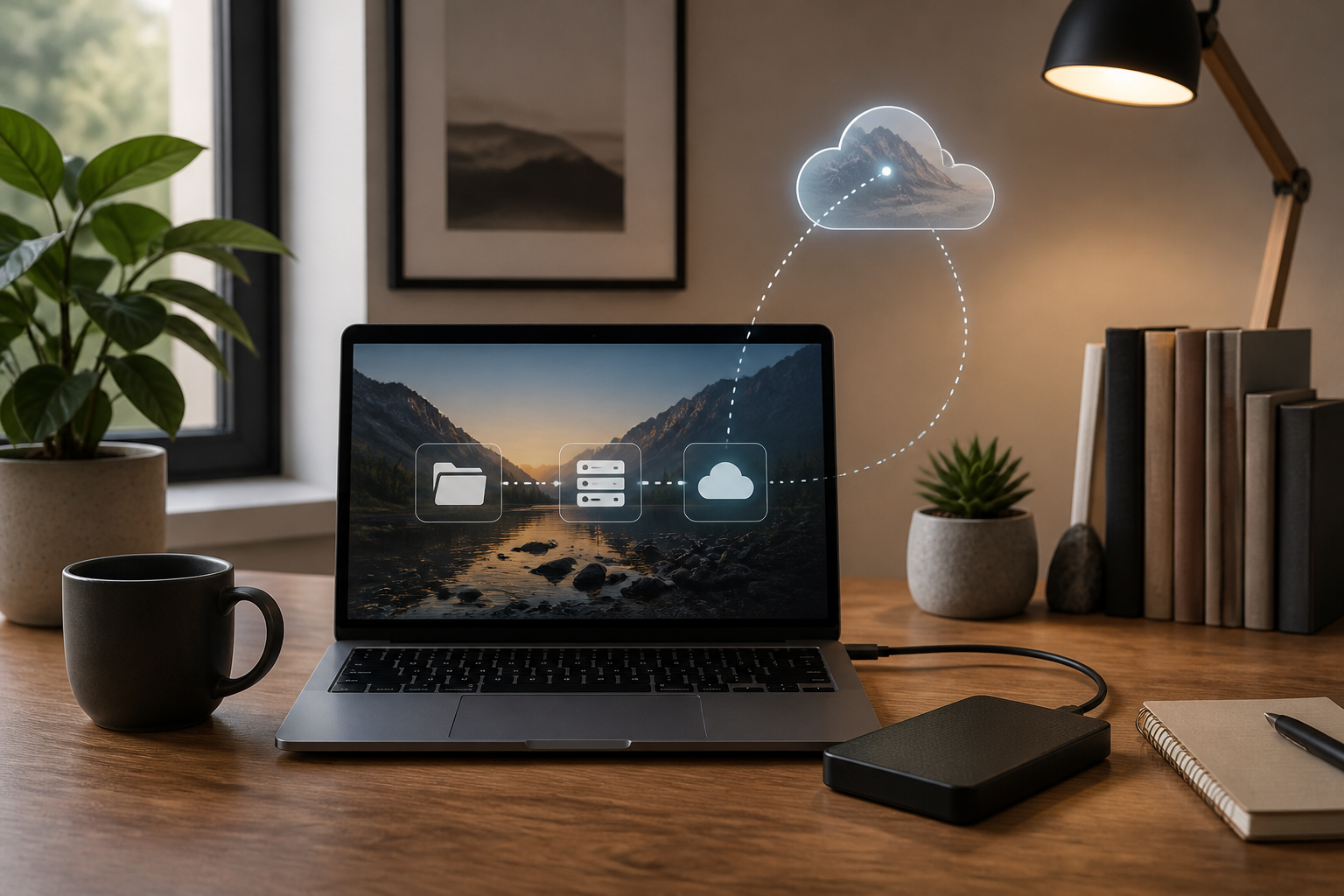
For example, family photos are stored on a laptop, copied to an external hard drive, and also saved in a cloud service. If the laptop fails, there are still two other options.
This number is not a strict rule for everyone. However, the more important the data, the less wise it is to keep it in just one place.
2. Two types of storage media
Do not place all copies on the same media. Laptops and external hard drives are considered physical storage devices, while the cloud is storage via servers owned by service providers.
Using two types of media helps reduce the risk of the same failure. For example, a virus may attack files on the laptop and the connected drive, but it does not automatically affect the cloud copy that has version history or additional protection.
3. One copy in a different location
One copy should ideally be in a different location from the main device. A different location does not necessarily mean renting a dedicated storage space. A cloud service is sufficient for many users' needs.
The reason is simple: disasters like fires, floods, or theft can eliminate both the laptop and the external hard drive stored in the same room.
Backup is different from synchronization
A common mistake is to assume that all files in the cloud automatically become backups. In fact, synchronization and backup serve different functions.
Synchronization keeps the contents of folders the same across multiple devices. If a file is deleted on one device, that deletion can be synchronized to other devices.
Backup is designed to store recoverable copies. Some backup services provide version history, allowing files to be restored to their state before deletion or changes.
For example, a work folder synchronized to the cloud is indeed helpful when replacing a laptop. However, if a file is accidentally deleted and the service only retains the latest changes, synchronization alone may not be sufficient.
A simple setup example for beginners
You do not need to immediately purchase expensive devices. Here is a reasonable setup for personal documents, photos, and work files:
- First copy: the original file is on the laptop or phone.
- Second copy: files are periodically copied to an external hard drive or a sufficiently sized flash drive.
- Third copy: important files are uploaded to a cloud service that has enough space and good account security.
For files that change frequently, such as work documents, schedule weekly backups. For photos and videos, backups can be done after transferring files from the phone.
If using an external hard drive, do not keep it constantly connected to the laptop. After the backup process is complete, safely eject the device and store it in a different location. This small habit can reduce the risk when the computer is affected by malware trying to encrypt connected drives.
Which files should be prioritized?
Not all data should be treated the same. Start with files that are difficult to recreate or would have a significant impact if lost.
- Important identity and administrative documents.
- Work documents, reports, and project files.
- Family photos and videos.
- Financial records and transaction proofs.
- Small databases, website configurations, or personal code.
- License files, certificates, and educational documents.
Files that can be re-downloaded, such as application installers or movies already available on streaming services, typically do not become top priorities.
A backup is not complete until it has been tested
Having a folder named “Backup” does not prove that the backup is useful. Files may be corrupted, incomplete, or stored in a location with a forgotten password.
Perform a simple test every few months. Select a few files and try to open them directly from the external hard drive or cloud service. For large folders, take samples from various types of files such as documents, photos, videos, and spreadsheets.
If you want to be more certain, simulate recovery: copy some files to a temporary folder or another device, then ensure the contents are usable. The goal of backup is not just to have a copy but to be able to restore it when needed.
Pay attention to account and device security
Cloud backups still depend on account security. Use a unique password and enable two-factor authentication if available. Do not upload highly sensitive documents to services with unclear reputations.
For external hard drives, consider encryption if the device is frequently taken on the go. Encryption is the process of converting file contents into a form that is not easily readable without a key or password.
Avoid storing the only account recovery code on the same device as the backup data. If the laptop fails and that code is only stored on the laptop, the recovery process can become much more difficult.
What you can do now
- Create a list of files that must not be lost.
- Check if those files only have one copy.
- Prepare one additional media, such as an external hard drive or cloud.
- Regularly copy important files.
- Disconnect external devices after the backup is complete.
- Test recovery by opening several files from the copies.
- Note the next backup schedule in your calendar.
The 3-2-1 rule is not a race to collect storage devices. The essence is to avoid a single point of failure. By having copies on different media and locations, the failure of one device does not immediately result in permanent data loss.
– Rio Yotto @rioyotto