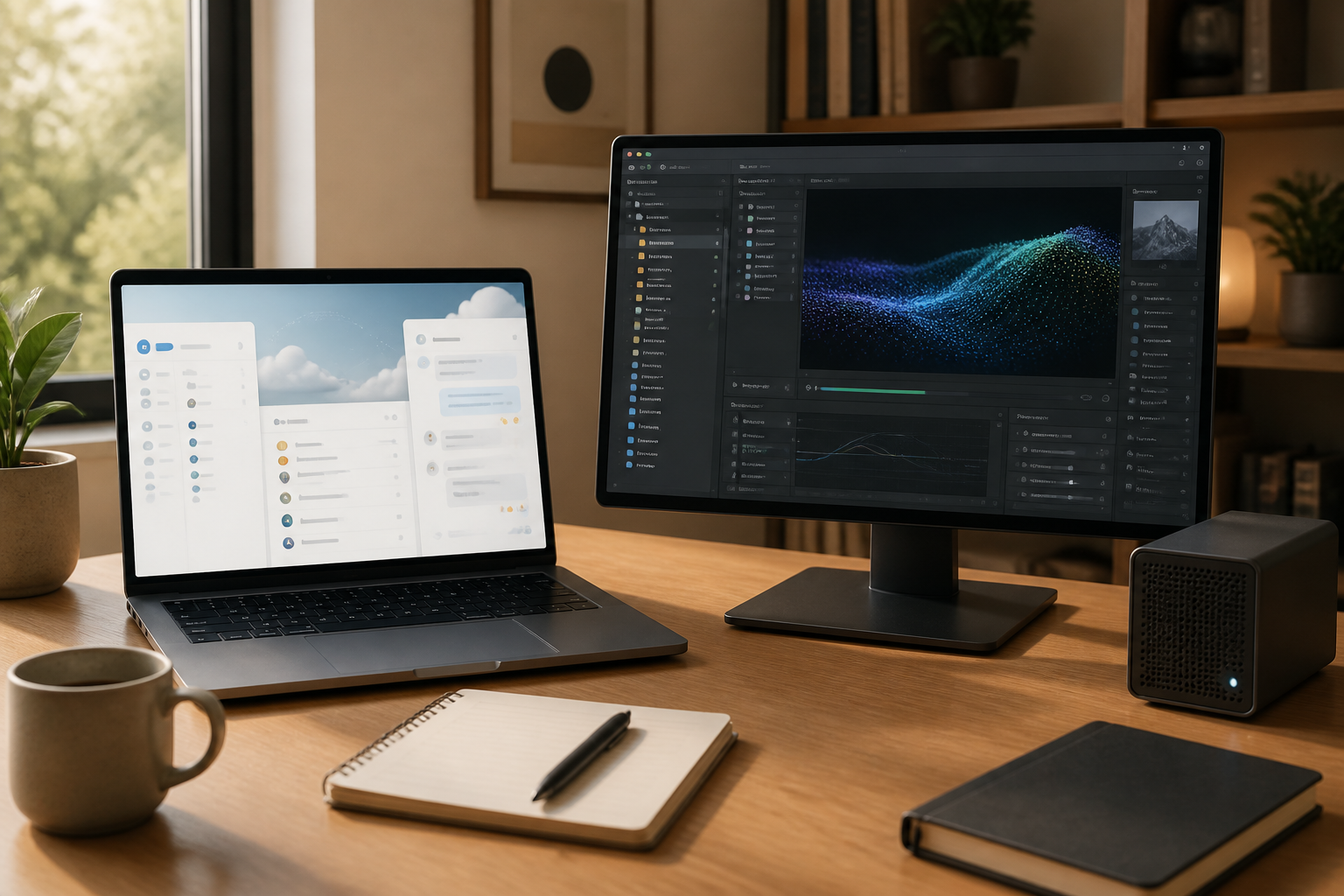
Many people choose applications simply because they are the most recommended or look modern. However, the differences between web applications and desktop applications can affect work speed, data access, internet usage, and file security.
Web applications run through browsers like Chrome, Edge, or Safari. Meanwhile, desktop applications are installed directly on computers and can usually be used without opening a browser. The two are not opponents that must be chosen one over the other forever. The right choice depends on the type of work, device conditions, and how you manage data.
What are the differences between web and desktop applications?
Web applications are accessed via an internet address. Examples include email services, online document processors, browser-based cash register systems, and various collaboration platforms. Data is generally stored on the service provider's servers, allowing access from multiple devices.
Desktop applications are installed on computers or laptops. Examples include video editors, design applications, audio processors, or accounting software that stores most of its processes and data on local devices.
The boundary between the two is becoming increasingly blurred. Many desktop applications require an internet connection for synchronization, while some web applications already provide offline modes or companion applications. Therefore, the category name alone is not enough to determine the actual experience.
When do web applications make more sense?
1. You frequently switch devices
If work is done from a work laptop, home computer, and mobile phone, web applications are usually more convenient. You simply log into your account to continue working without manually transferring files.
This model is very useful for work that requires shared access. Teams can open documents, view task statuses, or update data from different locations without creating multiple copies of files.
2. Collaboration is a key part of the work
Web applications are typically designed with sharing features, comments, change history, and access settings. This reduces the habit of sending files back and forth via email or messaging apps.
However, ease of collaboration does not mean everyone should have full access. Set who can view, edit, or download data. The ease of sharing needs to be balanced with proper permission settings.
3. You want to reduce technical work
Web application updates are generally handled by the service provider. Users do not need to download new installers or manage version compatibility manually.
This is suitable for small businesses or teams that do not have dedicated technical staff. However, reliance on service providers also means you need to pay attention to price changes, storage limits, data export policies, and potential service disruptions.
When are desktop applications superior?
1. Work requires high performance
Video editing, processing large photos, 3D modeling, music production, and certain technical tasks are usually more comfortable to do with desktop applications. Applications can directly utilize computer resources, including processors, memory, and graphics cards.
Web applications are also becoming more powerful, but their performance is still affected by the browser, connection, and how the service processes data on the server. For heavy tasks, even a small delay can disrupt the workflow.
2. You work with large files
Uploading and downloading large files takes time and requires a stable connection. If files need to be processed repeatedly, local storage can make the work feel smoother.
However, storing files on a computer does not automatically mean it is safe. Use separate backups and do not rely on a single laptop as the only storage location.
3. Internet is not always available
Desktop applications are often a safer choice for travel, locations with limited connectivity, or work that must continue when online services are problematic.
Note that some modern desktop applications still require a connection for activation, synchronization, or certain features. Before relying on them offline, conduct tests first.
Four questions to ask before choosing an application
- How often is work done with others? If the answer is almost every day, collaboration features and permission settings need to be a primary consideration.
- Does the work require high performance? For media processing or large data, desktop applications may be more suitable.
- How important is cross-device access? If you frequently switch devices, web applications or a good synchronization system will be more practical.
- What happens if the service or account is inaccessible? Ensure there is a way to export data, use local copies, or recover access.
Don't just compare features
Feature lists often make applications look more appealing than the actual experience. Two applications may both have file sharing features, but one may be easier to use, have clearer permission settings, or be faster when handling large documents.
Try testing the applications with real work for a few days. Use files that you typically work on, invite one or two colleagues, and then observe a few things: how many steps are required, whether changes are easy to track, how quickly the application responds, and whether data can be exported in a usable format elsewhere.
A good application is not the one with the most features, but the one that reduces repetitive work without creating new problems.
The most realistic strategy: use both
In many cases, the best choice is not web or desktop applications, but a clear combination of both. Web applications can be used for communication, coordination, and shared documents. Desktop applications can handle heavy work or processes that require offline access.
For example, teams can store briefs and project statuses in web applications, process video materials in desktop applications, and then upload the final results to a shared workspace. This way, each tool is used according to its strengths.
The important thing is to establish simple rules: where the main files are stored, when copies are made, who can change documents, and how work continues if the connection is lost.
What you can do now
- Create a list of the three most frequently performed digital tasks.
- Mark tasks that require collaboration, high performance, or offline access.
- Test one web application and one desktop application using real work.
- Check if data can be exported in common formats.
- Note subscription costs, storage needs, and internet dependencies.
Choosing an application should start from the workflow, not from the popularity of names or the length of feature lists. When needs are clear, decisions become simpler: use web applications for access and collaboration, desktop applications for control and performance, or combine both with neat rules.
– Rio Yotto @rioyotto