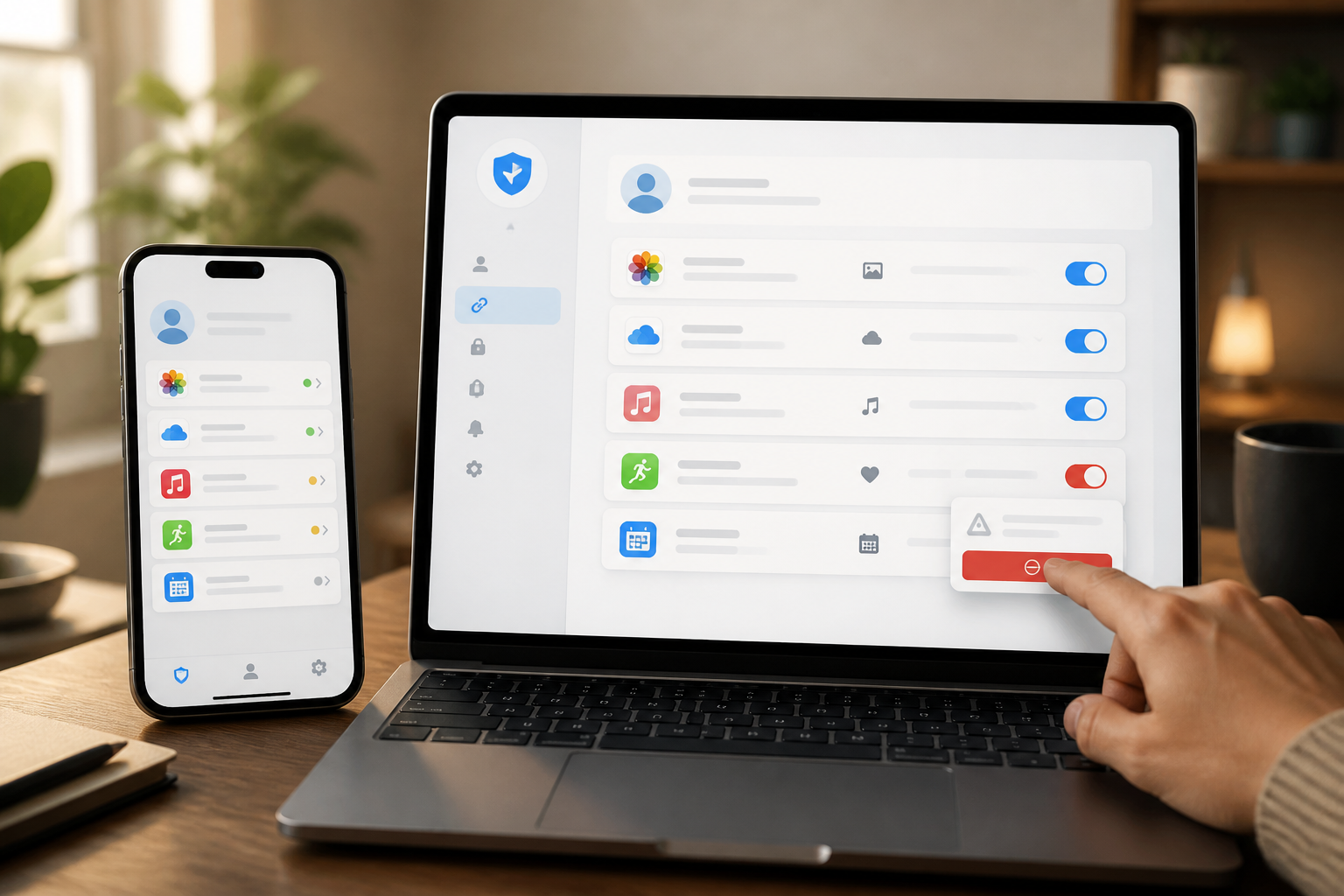
Many people feel that their task is complete once an app is deleted from their phone. However, if you previously chose "Sign in with Google" or "Sign in with Apple," that app may still be recorded as a service connected to your main account.
This does not mean that every old app is necessarily misusing data. The issue is that we often forget which services have been granted permissions, what data can be accessed, and whether the app is still actively used. In digital security, forgotten permissions are still worth checking.
Why is deleting an app not enough?
Apps on your phone and connections to accounts are two different things. Deleting an app only removes the program from the device. Meanwhile, permissions granted through Google or Apple accounts are managed by the account provider and related services.
Google explains that third-party apps can be granted access to certain account data, such as calendars or storage. If that access is revoked, the app can no longer access your Google account, although some of its features may stop working. ([support.google.com](https://support.google.com/accounts/answer/13533235?hl=en&utm_source=openai))
In the Apple ecosystem, users can also review apps that use Sign in with Apple and stop using that feature. Once stopped, users may need to create new credentials when they want to log back into that app. ([support.apple.com](https://support.apple.com/guide/iphone/sign-in-with-apple-iph238921d37/26/ios/26?utm_source=openai))
Risks of Unrevoked Access
The risks are not always about account theft. There are several simpler but still concerning possibilities:
- Old apps may still read certain data that you previously allowed.
- Data from services that are no longer used may still be stored with third parties.
- Apps whose management has changed or are no longer active still appear as account connections.
- You may forget that an app used your main account for login, then have difficulty logging in after access is revoked.
The type of data that can be accessed depends on the permissions granted. Therefore, do not panic when you find many apps in your connection list. Consider that list like a digital keychain: check which keys are still needed and revoke those that no longer have a reason to exist.
Check App Connections in Your Google Account
If you frequently use "Sign in with Google," perform regular checks. The menu names may change depending on the device or interface updates, but the flow generally goes like this:
- Open the Google account management page.
- Go to the section for third-party app connections or connected apps.
- Check the app names, developers, and types of access granted.
- Select apps that are no longer used or that you do not recognize.
- Revoke access, then read the warning before confirming.
Google advises users to read the privacy policies and security information of developers before granting access to third-party apps. Google also provides options to review or remove connected apps at any time. ([support.google.com](https://support.google.com/accounts/answer/13533235?hl=en&utm_source=openai))
Do not rely solely on the app name. Pay attention to the developer as well. An app with a familiar name may not necessarily refer to an official service. If you do not remember using it, it is safer to look for information from its official site first. If you are still unsure, revoking access is a reasonable option—keeping in mind that you may need to log in again or lose certain features.
Check Apps Using Sign in with Apple
Apple device users can check apps that use "Sign in with Apple" through their Apple account settings. Select the list of related apps, then open the service you want to review.
Apple provides the option to stop using "Sign in with Apple." For services that use the Hide My Email feature, users can also set up email forwarding or turn it off for specific apps. ([support.apple.com](https://support.apple.com/guide/iphone/sign-in-with-apple-iph238921d37/26/ios/26?utm_source=openai))
Before revoking access, ensure you understand the implications. Some apps use "Sign in with Apple" as the primary account identity, not just as a login button. After access is revoked, the app may ask you to create a new password or link another email address.
Don't Forget to Check Permissions on the Device
In addition to account connections, also check app permissions on the device. Apps that are still installed can request access to location, camera, microphone, contacts, photos, or notifications.
These permissions are different from access through "Sign in with Google" or "Sign in with Apple." An app may no longer be connected to your Google account but still have camera permissions on your phone. Conversely, an app that has been deleted is no longer active on the device, but its account connection still needs to be checked separately.
Use a simple question to assess each permission: Does this feature really need that access? A map app reasonably requests location access when in use. However, a simple calculator app requesting contacts or microphone access is worth questioning.
Safe Checking Sequence
To avoid locking your account or losing data, use the following sequence:
- Note the apps that are still frequently used.
- Ensure you know alternative login methods before revoking access.
- Check important data stored with that service.
- Revoke access for old or unrecognized apps.
- Test logging back in only if that service is still needed.
- Delete the app from the device if it is no longer used.
For apps that have managed documents, calendars, photos, or work data, first check whether revoking access will stop synchronization. If the app is no longer in use, that step usually helps reduce unnecessary digital footprints.
What Does This Mean for Us?
The convenience of the "Sign in with Google" and "Sign in with Apple" buttons is significant. We do not need to create many passwords, but this ease also quickly accumulates a list of connected services.
Make checking account connections a small habit, such as every three to six months. You do not need to remember all the services you have ever tried. Just start with unknown apps, services that have not been used for a long time, and access that feels too broad.
Digital security is not just about creating strong passwords. Reducing unnecessary permissions is also a simple way to minimize the risk surface—without having to install additional security apps or understand complicated technical terms.
Sources & Further Reading
- Manage links between your Google Account & apps from other developers
- Share some access to your Google Account data with apps from other developers
- Sign in with Apple on iPhone
- How to use Sign in with Apple
– Rio Yotto @rioyotto