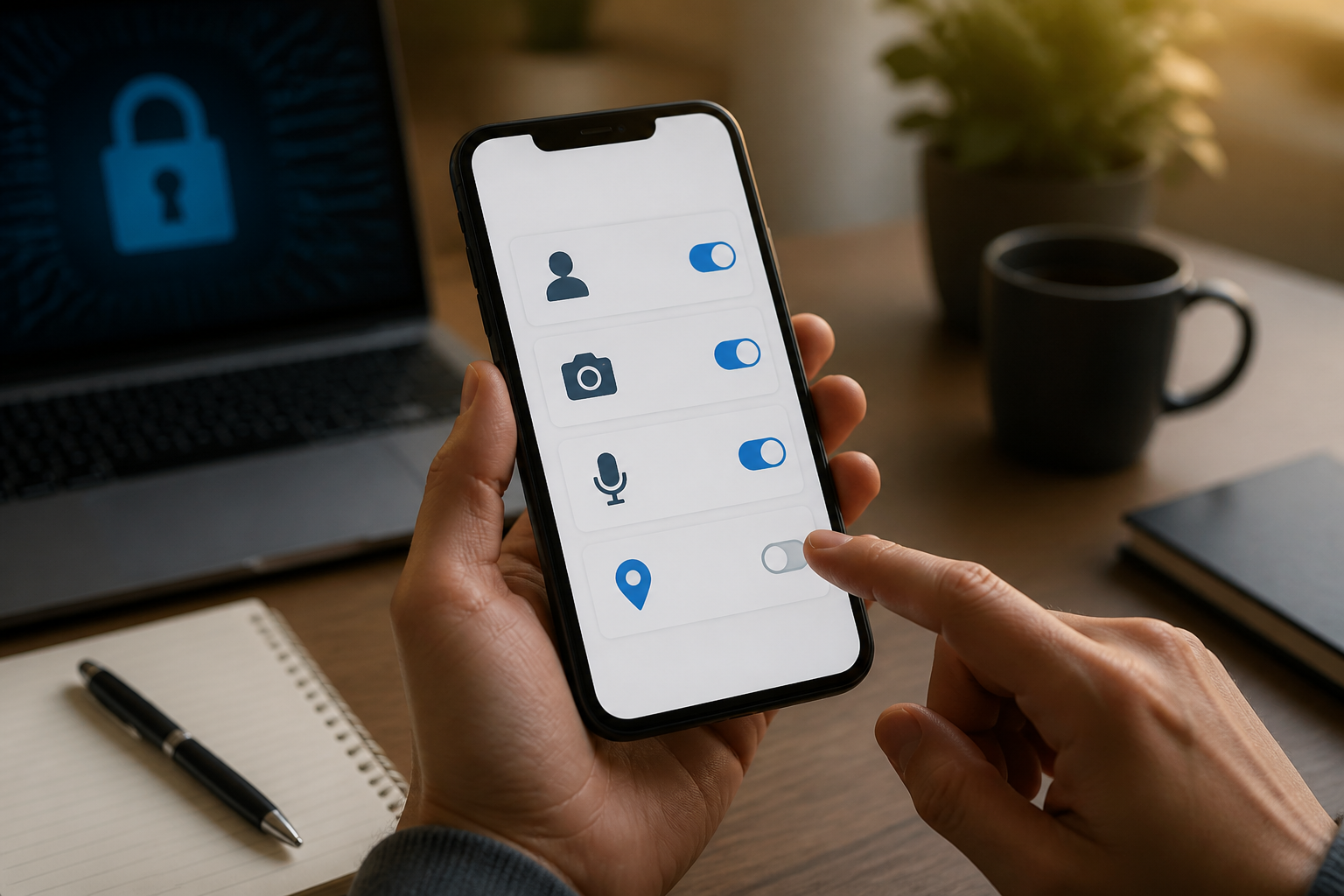
When installing a new app, requests for contact access often appear with little explanation. Some people immediately press Allow to quickly finish the process, while others deny all permissions out of concern for data misuse. Neither option is always the best choice.
What’s more important is understanding the reason behind a permission. Messaging apps may need access to contacts to find friends who are already using the same service. However, flashlight apps or simple games usually have no strong reason to read the list of phone numbers on your device.
App permissions are not a formality
App permissions are a mechanism that informs the operating system that an app wants to access a specific part of the device. This can include contacts, camera, microphone, location, photos, calendar, or nearby devices.
The problem is that permission names often sound generic. Access to contacts does not just mean viewing one name you select, but it can give the app the opportunity to read the list of people stored in your phonebook. That list may contain names, numbers, email addresses, or other information you have saved.
Technically, apps do not necessarily use all the data they can access. However, once permission is granted, you lose some control over that data. Therefore, the decision to grant permission should be based on the app's functionality, not just a habit of pressing the next button.
Differentiate between reasonable and suspicious permissions
The easiest way is to connect each permission with the feature you want to use. Use a simple question: Will the main feature of this app fail without that permission?
- Messaging apps: access to contacts makes sense if you want to find other users from your phonebook.
- Video call apps: access to the microphone and camera is necessary during calls, but it doesn’t always have to be active.
- Map apps: access to location is relevant when you request directions or search for nearby places.
- Document scanner apps: the camera is needed to take pictures of documents, but access to contacts is usually unrelated.
- Flashlight apps: access to the camera may be required on some devices because the flashlight is connected to the camera module, but permissions for contacts, SMS, or microphone are questionable.
This is not an absolute rule. Some apps have additional features that require certain permissions. However, developers should be able to explain the relationship between permissions and functionality in easily understandable language.
Don’t just look at the app name
Apps with seemingly trustworthy names do not necessarily have good privacy practices. Before granting permissions, check who the developer is, whether the app is still being updated, and whether the feature descriptions match the permissions requested.
Also pay attention to user reviews, but don’t make them your only basis. Reviews may discuss ads, performance, or technical issues without touching on privacy. If a simple app requests a lot of unrelated access, that’s already a good reason to pause.
Avoid installing apps from unclear sources, especially if the app asks you to disable device protection or grant special permissions beyond normal needs. Installation files from outside official stores are not automatically dangerous, but the risks are usually harder for average users to assess.
Use temporary permissions if available
On many modern devices, permissions do not always have to be granted permanently. You may be able to choose access only while the app is in use, just once, or select specific photos without granting access to the entire gallery.
This option is useful for apps that only occasionally need data. For example, a shopping app can be granted camera access when you scan a code, and then that permission can be reviewed after completion. Map apps can use location while navigation is active, without needing access all day.
For contact access, temporary options are not always available on all systems or apps. If you only want to invite one person, use the manual contact sharing feature if available, instead of opening the entire phonebook.
What you can do now
- Open your device's privacy settings. Look for the app permission manager menu, then select categories like Contacts, Camera, Microphone, or Location.
- Check which apps have access. Reassess whether each app truly needs that permission.
- Reduce overly broad access. Change from always allowed to only while in use, or deny if the feature is not necessary.
- Test the app's main functionality. After revoking permissions, see if the app can still be used. If there are no issues, that permission is likely not important for your usage.
- Uninstall apps that are no longer used. Apps that are rarely opened can still store data or receive updates, so there’s no reason to keep them without a clear need.
What if the app keeps insisting?
Some apps repeatedly display permission requests or make the main features difficult to use until all access is granted. In such situations, read the explanations provided and consider whether the app's benefits are worth the data requested.
Forcing access does not always mean the app is dangerous. It could be that the app's design is poor or the developer chose a less privacy-friendly implementation method. However, from a user’s perspective, the outcome remains the same: you have no reason to provide more data just because the app displays an urgent button.
Reasonable permissions should follow the needs of features, not the other way around. If an app requests overly broad data for a very simple task, the options are not just “allow” or “cannot use the app.” You can look for more reasonable alternatives.
Facts, considerations, and healthy habits
The fact is, permissions give apps access to specific categories of data or devices according to the operating system's mechanism. The consideration is, those permissions may indeed be necessary, but they do not always have to be active all the time. The healthy habit is, regularly review permissions and revoke access that is no longer relevant.
Device privacy does not mean rejecting all technology. The goal is to ensure that apps only get the data they need to assist you. By getting into the habit of reading permission requests and connecting them with app functionality, small decisions when installing apps can become a useful layer of protection in the long run.
– Rio Yotto @rioyotto