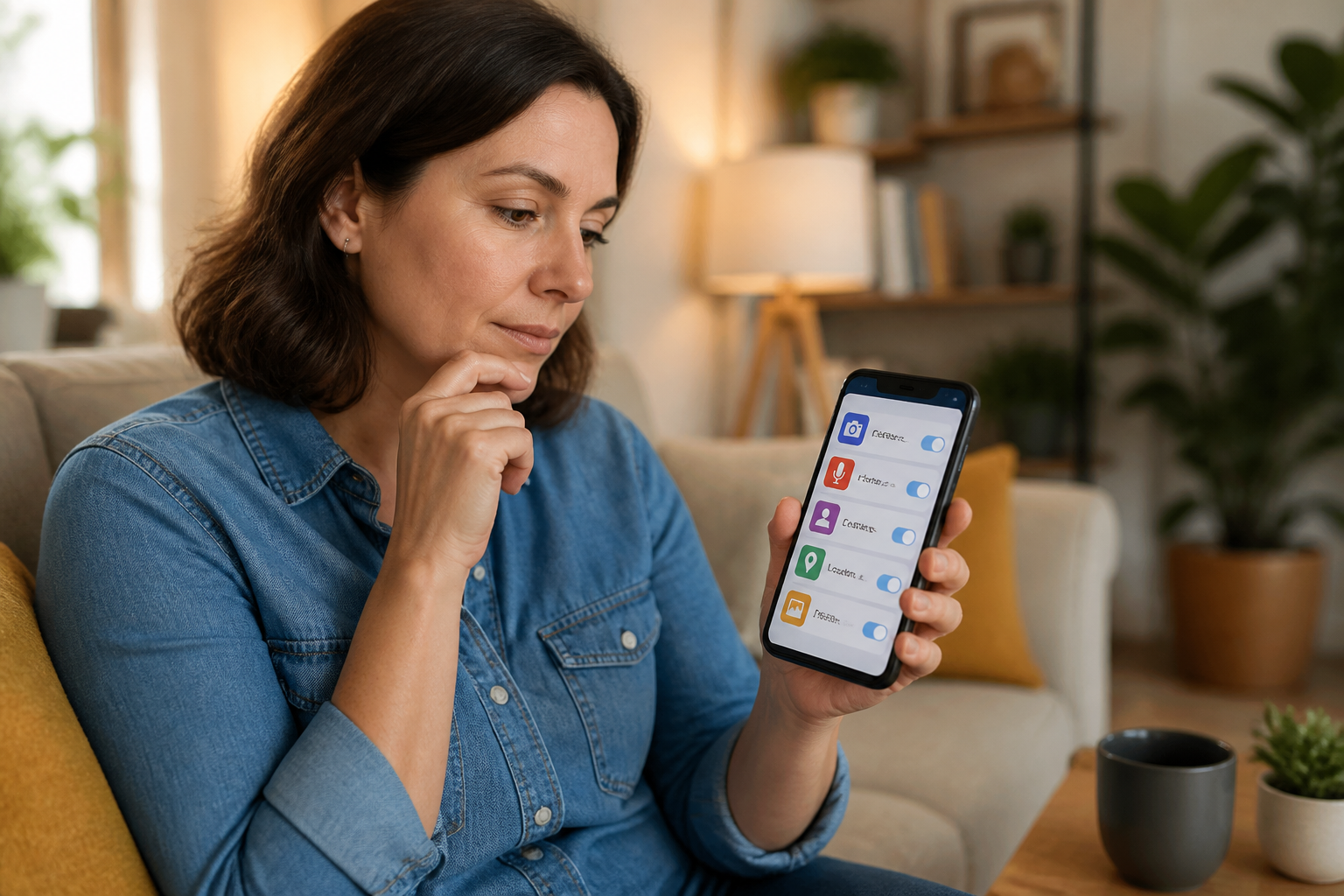
When installing a new app, questions often arise such as: “Allow the app to access the camera?”, “Can it view contacts?”, or “Allow location while in use?”. Many people immediately press “Allow” because they want to start using the app right away. However, these permissions determine what data and features the app can use.
Understanding app permissions does not mean you have to be a digital security expert. The simple principle is: apps should only be granted access that is necessary for their functionality. A camera app reasonably requests camera access. However, a calculator app asking for contact access is questionable.
What exactly are app permissions?
App permissions are the approval from the phone owner for an app to use certain parts of the device or personal data. For example, a messaging app may need camera access to send photos, microphone access for voice calls, and contacts to find friends who also use the service.
Without permission, an app cannot use certain functions. However, granting permission does not mean the app will only use that access once. As long as the permission is active, the app can request it again when that feature is used.
So, app permissions are similar to giving a key to a specific room in your house. You do not have to give keys to all rooms just because someone wants to enter the living room.
Common types of permissions
Camera
Camera access is needed by apps to take photos or videos. Examples include camera apps, QR code scanners, video calls, marketplaces, and social media.
If the app is only used to read articles or calculate expenses, the camera access request is usually not important. You can deny it. If a feature later requires it, the app will typically ask for permission again.
Microphone
The microphone is used to record sound, make calls, send voice messages, or use dictation features. Video conferencing apps reasonably request this access.
Pay attention to the context. A voice recording app needs the microphone. A photo editing app that only adjusts image colors may not necessarily need it.
Contacts
Contacts access allows the app to read the list of names and phone numbers stored on the phone. This can help messaging apps find people who are already using the same service.
However, contacts also contain data about other people, not just your data. Before granting access, ask: does the app's main feature really depend on the contacts list? If not, choose “Do not allow” or the most limited option.
Location
Location access is used to show your position, find nearby places, provide directions, or display information based on the area. Map and transportation apps usually require it.
Some phones offer options like “While the app is in use” and “Always allow”. If available, choose access while the app is in use for regular needs. The app does not need to know your location all the time if that feature does not require it.
Photos and files
This permission allows the app to select, read, or save photos and documents. Gallery apps, photo editors, and cloud storage services may require it.
If the phone offers an option to select specific photos only, use that option. This method is more limited than granting access to the entire photo collection.
How to quickly assess permission requests
Use the following three questions every time an app requests access.
- Does this permission relate to the app's main function? Navigation apps need location. Flashlight apps do not need to read contacts.
- Am I using a feature that requires that access? If you are on a video call, camera and microphone access makes sense. If you are just opening the settings page, that request can be postponed.
- Are there more limited options available? Choose “While in use,” “Specific photos,” or “Do not allow” if those options are sufficient for your needs.
Do not just look at the app's name. Apps from well-known companies can also request access that is irrelevant to your needs. Conversely, small apps are not necessarily harmful, but they still need to be evaluated based on their functions and the permissions requested.
If I accidentally pressed “Allow,” is it too late?
No. Permissions can be checked and changed through the phone settings. Menu names may differ between Android and iPhone, but you can usually search for app permissions, permissions, or open the app information page.
There, you can see access such as camera, microphone, location, contacts, photos, and files. Turn off permissions that are no longer needed. If an app stops functioning after its permission is turned off, you can enable it again when you need that feature.
Also, check apps that are rarely used. Sometimes we grant permissions a few months ago and then forget that the app is still installed.
Beware of unreasonable patterns
Permission requests become more suspicious if they do not align with the app's function. For example, a wallpaper app requesting contacts and microphone access, or a notes app asking for location access all the time without a clear reason.
Repeated permission requests should also be noted. If you have already denied access and the app continues to insist without explaining its benefits, consider not using it. Do not reinstall the app from files or unofficial app stores just because the official version did not receive the permission you granted.
This does not mean that every strange permission request indicates a harmful app. It could be that the app developer designed features in a less tidy manner. However, as a user, you still have the right to deny access that you do not understand or do not need.
What you can do now
- Open the list of apps on your phone and check apps that have not been used for a long time.
- Turn off access to contacts, microphone, camera, or location that are not relevant.
- Use the “While the app is in use” option if access all the time is not necessary.
- Select only specific photos if the phone provides that option.
- Before installing a new app, read its main function and pay attention to the permissions requested.
- Uninstall apps that are no longer used, especially if they request many accesses without clear reasons.
The goal is not to make the phone unable to use features at all. The goal is to ensure that every permission is granted consciously. When you understand the access requested, the “Allow” button is no longer an automatic decision, but a responsible choice.
– Rio Yotto @rioyotto